 Download Online Help
 Print
|
|
|
|
|


Invoice Order Selection
The Invoice Order Selection window allows the user to associate the invoice to exist orders in the system. The Invoice Order Select window will only display those un-invoiced orders for the Order Type, Order Number and/or Vendor which appears on the Invoice Header, as seen below:
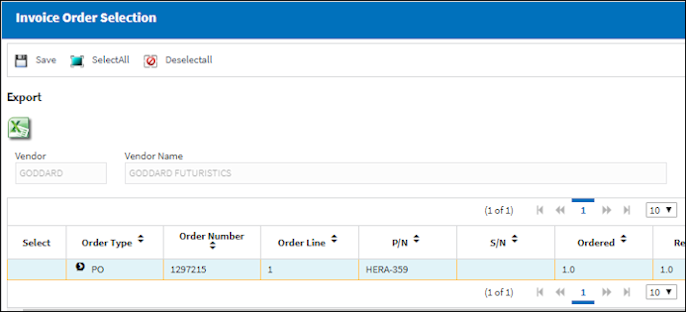
The following options/information is available in this window:
_________________________________________________________________________
Select checkbox
Check the Select checkbox to associate the order to the Invoice Header.
Order Number
The type of order and the order number for the transaction.
Line
The specific Line item of the Order. Each Line item could represent a different part included in the same order.
P/N
The Part Number reference for the aircraft part. The Ordered Part Number and PN Description to be received and the Part for which the invoice is created.
Quantity
The quantity of part number ordered, received, inspected and invoiced.
Ordered - Quantity requested on the order detail general tab.
Received - Quantity received by the receiving department.
Note: The system allows for partial receiving. The Order Number Line item will remain in OPEN Status until all ordered parts are received. Once all ordered parts are received, the Order Number Line item status will change to CLOSED.
R/I - Quantity which Receiving Inspection have been performed.
Note: N/A will appear in red in the R/I field for those parts which are not configured for Receiving Inspection in the P/N Master, Technical Engineering Tab.
Invoiced - The Quantity of Ordered Parts which have been invoiced.
UOM
The received Part Number's Unit Of Measurement.
Unit Cost
The unit cost per unit as entered in against the Order.
S/N
The Serial Number for the specific serialized part.
Batch
The batch number that is associated with a part when introduced/received into the system. (GRN for PO, LO or EX)
Note: Batch numbers will not appear for consumable part numbers in the Invoice Order Selection window, due to partial receipts.
G/L
G/L account which was used for used for the ordering the part.
_________________________________________________________________________
All outstanding orders related to this particular vendor are displayed. Here the user will associate the line items related to the received invoice.
If there were several lines on the order, they will all appear here individually. Select the checkboxes of the items(s) to be associated with this received invoice. The user may select the Select ALL  button to pay all of the orders appearing in the Invoice Order Selection window against the Invoice. The user may also select the De-select ALL
 button to remove ALL checked orders from being paid against the Invoice. If the user is required to exit the Invoice Order Selection window, they may Exit to return to the main Invoice Selection window.
Once the required Order items are selected, clicking on the Save  button will take the user to the Invoice Order Item Detail window.
Additionally, for information regarding any warnings or flags that may appear in this window, refer to the Invoice Order Selection Flags.
Download Online Help
Print
|
©1997-2018 Trax USA Corp. All rights reserved. This manual may not be copied, photocopied, reproduced, translated, or converted to any electronic or machine-readable form, in whole or in part, without prior written approval from Trax USA Corp. |
 |