 Download Online Help
 Print
|
|
|
|
|


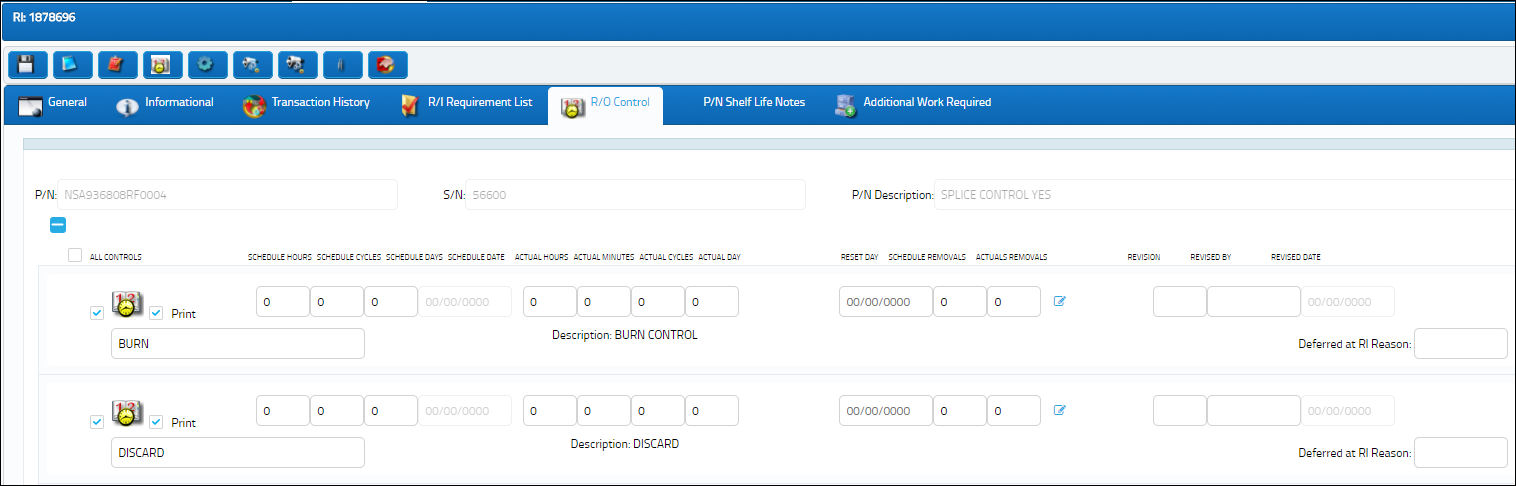
The R/O Control tab will appear when receiving Repair Orders via the Receiving Inspection option, and not the Order Receiving option. The R/O Control tab allows the user to define what P/N Controls and P/N E/Cs have been complied with against the Repair Order. Over due items must be complied with/reset in order to be received in a serviceable location.
Note: The switch  ROCTLRI determines whether this tab appears in either Order Receiving or Receiving Inspection window. If set to Yes, the system will reset the part control for repair orders after receiving inspection. The R/O Control Tab will appear via the Receiving Inspection option, not the Order Receiving option. If set to NO, the R/O Control Tab will appear via the R/O Receiving window.
The following options/information is available in this window:
_________________________________________________________________________
Expand  button/Collapse
 button
Select the Expand button to expand the P/N line for a tree view of all associated Controls and relevant information. Select the Collapse button to collapse the tree.
P/N
The Part Number reference for the aircraft part. Please note that any additional Part Numbers which may appear on this tab may be NLA to the NHA which appears on the Report Order Detail, General tab. ALL NLA component controls will appear under the appropriate P/N S/N.
S/N
The Serial Number for the specific serialized part. Please note that any additional Serial Numbers which may appear on this tab may be NLA to the NHA which appears on the Report Order Detail, General tab. ALL NLA component controls will appear under the appropriate P/N S/N.
P/N Description
The description of the part.
Select checkbox
Check to make the time control effective to that part number. Once this checkbox is selected, the option to edit the reset date of that particular time control and/or removal actuals becomes available (if applicable).
Note: Deselecting a control in the Receiving Inspection Detail, R/O Control tab will not affect that control's value in the Repair Order Detail, Control tab.
Control
This is the Part Number with the time control.
Overdue indicator
'Overdue' appears in red for each Control that is overdue. It appears once the Save button is selected for a Receiving Inspection. A warning prompt also pops up indicating that at least one P/N Control or one P/N E/C has reached scheduled time and will become unserviceable. To see the prompt, refer to the Receiving Inspection Detail, General Tab.
Schedule Hours/Cycles/Days
The number of hours/cycles/days allotted for a specific time control schedule. The schedule figure is set up via the Settings/Update/P/N control button.
Actual Hours/Cycles/Days
The number of accumulated hours/cycles/days against the time control schedule.
Reset Date
The last reset date of the part time control.
Removal Schedule
The removal schedule field is used to track component removals (i.e. a wheel assembly), where a certain number of removals should occur before an overhaul needs to be performed.
Removal Actual
The number of times the component has been removed from an aircraft. The actuals figure is automatically adjusted with each A/C P/N transaction.
Audit  button
Select the Audit button to view the P/N Inventory Control Audit window.
Calendar Control
Select to activate calendar control on this part. Calendar selected items are “days by the calendar” regardless of whether they are installed on an aircraft or not. If calendar control is selected, the system will block the other time parameters for that entry by graying out the appropriate fields.
Note: The switch ROCTLRI determines whether this tab appears in either Order Receiving or Receiving Inspection window. If set to Yes, the system will reset the part control for repair orders after receiving inspection. The R/O Control Tab will appear via the Receiving Inspection option, not the Order Receiving option. If set to NO, the R/O Control Tab will appear via the R/O Receiving window.
_________________________________________________________________________
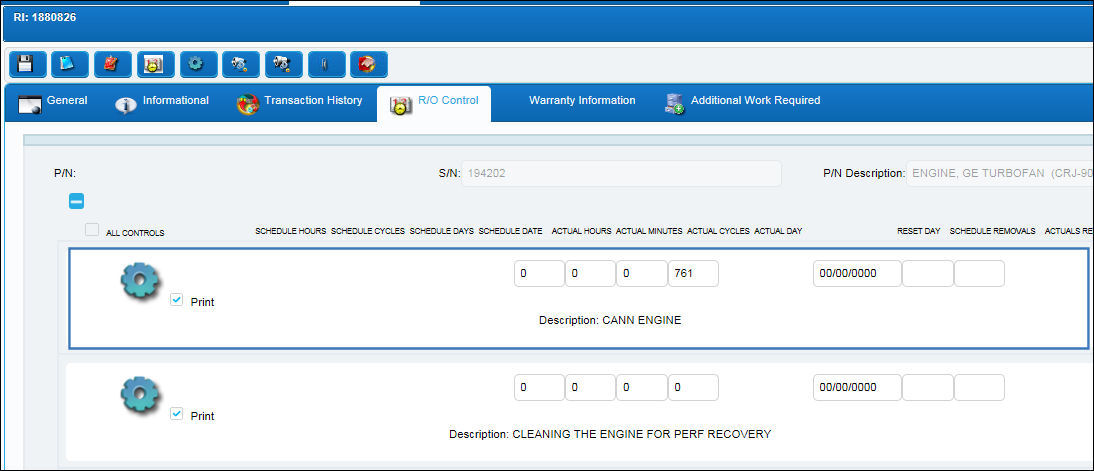
Enter/verify the following information for an Engineering Control:
_________________________________________________________________________
Select checkbox
Check to make the engineering control effective to that part number. Once this checkbox is selected, the option to edit the reset date of that particular time control and/or removal actuals becomes available (if applicable).
Note: E/Cs with a Mandatory Classification cannot be deselected. The following error message 'Reset De-Selection' appears:
Note: Deselecting a control in the Receiving Inspection Detail, R/O Control tab will not affect that control's value in the Repair Order Detail, Control tab.
Control
The Engineering Control that specifies aircraft or component scheduled maintenance intervals.
Note: E/Cs with a Mandatory Classification are displayed in red and cannot be deselected. For more information refer to the Engineering Control, General Tab via the Engineering - E/C Training Manual.
Schedule Hours/Cycles/Days
The number of hours/cycles/days allotted for a specific engineering control schedule. The schedule figure is set up in the Schedule Tab via the Engineering/Update/Engineering Control.
Actual Hours/Cycles/Days
The number of accumulated hours/cycles/days against the engineering control schedule.
Reset Date
The last reset date of the engineering control.
Removal Schedule
The Removal Schedule field is used to track component removals (i.e. a wheel assembly), where a certain number of removals should occur before an overhaul needs to be performed.
Removal Actual
The number of times the component has been removed from an aircraft. The actuals figure is automatically adjusted with each A/C P/N transaction.
_________________________________________________________________________
When an Engineering Control is updated before the part passes Receiving Inspection, the R/O Control tab will reflect any of the changes made to the E/C (including if the control becomes overdue).
After clicking on the Save  button, the system will ask if you require re-printing the tag.
After the receiving inspection transaction is carried out, the item will be available for issue to an aircraft.
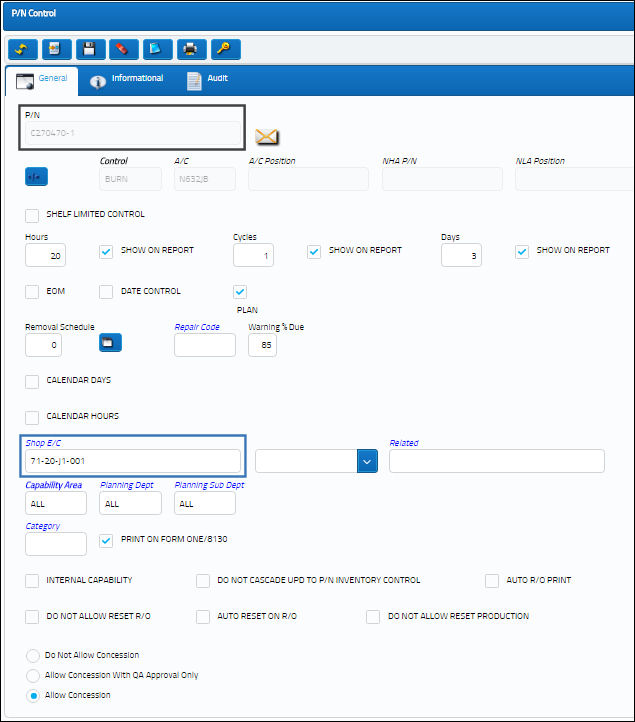
Link P/N Control to Shop E/C:
The relationship between the P/N Control and Shop E/C are now linked. This is shown in the Receiving Inspection, R/O Control tab.
The following P/N Control is linked to the below Shop E/C:
The part has been received:
Go to the Receiving Inspection, R/O Control tab:
When the Control checkbox for FNC is selected, the Control checkbox for 95278-A is selected. Similarly, if one checkbox is de-selected, the other becomes de-selected.
When the Reset Date is populated for the FNC:
. . . the Reset Date becomes populated for the 95278-A:
The linked relationship between the P/N Control and Shop E/C can also be seen in Repair Order Detail, Control Tab, via Repair Order which can be found in the Orders Training manual.
Download Online Help
Print
|
©1997-2018 Trax USA Corp. All rights reserved. This manual may not be copied, photocopied, reproduced, translated, or converted to any electronic or machine-readable form, in whole or in part, without prior written approval from Trax USA Corp. |
 |