
 Share
Share
 Print
Print
|
|
|
|
|


Publish to PDF (Document View), via TraxDoc Master
The Publish to PDF  button is used to create a PDF view of the TraxDoc Document in TraxDoc. This is a useful feature for Trax Users on computers that may not have the software application required to open certain file types.
 Framemaker is no longer supported in X or later versions of TRAX.
The published PDF Document is viewed in the Document View Tab of the TraxDoc Document. Note that this tab is only appears after files in a TraxDoc are published to PDF.
Publish TraxDoc Document files to PDF as follows:
- Open the TraxDoc Document from the TraxDoc Authorization Management.
The TraxDoc Document is opened in a TraxDoc Document Revision Window. - Go to the File Manager Tab and click the Publish to PDF button.
The Trax Print Capture Window is displayed.

- Open the file(s) from the TraxDoc Document that you want to publish to PDF.
Select the file by clicking on it, then right click and select modify file or view file. - Print the file from it's native window application selecting the Trax Printer Driver.
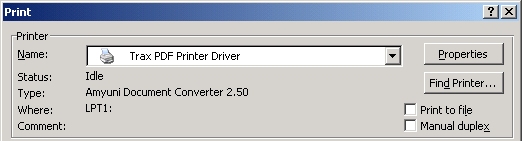
Note: When publishing to PDF with a Word Document deselect the Background Printing checkbox in the Options from the Print Window. Deselecting the Background Printing checkbox will increase the performance of the publish to PDF function.
Share
Print
|
©1997-2026 Trax USA Corp. All rights reserved. This manual may not be copied, photocopied, reproduced, translated, or converted to any electronic or machine-readable form, in whole or in part, without prior written approval from Trax USA Corp. |
 |