
 Share
Share
 Print
Print
|
|
|
|
|


TraxDoc Master, Text Search Tab
The TraxDoc Master, Text Search tab is used to query for TraxDoc documents using specific words. The Documents Containing field will only search for contents in the TraxDoc XML, it will not search at the TraxDoc header level (Title or Description).
Use the available search criteria settings to query for the desired TraxDoc and select the Find  button.
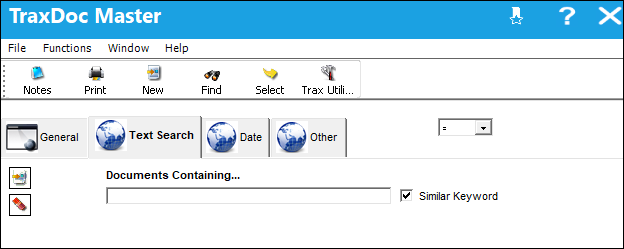
 Note: The Category and Type-Series field in the TraxDoc Master, General Tab must populated for the Text Search tab to function.
Note: Users can double-click on the name of a PDF text result to open a link directly to the Preview Tab, via the TraxDoc Document Detail.
The following information/options are available in this window:
_____________________________________________________________________________________
Sort Filter drop down
Select one of the following to sort/filter for range results such as the following:
<= - Less than or equal to
<> - Not equal to
= - Equal to
>= - Greater than or equal to
Like - Show data like or equal to
Documents Containing
Enter the text to search for.
Similar Keyword
Select this checkbox to search for similar keywords, rather than just looking for exact words and phrases.
_____________________________________________________________________________________
If the user does not populate the Category and Type-Series fields in the TraxDoc, General tab, the system displays the following.
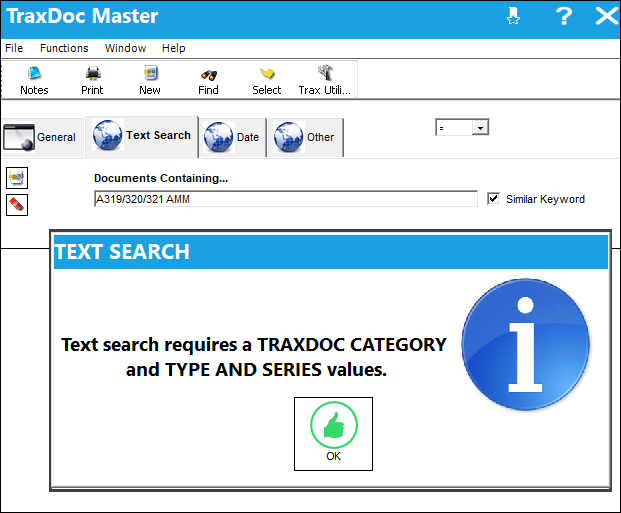
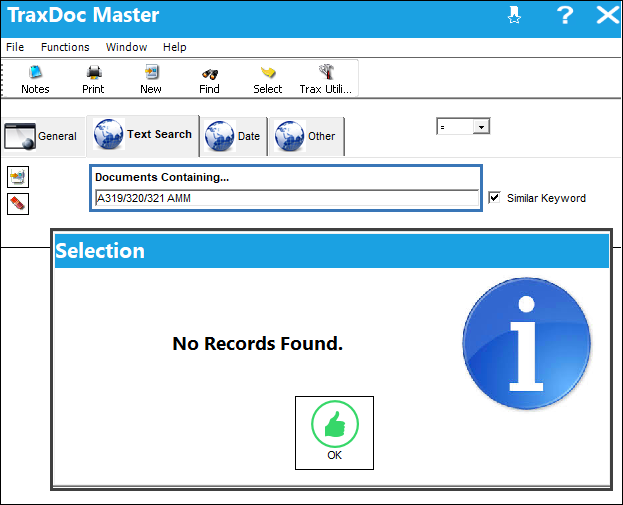
Since the Documents Containing field does not search by Document Title, if the user enters the Document Title the system displays the following.
Enter a description that can be found in the XML of the TraxDoc and then select the Find button.
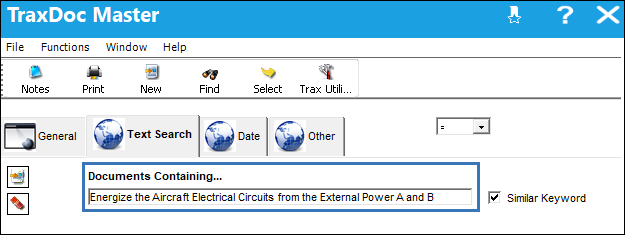
The system now displays a list of possible documents containing that information.
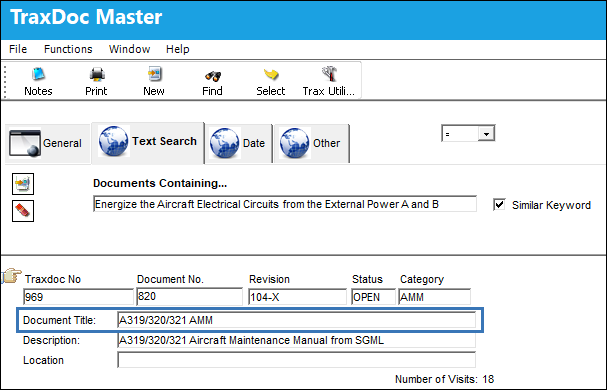
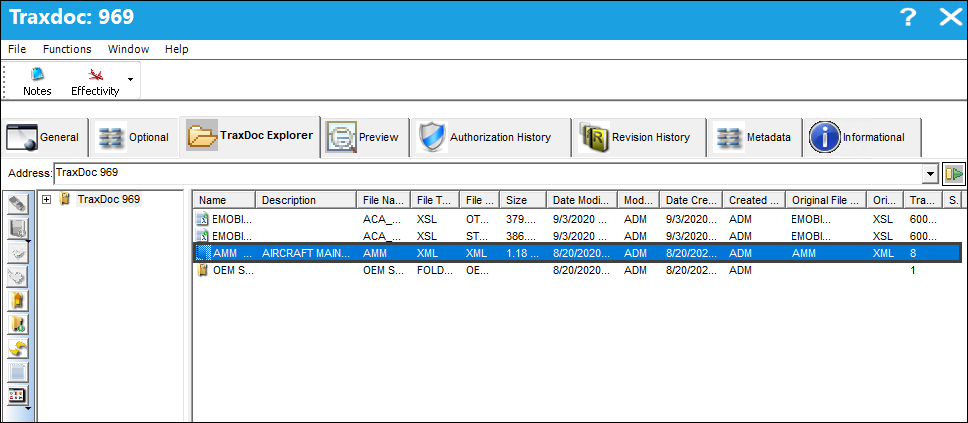
Select into the document, select the TraxDoc Explorer tab and highlight the XML file type.
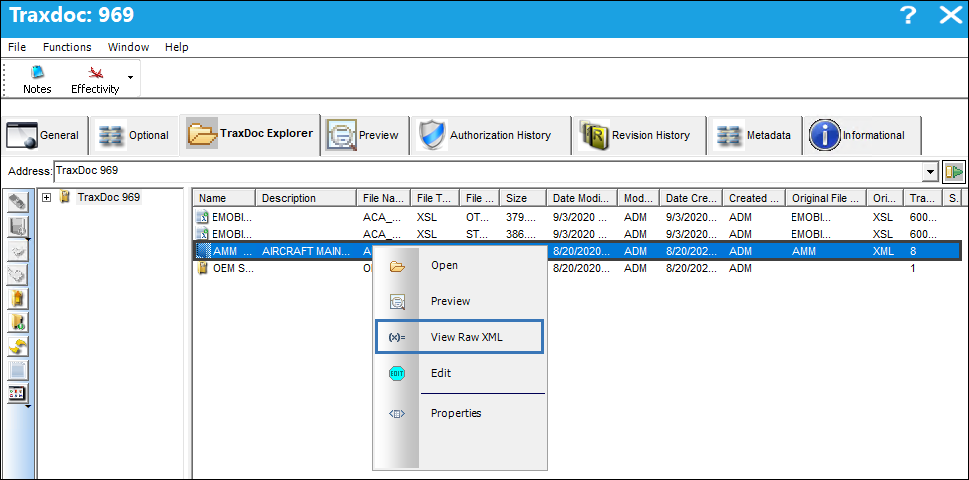
Right click on the XML file and select View Raw XML from the drop down options.
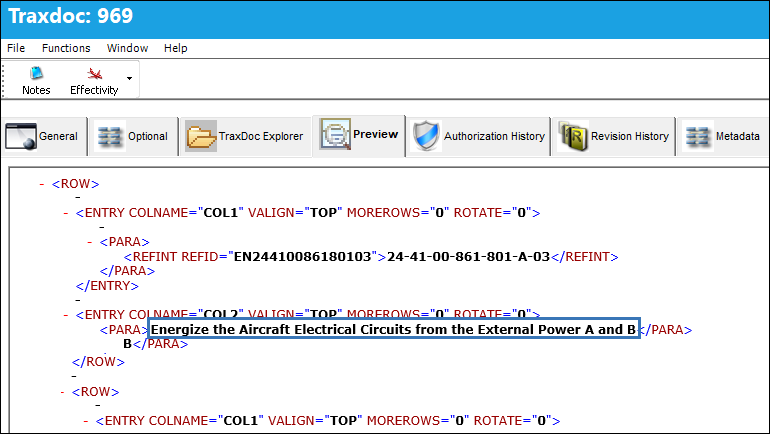
Select the Preview tab to view the XML data; it may take the system several minutes to generate the data. The user can see that the description highlighted below was the same description that was entered in the Documents Containing field in the Text Search tab of TraxDoc Master.
Share
Print
|
©1997-2026 Trax USA Corp. All rights reserved. This manual may not be copied, photocopied, reproduced, translated, or converted to any electronic or machine-readable form, in whole or in part, without prior written approval from Trax USA Corp. |
 |