
 Share
Share
 Print
Print
|
|
|
|
|


To configure the E/C and Task Card link, select the Task Card Control  button.
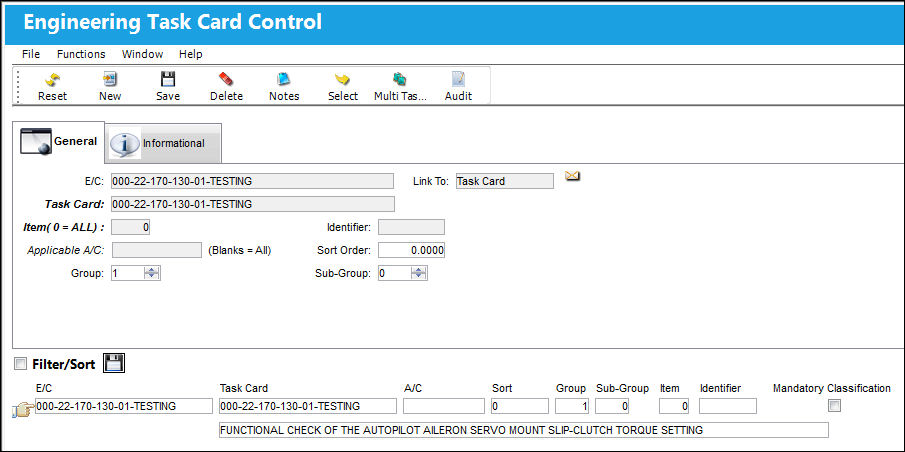
The following information/options are available in this window:
_____________________________________________________________________________________
E/C
The Engineering Control that specifies aircraft or component scheduled maintenance intervals. Engineering Control that the Task Card(s) will be linked to.
Link To
Control that is going to be linked to original E/C.
Task Card
The Task Card / Job Card that details the scheduled maintenance work. In the Task Card field, specify the Task Card that will be attached to the E/C.
Sort Order
Allows the user to specify the order that the E/C's Task Cards will be sorted in. These sequence numbers are sorted according to their numeric values.
Item (0=ALL)
The user can specify the item on the Task Card to be added to the E/C, if necessary. This allows for the creation of a dynamic Task Card applied to a fleet or type/series with various job card instruction items applied to selected type/series or A/C tail numbers. If no item number is specified, the default value of “0” will appear and all items on the Task Card will be added.
Applicable A/C
The A/C that this Task Card will be effective to. If left blank, the Task Card will be effective to all aircraft that the E/C is effective to.
 When Production Switch
  ADDECNOT is set to No, even if the Task Card linked to the E/C has Aircraft effectivity to the Work Order's Aircraft but this 'Applicable A/C' field is not the same as the W/O's Aircraft, then the Task Card will not be added to the Work Order when the E/C is linked. The E/C Task Card's 'Applicable A/C' field will override the Task Card's aircraft effectivity when the Task Card is linked to a Work Order through this E/C linkage. For more information refer to Switch ADDECNOT via the Production Switches Manual.
Identifier
This is a unique identification number applied to item effectivity. When item effectivity is revised, deleted, re-sequenced, this identifier value acts as an audit.
Group
Groups allows the user to create a template that will be used to automatically create complex Work Orders based on parameters set up using the Group and Sub-Group fields.
Subgroup
Sub-Groups allow the user the option to further expand the relationships between Groups by creating Groups within Groups. Essentially, Work Orders within Work Orders.
For information regarding Groups and Subgroups, refer to the topic About Group and Sub-Group, via Engineering Task Card Control.
W/O Group Description
The Work Order used to categorize, manage, and schedule work requirements for aircraft maintenance.
_____________________________________________________________________________________
Additional Functionality:
In the case of a large maintenance event such as a C-Check Inspection, there may be a large number of cards that require entry. To add additional cards as required, continue by selecting the New  button. The user also has the option to utilize the Multi Task Card Select button when adding multiple cards at once to an E/C. This speeds up the process and allows the user to select multiple cards and add them to the E/C and Task Card link window in one step.
Once the user has entered the appropriate E/C and Task Card link, select the Save  button.
Task Cards cannot be re-Opened once the associated W/O Engineering Control has been reset. However, Non-Routine Task Cards can be re-opened if the W/O E/C has been reset.
If the Task Card is 'Pending Authorization', the following error will appear:
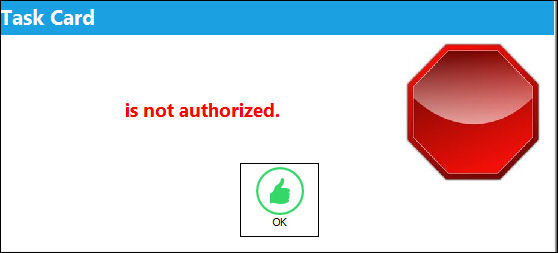
To associate the E/C to a Task Card "Pending Authorization," it must be done through Engineering Authorization Management or Task Card Authorization Management while either are pending authorization depending on the configuration of Switch ECTCLINK.
If the Task Card and the Engineering Control being linked together do not have the same Aircraft Effectivity, the following soft warning appears when the window is saved.
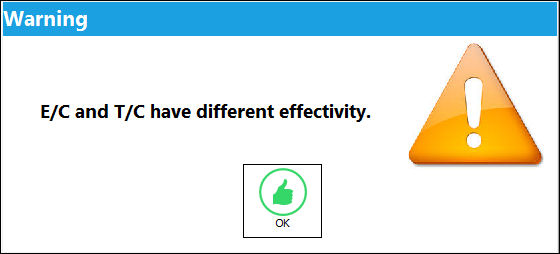
Select OK to continue with the save.
Share
Print
|
©1997-2026 Trax USA Corp. All rights reserved. This manual may not be copied, photocopied, reproduced, translated, or converted to any electronic or machine-readable form, in whole or in part, without prior written approval from Trax USA Corp. |
 |