 Download Online Help
 Print
|
|
|
|
|


The Attachment  button allows users to add images and external documents as an attachment to the currently selected record. Enter the full path (network or other) that contains the image the user would like to associate with the record.
From the Attachment Control window, select the New  button. The Line and Document Title fields become available.
Attachments can only be in the following formats: .JPG, .TIFF, .BMP, .PNG, Adobe® Portable File Document (.PDF) format, Microsoft® Word (.DOC), Microsoft® Excel (.XLS), HTML (HTML, HTM), Audio (Wave, MP3, WMA), Video (MPEG, MPG), and Cmg (CMG).
After selecting the appropriate file, save it within the Attachment Control window through the Save  button and close the window. Then, save the record for which the Attachment is associated to in the record's window, also through the Save button.
The Attachment button is a standard button found throughout the system. For more information, refer to the Attachment button, via the System Standards Training Manual.
The Materials section is used to modify/create the material requirements (parts and kits) to carry out this Task Card. The user may specify if the material is a spare or a tool. The material will be designated for reservation if required. This information will later be used to produce a material pre-load report for a Work Order (check/visit) and can automatically create Picklists and back orders as required.
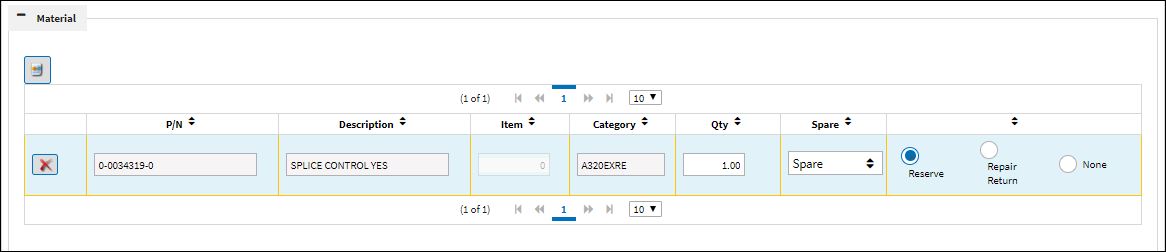
The following options/information is available in this window:
_________________________________________________________________________
New Record button
Select this button to add a new line item to the section.
Delete Record  button
Delete the selected line item entry.
P/N
This is the Part Number required for the T/C. A part number may be specified only one time per Item Number. However, the same part number may be specified on each unique item number if needed. Users can select into this field or select the Add/Delete Record  button to add a P/N.
Description
The description of the part.
Item
The specific item number on the Task Card that this record is to be associated with. Leave default '0' to have this record associated with all item numbers on the Task Card.
Category
The category of the part as defined in Settings/ Explorer/ System Transaction Code Explorer/ Settings/ P/N Category (e.g. Rotable, Consumable, Repairable) and entered for the particular part in the P/N Master.
QTY
The quantity of items/parts required.
Spare
If the item required is a spare, this can be either an Expendable or a Rotable part.
Tool
If the item required is a tool, the P/N must be configured as a Tool in P/N Master via Settings/Update/P/N Master.
Reserve radio button
Select this button to reserve the spare or tool when W/O P/N reservation is applied. When a Picklist Reservation is made via a Work Order, only parts that have the Reserve radio button checked will be reserved. For more information regarding picklist creation, please go to Production/Update/Work Order/Picklist  button.
Repair Return radio button
Select this button to repair/return the spare when W/O P/N reservation is applied. When a Picklist Repair/Return is made via a Work Order, only parts that have the Repair/Return radio button checked will be repaired or returned.
None radio button
Select this button if no spare or tool has been reserved or repaired.
_________________________________________________________________________
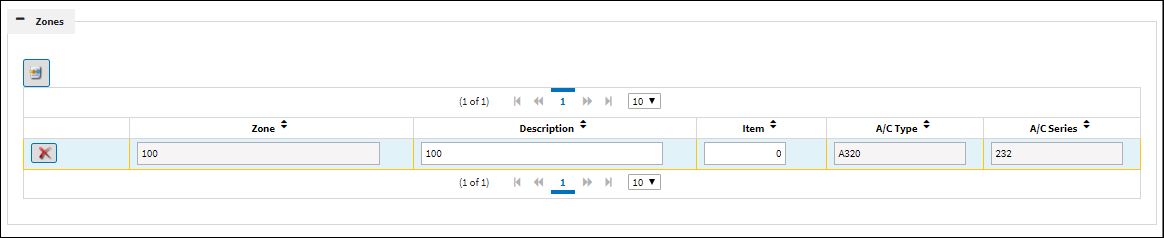
The Zone section is used to enter the specific work zones for the Task Card. Zones can be validated against the data in the Task Card Control Master. Set Task Card Control Master Edit switch to Yes. Go to Engineering/Update/Task Card Control Master.
Note: Please note Switch  TC/CTL - (Task Card Control Master Edit) - If set to Yes, the system will verify that the panels and zones that are associated with Task Cards exist via Engineering/Update/Task Card Control Master.
The following options/information is available in this window:
_________________________________________________________________________
Zone
The Zone area for the Task Card (selected from Task Card Control Master).
Description
The Zone description for the Task Card.
Item
The specific item number on the Task Card that this record is to be associated with. Leave default '0' to have this record associated with all item numbers on the Task Card.
A/C Type/Series
The aircraft Type and Series / Fleet assignment.
_________________________________________________________________________
Additional information relevant to the record can be viewed or added through the Task Card Zone, Informational Tab and the Notes  button.
The Panel section is used to enter the specific Panels that are required to be removed in order to carry out the task. These will later be used to produce an access Panel removal sheet on a Work Order. Panels can be validated against data in the Task Card Control Master option in the Engineering module.

The following options/information is available in this window:
_________________________________________________________________________
Panel
The Panel reference to be removed for access.
Description
The Panel description information.
Item
The specific item number on the Task Card that this record is to be associated with. Leave default '0' to have this record associated with all item numbers on the Task Card.
A/C Type/Series
The aircraft Type and Series / Fleet assignment.
_________________________________________________________________________
Additional information relevant to the record can be viewed or added through the Task Card Panel, Informational Tab and the Notes button.
Download Online Help
Print
|
©1997-2018 Trax USA Corp. All rights reserved. This manual may not be copied, photocopied, reproduced, translated, or converted to any electronic or machine-readable form, in whole or in part, without prior written approval from Trax USA Corp. |
 |