 Download Online Help
 Print
|
|
|
|
|


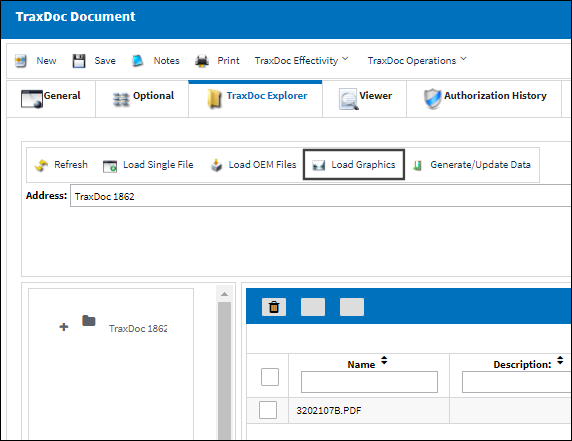
The Load Graphics  button allows users to load and attach graphics to a TraxDoc.
When uploading a document into TraxDoc, the file that is being uploaded must be in a location where the eMRO server will recognize it. See below instructions:
- The IT department on user side must select a directory to work as a repository for all the OEM manuals that would be uploaded to eMRO via the TraxDoc module.
- This directory must be accessible from the application server (Wildfly).
- Create a way for users to provide the OEM manual revisions to be placed in the repository.
- The path for the repository directory will be defined by the traxdoc_manual variable on the data.source.properties file. This can be found under the application server (/%WILDFLYHOME%/deployments/emro.war/WEB-INF/classes/resources/).
Select the Load Graphics  button.
The TraxDoc Graphics Load window appears. Select the Add Files button.
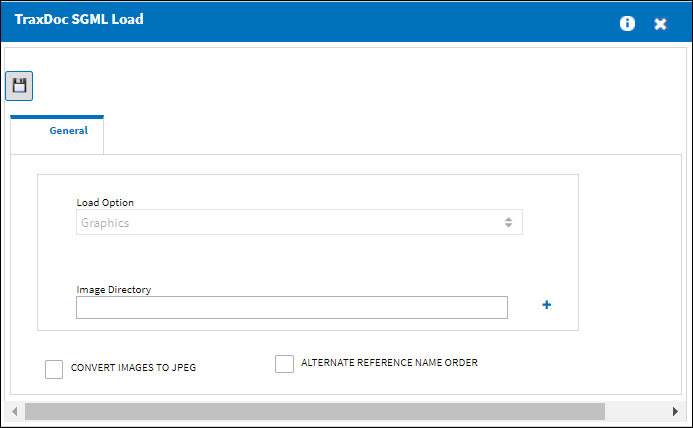
The Browse for Folder pop-up appears. Browse the folder for the desired image. Once found, select 'OK.'
Once the path is specified in the TraxDoc Graphics Load window, select the Save  button.
Note: Import files saved as .txt (tab delimited), .csv (coma delimited) or .xlsx cannot have spaces in the title of the file. Spaces in the file path will cause errors when importing.
The following data window appears. Wait until the data is loaded.
The graphic is loaded on the TraxDoc as shown below. Select the .JPG to view graphic.
The graphic opens as shown below:
Download Online Help
Print
|
©1997-2018 Trax USA Corp. All rights reserved. This manual may not be copied, photocopied, reproduced, translated, or converted to any electronic or machine-readable form, in whole or in part, without prior written approval from Trax USA Corp. |
 |