 Download Online Help
 Print
|
|
|
|
|


ManHour Schedule, Employee Tab
Add employees to the group one at a time as follows:
Go to the Employee Tab and select the New  button.
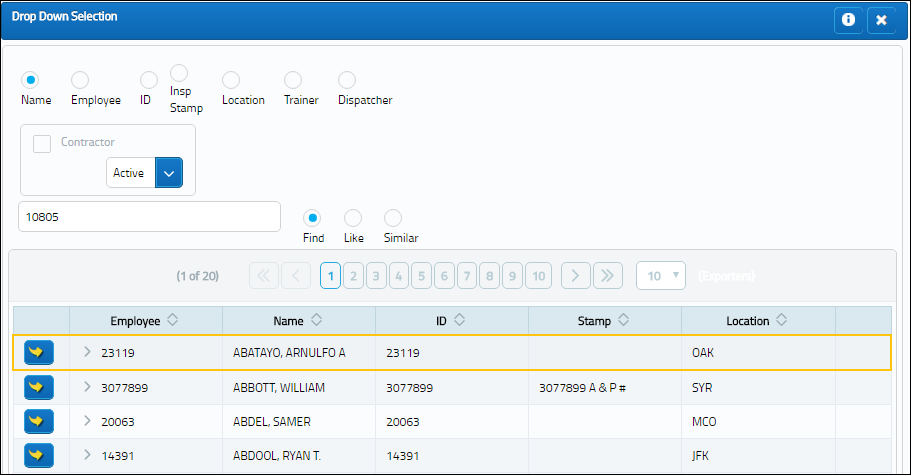
Click into the field and select an employee from the drop down selection Window. The employee is added to the Group.
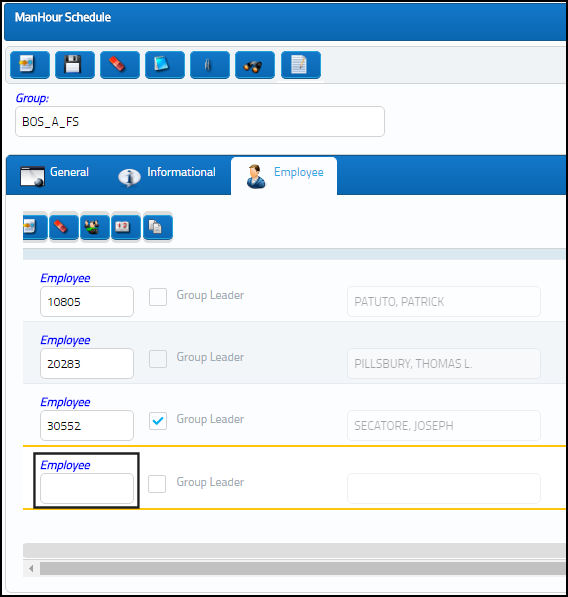
Click into the field and select an employee from the drop down selection Window.
The employee is added to the Group.
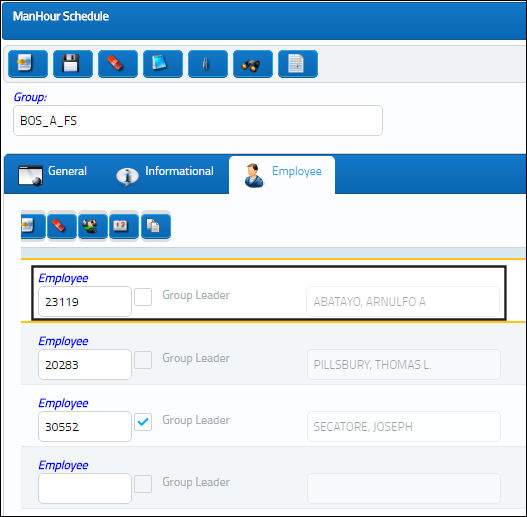
The following options/information is available in this window:
_________________________________________________________________________
Employee
Select an employee to add to a group from the drop down menu.
Note: If an employee is already assigned to another group eMRO displays a warning dialog box and the employee is not saved in this group.
Error message: Employee Has been assigned to Group 'X'.
Group Leader checkbox
Select this checkbox to designate a group leader.
Schedule Pattern  icon
This icon appears to the right of the employee when a schedule pattern is set up for that employee.
_________________________________________________________________________
The following buttons appear in this tab for additional functionality:
- Mass Enroll button
- Schedule button
- Copy Schedule button
Download Online Help
Print
|
©1997-2018 Trax USA Corp. All rights reserved. This manual may not be copied, photocopied, reproduced, translated, or converted to any electronic or machine-readable form, in whole or in part, without prior written approval from Trax USA Corp. |
 |