
 Share
Share
 Print
Print
|
|
|
|
|


Add multiple employees to a group as follows:
Go to the Employee Tab and select the Mass Enroll  button.
Select multiple employees in the Multi Employee Select Window by clicking on their names. Select the Save  button.
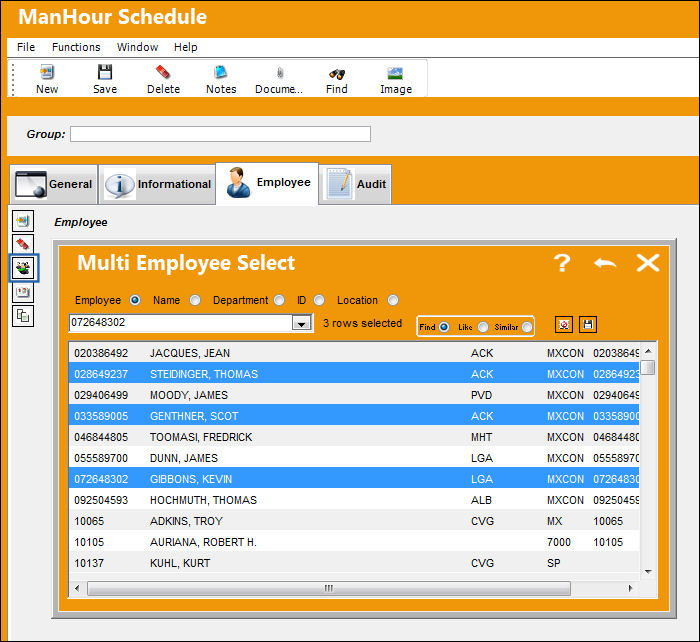
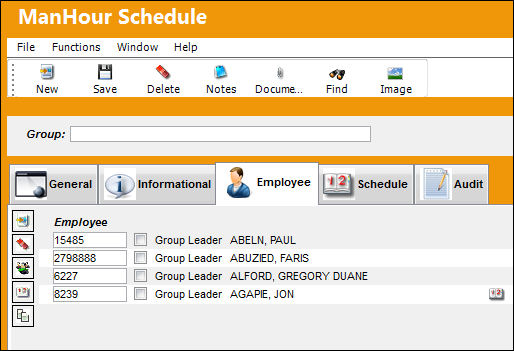
All employees are added at once as shown below:
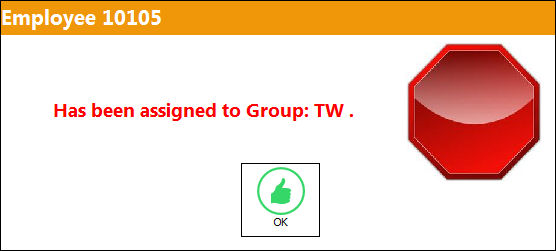
If an employee is already assigned to another group TRAX displays a warning dialog box and the employee cannot be selected.
Select one of the employees as a group leader by checking the checkbox.
Select OK to continue and select a Group Leader.
Select the Save button to save all information.
Select the Delete  button to delete an employee from the group. The following prompt will be received:
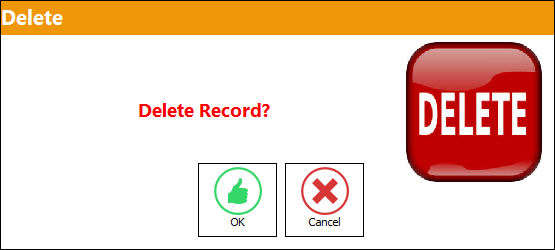
Select OK to complete the transaction.
Select Cancel to abort the transaction.
Share
Print
|
©1997-2026 Trax USA Corp. All rights reserved. This manual may not be copied, photocopied, reproduced, translated, or converted to any electronic or machine-readable form, in whole or in part, without prior written approval from Trax USA Corp. |
 |