
 Share
Share
 Print
Print
|
|
|
|
|


The Schedule  button allows the user to apply individual schedules for each person in a group or create one schedule for a group of people.
From the Man Hours Schedule window, highlight the employee code the schedule is to be created for and select the Schedule button or double-click on the user.
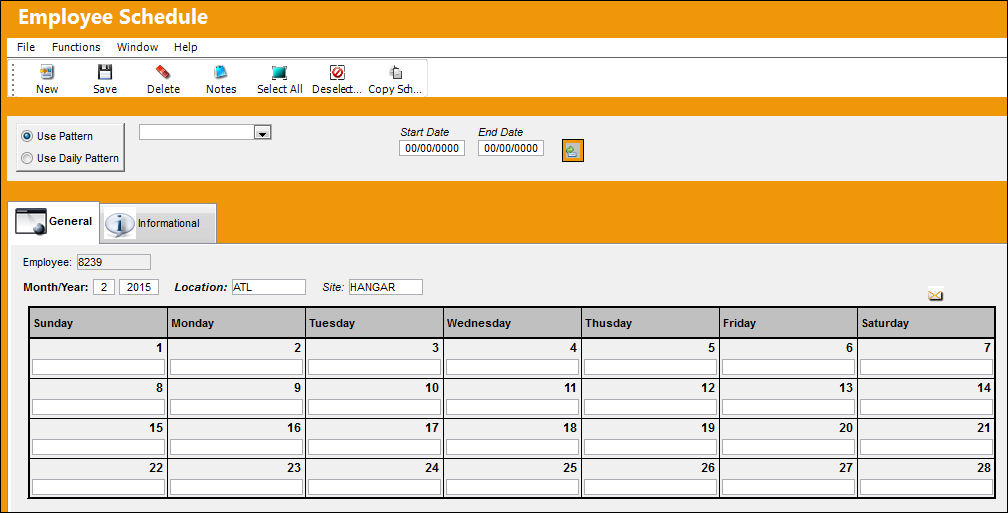
The following information/options are available in this window:
_____________________________________________________________________________________
Use Pattern radio button
Select this radio button to create a schedule based on a pattern. Use the Pattern drop down menu beside the 'Use Pattern radio button' to select a desired pattern for schedule creation.
When this radio button is selected, the Continuous checkbox is displayed.
Pattern drop down menu
Select a pattern to base the schedule on. For information regarding the creation of these patterns, refer to the Shift Pattern Button via the Daily Shift Pattern section of the Planning Training manual.
Use Daily radio button
Select this radio button to create a schedule based on a daily pattern. Use the Daily drop down menu beside the 'Use Daily' radio button to select desired daily pattern for schedule creation.
When this radio button is selected, the Day and Week radio buttons are displayed.
For information regarding the Day and Week radio buttons, refer to the Shift Pattern Button via the Daily Shift Pattern section of the Planning Training manual.
Daily shift pattern drop down menu
Select a daily pattern to base the schedule on. For information regarding the creation of these daily shift patterns, refer to the Shift Pattern Button via the Daily Shift Pattern section of the Planning Training manual.
Continuous checkbox
Select this checkbox to have the schedule type selected from the drop down menu scheduled to be a continuous schedule.
Start Date
Start Date for the schedule.
Right-click in the 'Start Date' field. The following calendar becomes available:
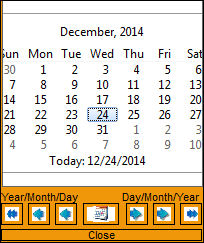
Select a Start Date by double clicking on desired date. The date is populated in the 'Start Date' field.
End Date
End Date for the schedule. This works the same as the Start Date as shown above.
Generate  button
Select the button to generate the schedule.
_____________________________________________________________________________________
The Informational Tab and Notes  and Copy Schedule
  buttons are also available for additional functionality.
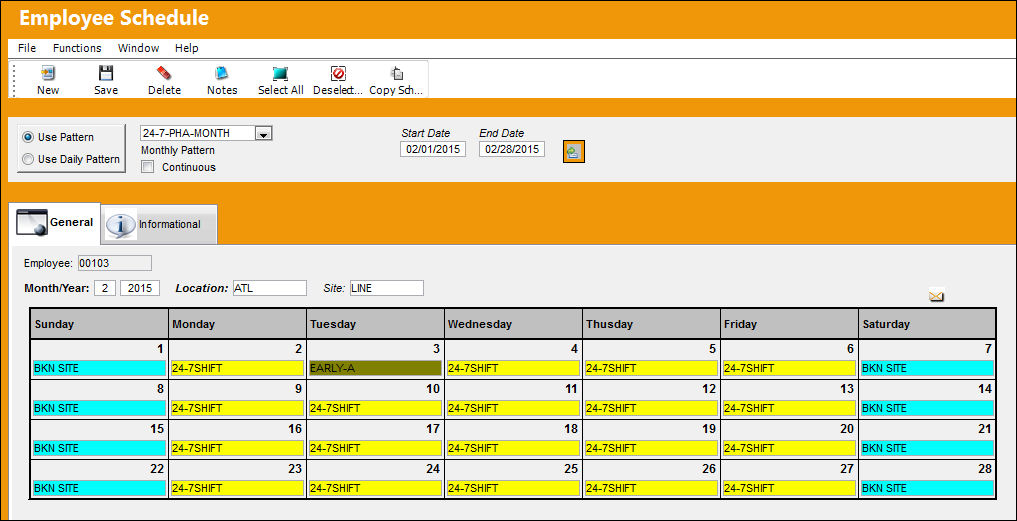
Once all information in the above fields are populated, select the Generate button. The schedule is generated as shown below:
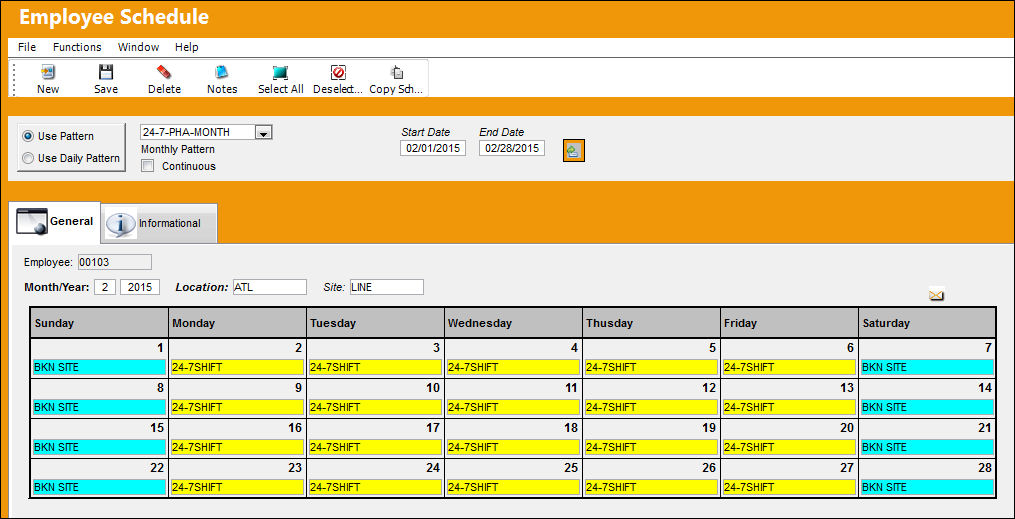
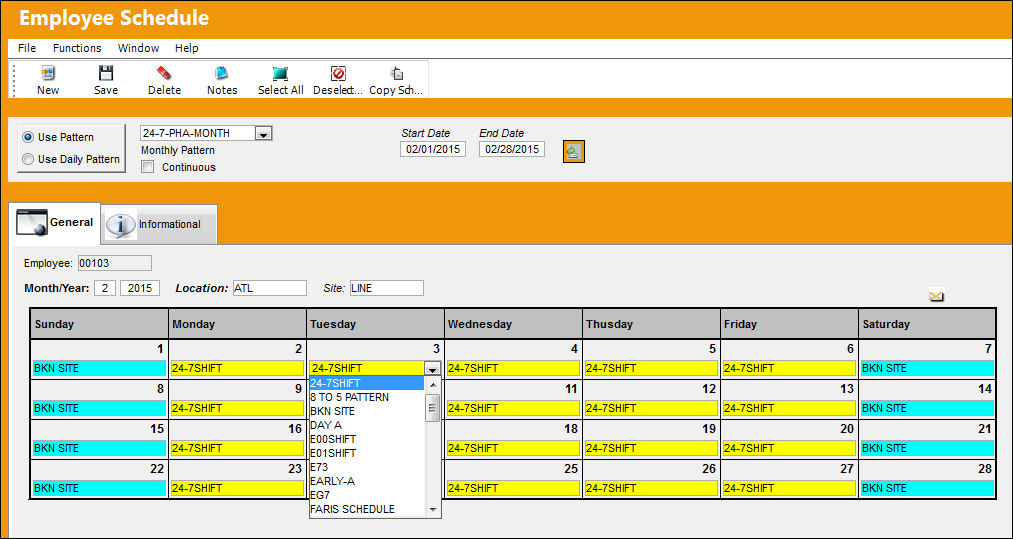
Users are also allowed to manually edit individual days on the schedule by selecting the specific date then changing the daily pattern.
Select the Save  button to save the schedule record created.
Select the New  button to create a new schedule record.
Select the Delete  button to delete a schedule record.
Now that a schedule has been created, generated and saved for Employee 103003, the Schedule tab will now appear in Man Hours Schedule when the user searches for Group Z which Employee 103003 belongs to. Go to Planning/Update/Man Hours Schedule/Man Hours Schedule, Schedule Tab for additional information.
Refer to Planning/Shift Pattern/Applying Shift Patterns for instructions on connecting Shift Patterns to Employee schedules.
Share
Print
|
©1997-2026 Trax USA Corp. All rights reserved. This manual may not be copied, photocopied, reproduced, translated, or converted to any electronic or machine-readable form, in whole or in part, without prior written approval from Trax USA Corp. |
 |