 Download Online Help
 Print
|
|
|
|
|


System Printer Control
This option is used to set up any system printers that may be required. Certain functions on the system will automatically direct prints to printers that can be defined here. For example, when a Picklist is created it can be automatically printed in the warehouse area for the Stores personnel.
The printer paths must be selected from the relevant operating system.
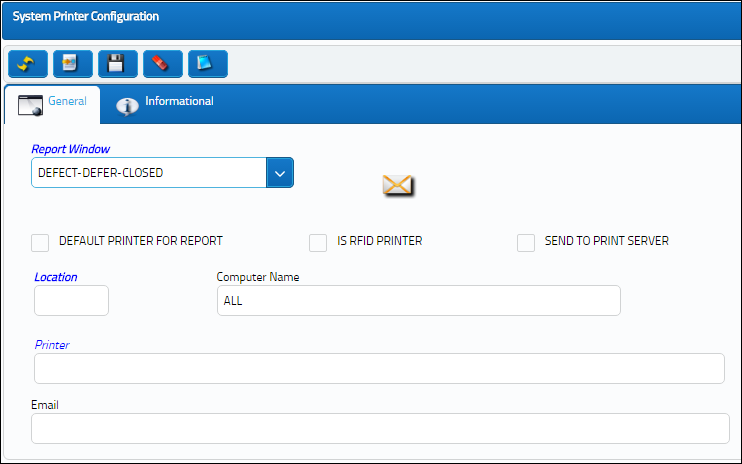
The following options are available in this window:
_________________________________________________________________________
Report Window drop down
Select from the choice of prints available:
- Barcode Label
- Barcode Receipt Label
- Bin Label Print
- Bin Single Label
- Commercial Invoice
- Defect-Defer-Closed
- EX Receive Survey
- Form One/8130
- LO Receive Survey
- Packing Shipping Labels
- Picklist
- Picklist Cancel
- Picklist Shortage Print
- PO Receive Survey
- Production Non Routine Task Card
- Production Task Card
- Production Task Card Defer
- Proforma Invoice
- Regular Label
- Requisition
- Requisition-AOG
- Requisition-Critical
- RI Survey
- RO Receive Survey
- Scrap Survey
- Shop Form 1
- Shop Non Routine Task Card
- Shop Task Card
- Transfer Order
- Transfer Picklist
- Unserviceable Label
- W/O ETOPS Conflicts
- W/O non effective Items
- W/O Task Card Survey
Requisition Type
The type of Requisition used to identify the purpose of the request. This field is only available when the following reports are selected:
- Requisition
- Requisition-AOG
- Requisition Critical
Default Printer for Report checkbox
Select this checkbox to have the report default to print to the users default printer setup regardless of the printer system control setup. This checkbox will override whatever is setup in this window to be defaulted to the users default printer.
This field is available for every report except the 'W/O non Effective Items' report.
Is RFID Printer checkbox
Select this checkbox to specify that this is an RFID printer.
This field is available for every report except the 'W/O non Effective Items' report.
Send To Print Server checkbox
Select this checkbox to enable automatic printing so that when a transaction is performed, there is a print result.
Location
The Location for maintenance events, inventory stores, orders, transactions, or training events.
Site
The Location Site for the print. This field is only available for specific Report Windows. This field is only available when the following reports are selected:
- Shop Task Card
- Shop Non-Routine Task Card
- Production Task Card
- Production Non-Routine Task Card
Computer Name
Computer from which the prints can be sent to the printer.
Priority
This field is a drop down menu with Priority options that derive via Settings transaction code: Priority. This option is only available when 'Picklist' is selected in the Report Window drop down field. This field is only available when the following reports are selected:
- Picklist
- Picklist Cancel
The reference Email. This field is available for every report except the 'Production Task Card' report.
_________________________________________________________________________
The Informational Tab and Notes  button are also available to include additional information.
Labels:
Through printer configurations, labels for Serviceable and Unserviceable parts can be sent to different printers depending on the Station in the A/C P/N Transaction window. In previous releases, only the part's location was considered. For more information refer to the A/C P/N Transaction via the Technical Records Training Manual.
Note: This functionality to take place, Technical Records Switch  ACPNSTA must be set to 'Yes'. For more information refer to the Technical Records Switches Manual.
Download Online Help
Print
|
©1997-2018 Trax USA Corp. All rights reserved. This manual may not be copied, photocopied, reproduced, translated, or converted to any electronic or machine-readable form, in whole or in part, without prior written approval from Trax USA Corp. |
 |