 Download Online Help
 Print
|
|
|
|
|


Control Panel
The Control Panel allows the user to specify the items in the system that will have security “activated”. When security is activated for an item, every individual user must have security privileges granted/denied to the particular item. Security privileges are granted/denied via System Administration/Explorer/Security Explorer.
For proper security set up, perform the following steps.
- Use the Control Panel to specify the items that will have security activated. Please refer to the Control Panel section for additional related information.
- Set up Wall items via the Control Panel. Please refer to the Wall Security section for additional related information.
- When security is activated for an item, every individual user must have security privileges granted/denied to the particular item (via the Security Explorer). Please refer to the Security Explorer section for additional related information.
Go to System Administration/Update/Control Panel. All modules within the system will appear in the list.
The user can select an item to access one 'layer' further into the program.
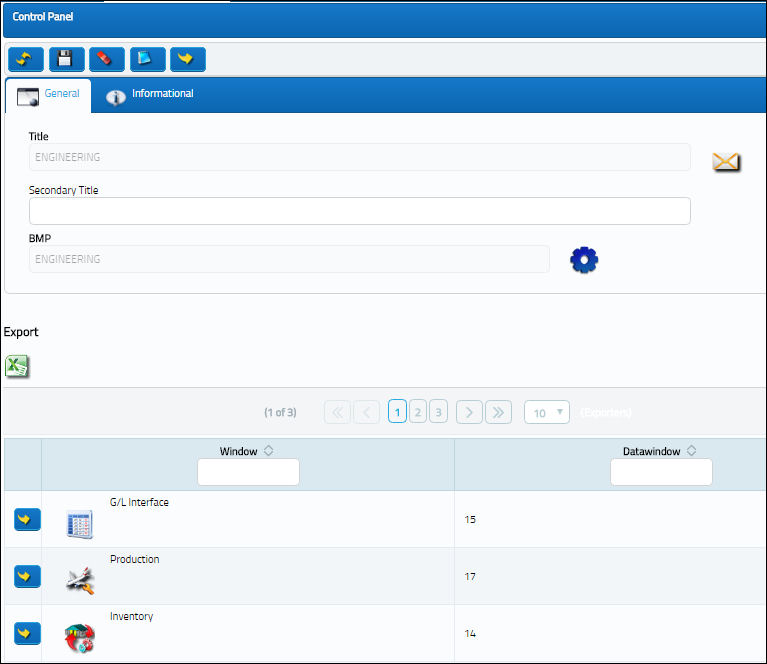
Choose the module with which you want to work by clicking on the module. In the following example, the user will select the Engineering module.
Click on the Select  button to view/edit the related data:
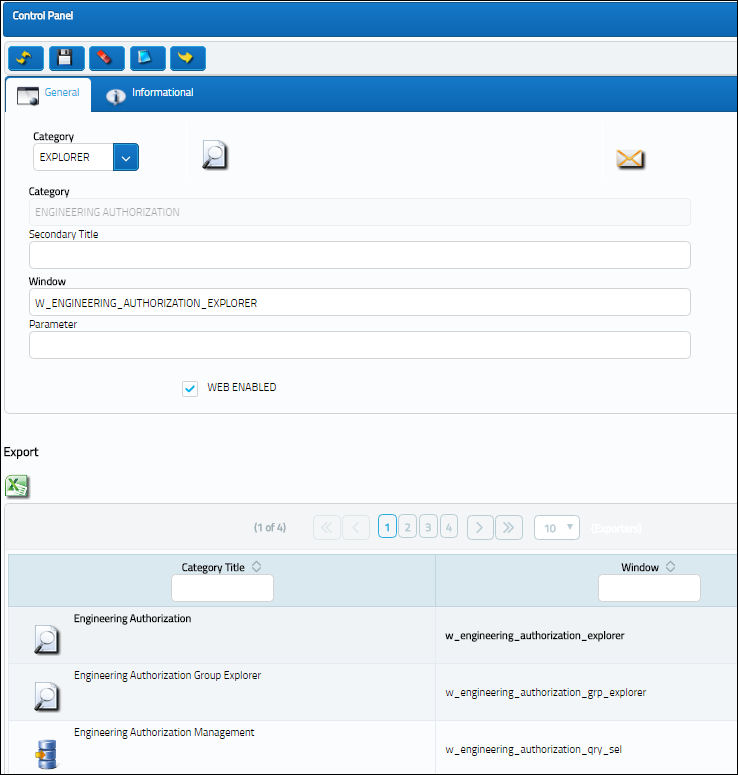
The following options are available in this window:
_________________________________________________________________________
Category
Select the category for the new entry:
Explorer  - A window that lists categorical information where users can assign functionality (i.e. security, authorization, etc.) to employees, codes, transactions, etc.
Print  - A window used to generate print documents. This information cannot be created, edited, or updated.
Query  - A window where users can enter information to view details but cannot create, edit, or update the information.
Update  - Used to enter, create, or update all types of information, transactions, orders, etc. Most windows are categorized as Update windows.
Title
The title of the application that will be displayed throughout the system.
Secondary Title
The optional title for the application.
Window
The path that will open the application.
Parameter
The limitation of the application. (for example: 'printers' for the Printers and Faxes application)
Windows Application
Select the checkbox if what is being added is a Windows Application.
Wall Capability radio buttons
The Wall checkbox indicates if Wall security for this item is activated.
Note: These particular radio buttons are only applicable for operators. Wall functionality cannot be edited by eMRO operators through this window.
Wall security is an additional layer of security protection for specific transactions. When activated, it will require that additional passwords be entered for those transactions. Wall security is functional only for specific transactions throughout the system (i.e. checking the Wall checkbox here does not ensure that Wall protection is available for the item). Only system administrators should be permitted to set up Wall Security. Please refer to the Wall Security section for additional related information.
Additional checkboxes
Additional non standard checkboxes may appear on the window. In this example, the A/C Type Series Control checkbox allows to specify if security privileges will be granted/denied at the A/C Type/Series level (checked) or if access will be automatically granted for all A/C Type/Series (unchecked).
Web Enabled checkbox
Select this checkbox in order to make the selected window accessible in the Navigation panel and in the Security Explorer.
WPS button
The Web Print Selection button is used to choose which individual reports are available in the selected print window. This button is only available for Prints. When selected, the Print eMRO Version window opens. From there, users can enable or disable reports by selecting/deselecting the Web Display checkbox for each report. For more information refer to the Web Print Selection Button.
_________________________________________________________________________
Select an item. The system displays the following:
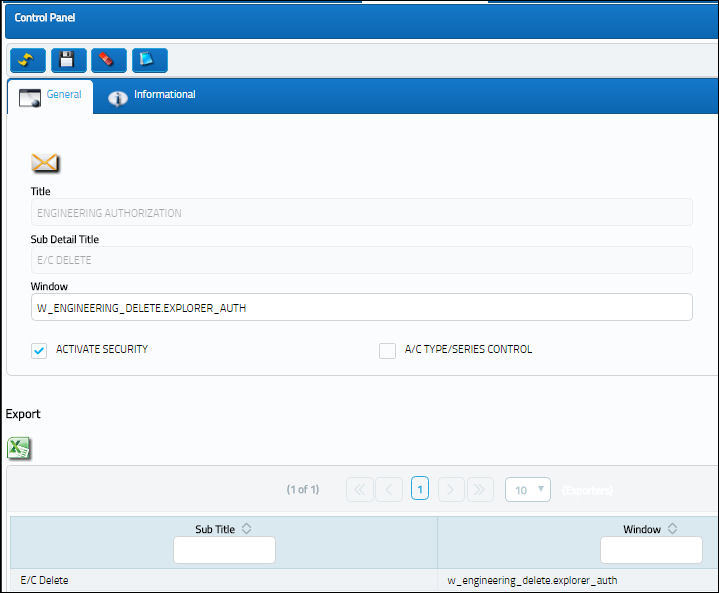
The following options are available in this window:
_________________________________________________________________________
Title
Title of the module.
Sub Detail Title
Name of the Tab in the module.
Window
Actual name in eMRO of the window.
Activate Security checkbox
Check the Activate Security checkbox to require security privileges to this item. If checked, every individual user must have security privileges granted/denied to the particular item. The item will appear in the list of items in the Security Explorer. If unchecked, every user will automatically have security access granted to the item and the item will not appear in the list via the Security Explorer.
Note: Security access is granted/denied via the Security Explorer (System Administration/ Explorer/ Security Explorer).
Additional checkboxes
Additional non standard checkboxes may appear on the window. In this example, the A/C Type Series Control checkbox allows to specify if security privileges will be granted/denied at the A/C Type/Series level (checked) or if access will be automatically granted for all A/C Type/Series (unchecked).
_________________________________________________________________________
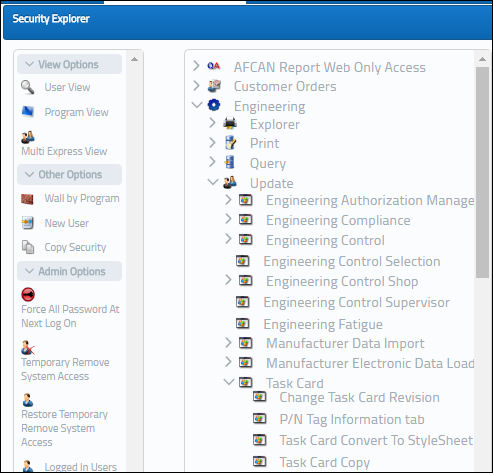
The following is an example of the functionality with the Activate Security checkbox checked and unchecked.
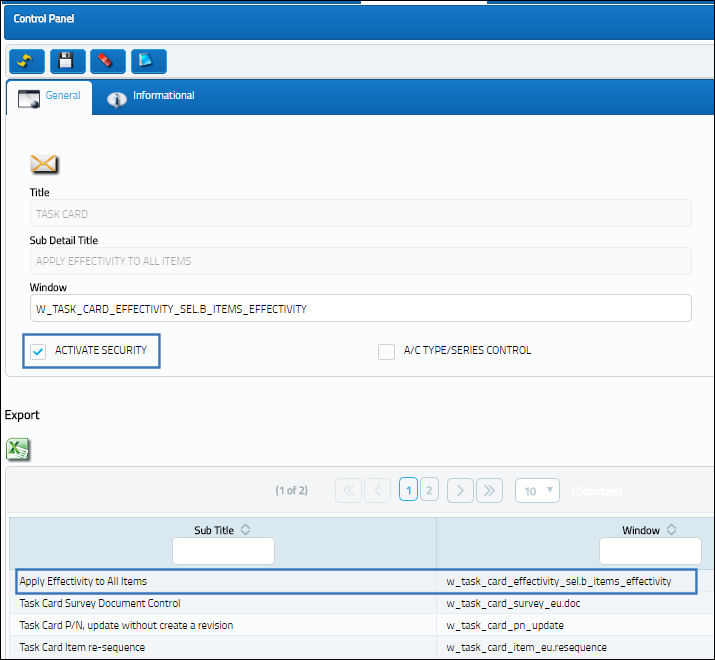
If checked, every individual user must have security privileges granted/denied to the particular item. The item will appear in the list of items in the Security Explorer.
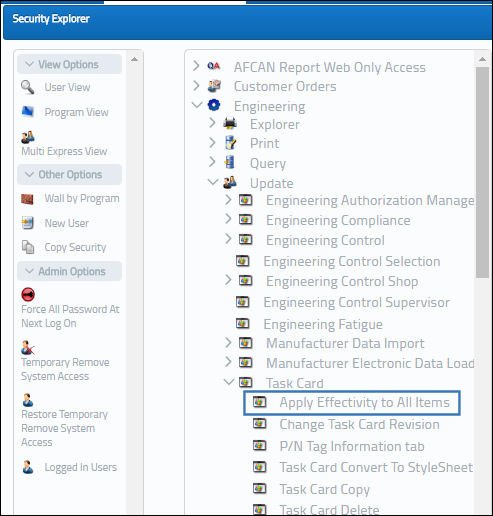
If unchecked, every user will automatically have security access granted to the item and the item(s) will not appear in the list via the Security Explorer.
In this example, the A/C Control option is displayed in the above screen when the Activate Security button is selected.
However, if not selected, this feature is no longer displayed:
Download Online Help
Print
|
©1997-2018 Trax USA Corp. All rights reserved. This manual may not be copied, photocopied, reproduced, translated, or converted to any electronic or machine-readable form, in whole or in part, without prior written approval from Trax USA Corp. |
 |