 Download Online Help
 Print
|
|
|
|
|


Assignment Button
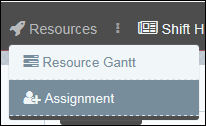
Select the Assignment button to assign personnel to the selected location's tasks. To access the Assignment  button, select the Resources dropdown button from the Home Toolbar.
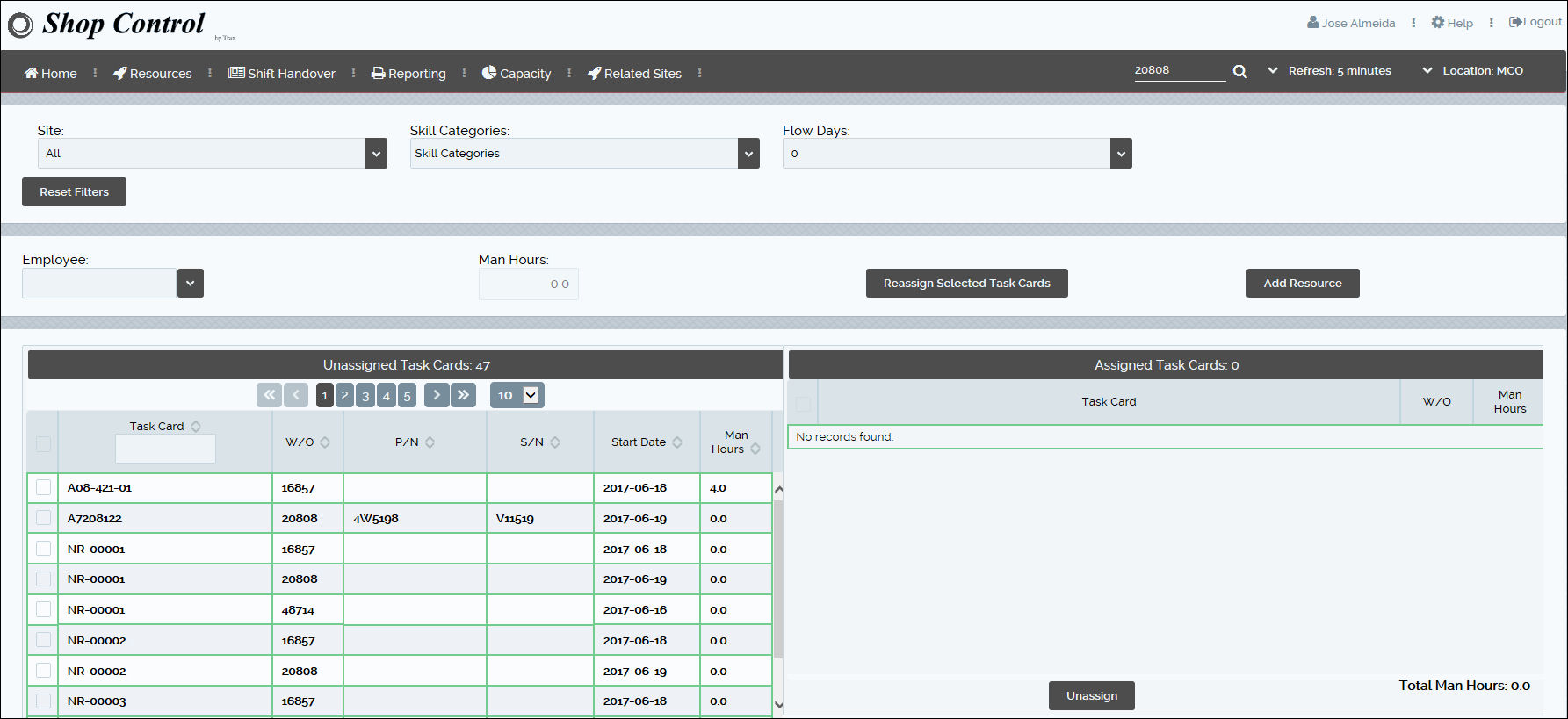
When selected, the Assignment window appears as follows. At the top of the window, users can select the user who will have tasks assigned to them through the Employee drop down. Unassigned tasks for the Location's work sites are listed to the left in the Unassigned Task Cards. These Unassigned Task Cards can be filtered through the Site, A/C, and Skill Categories drop downs.
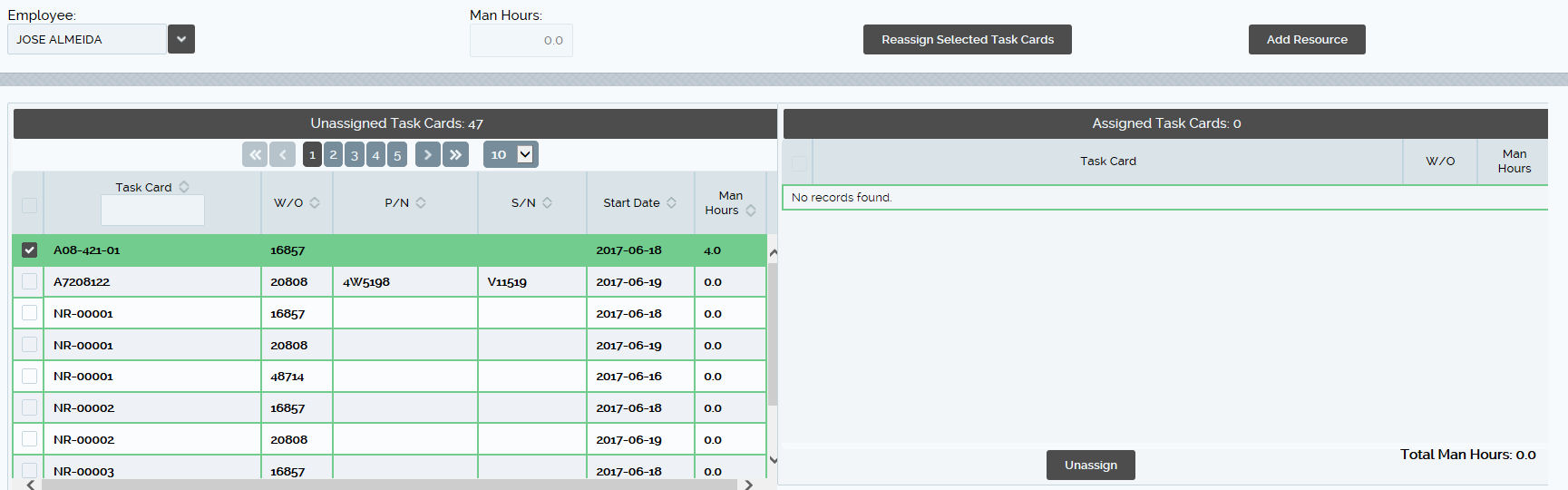
To assign a task to an employee, select the desired employee from the Employee drop down. Select the green dropdown arrow to view all applicable users to choose from. Then select the tasks that need to be assigned.
Once the tasks are selected, they will be highlighted in green as shown below. Click the Assign button to move the tasks from the Unassigned Task Cards section to the Assigned Task Card section.
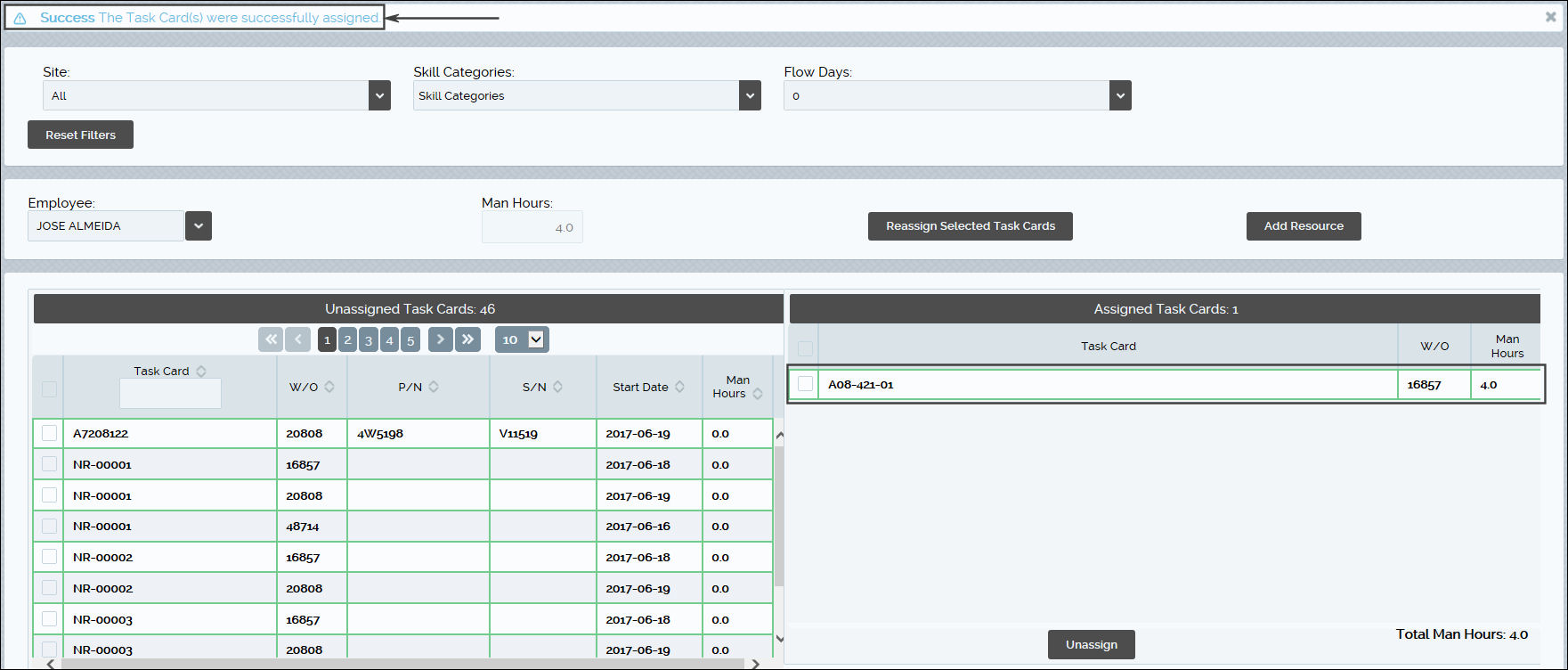
Once all desired Task Cards have been added to the Assigned Task Cards section, a 'Success' message will appear at the top of the screen to indicate that the Task Cards were successfully assigned.
Download Online Help
Print
|
©1997-2018 Trax USA Corp. All rights reserved. This manual may not be copied, photocopied, reproduced, translated, or converted to any electronic or machine-readable form, in whole or in part, without prior written approval from Trax USA Corp. |
 |