 Download Online Help
 Print
|
|
|
|
|


Shop Control - Home Toolbar
From the main toolbar of the window, users can navigate to various reports and sites, they can configure the webpage's refresh rate, change the current Location, and Log Out. This toolbar is accessible from the homepage and every other window of the Production Control application.

The following options are available in the main toolbar:
_________________________________________________________________________
Home  tab
Select this tab to return to the homepage.
Resources  tab
The Resources tab contains contains the Resource Gantt  button and the Assignment
 button. These buttons help production controllers view and organize the Location's personnel. See below.
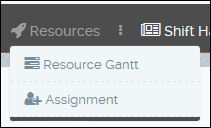
Resource Gantt button - Select the Resource Gantt button to view a graphical display listing all of the day's Task Cards for the selected Location along with the user they are assigned to.For more information, refer to the Resource Gantt Button.
Assignment button - Select the Assignment button to assign personnel to the selected location's tasks. For more information, refer to the Assignment Button.
Shift Handover  tab
Select the Shift Handover window to create a report listing all notes added during the previous shift. These notes can include information regarding specific Work Order, Tasks, Aircraft, parts, personnel information, etc. The reports can be filtered for different sorts of information and then printed or emailed as needed. Notes can be added from various windows in the app, including from the Site Notes section of the homepage. For more information, refer to the Shift Handover Button.
Reporting  tab
Select the Reporting window to generate various reports containing maintenance information for the specific Location/Site. For more information, refer to the Reporting Button.
Capacity  tab
Select the Capacity window to view all of the Site capacities for a Location. For more information, refer to the Capacity Button.
Related Sites  tab
Select the Related Sites window to navigate to another website that may be useful at any given time. The links are configured via the Configuration File. For more information refer to the Related Sites Button.
Enter W/O
Users can view information for a specific Work Order by entering the W/O number and selecting the Search button.
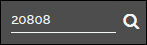
When clicked, the W/O's details are displayed in the Sites View Detail window. W/Os for other Locations can also be searched from this field.
Refresh dropdown
Select the refresh rate for the window to refresh. Depending on the selection, the window will refresh every 1 to 10 minutes, or if set to 'None', then the window will have to be refreshed manually by the user. By default the window will refresh every 5 minutes.
Location dropdown
Select the Location to be displayed in the Production Control app. This selection can be changed manually by clicking on the text and selecting another Location from the dropdown field. Otherwise the Location entered in the user's previous log-in session will be selected by default. Only those Locations containing Sites that are designated as 'Long Term Visit Site' (via the Sites Button of the Location Master) will appear in this dropdown.
Logged In User  icon
Lists the currently logged in Employee.
Help  button
Select this button to view the Help files for the application.
Logout  button
Select this button properly log out of the application.
_________________________________________________________________________
Download Online Help
Print
|
©1997-2018 Trax USA Corp. All rights reserved. This manual may not be copied, photocopied, reproduced, translated, or converted to any electronic or machine-readable form, in whole or in part, without prior written approval from Trax USA Corp. |
 |