 Download Online Help
 Print
|
|
|
|
|


Shift Handover Tab
Select the Shift Handover window to create a report listing all notes added during the previous shift. These notes can include information regarding specific Work Order, Tasks, Aircraft, parts, personnel information, etc. The reports can be filtered for different sorts of information and then printed or emailed as needed. Notes can be added from various windows in the app, including from the Site Notes section of the homepage.
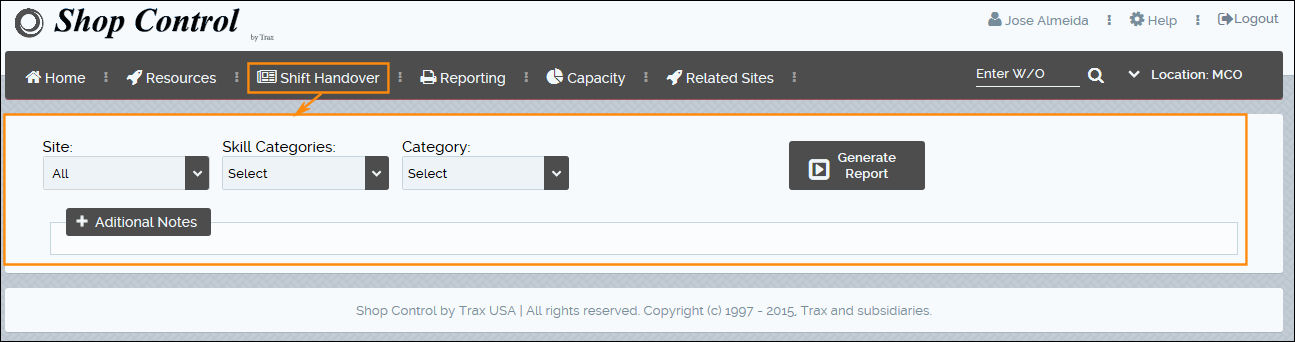
Once the Shift Handover tab is selected, the report can be generated by selecting the Generate Report  button. However, before generating the report, the information included in the report can filtered through the following selection fields.
The following fields and options are available once the Shift Handover section is accessed.
_________________________________________________________________________
Site
The Location's Site where specific maintenance is being performed. Only the Sites for the specific Location will be available.
A/C
The specific aircraft that is being worked on via a Work Order.
Skill Categories
The particular Skill Category required for labor on certain tasks. Multiple selections can be made.
Category
The type of record associated to the maintenance. The options include: Note, W/O, E/C, Task Card, Defect, Non Routine Task Cards, and P/N. Multiple selections can be made.
Generate Report button
Select this button to generate the report. If report filters are not selected, then all applicable details will be included. See below for more information.
Additional Notes  button
Select this button to add additional notes for the day. The notes created will appear in a report once generated. For detailed information refer to the Site Notes section.
_________________________________________________________________________
Once the Generate Report button is selected the Shift Turnover Report appears on the screen with the required information.
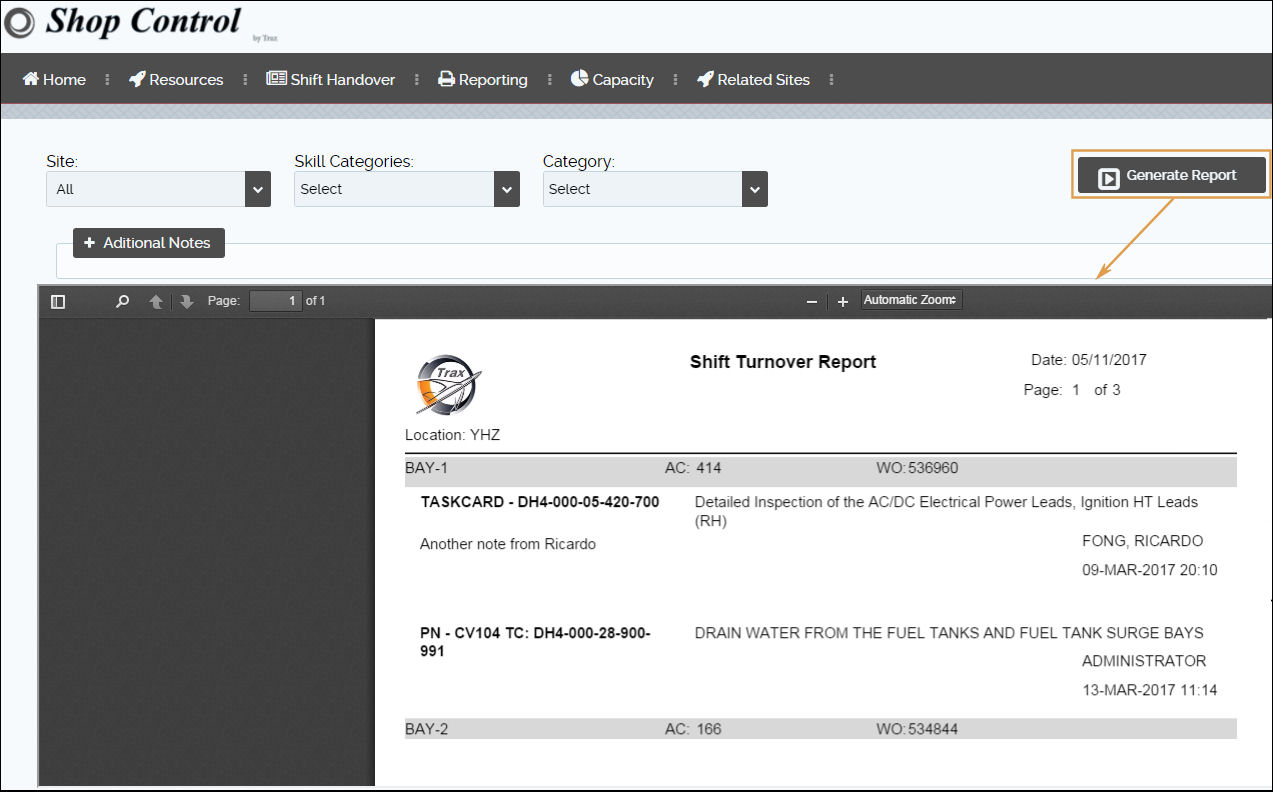
Once the report is generated, the following two buttons become available at the top of the screen: the Download PDF  button and the Download Excel
 button. These buttons allow users to download the reports in either PDF or Excel format, respectively.
Download Online Help
Print
|
©1997-2018 Trax USA Corp. All rights reserved. This manual may not be copied, photocopied, reproduced, translated, or converted to any electronic or machine-readable form, in whole or in part, without prior written approval from Trax USA Corp. |
 |