
 Share
Share
 Print
Print
|
|
|
|
|


TraxDoc Authorization Routing
The System Transaction Codes are displayed with both the Code Names and Descriptions. The Code Descriptions directly illustrate their functionality and role in the system, as fields are populated and tasks are performed.
Transaction Code: |
TraxDoc Authorization Routing |
General Description: |
Selecting an Authorization Routing Process when creating a new TraxDoc document. |
Are Authorization Steps Available? |
Yes |
Is System Notification Available? |
No |
Trax Control Panel Path(s): |
TraxDoc/Update/TraxDoc Master |
Windows(s): |
w_traxdoc_eu |
Related Switch(s): |
|
Functions: |
Selecting an Authorization Routing Process when creating a new TraxDoc document. |
Reports: |
None |
Available Functionality:
The TraxDoc Authorization Routing Process allows the user to predefine authorization processes to be used for TraxDoc documents.
In order to define Authorization Routing steps the user must select the Authorization Steps  button.
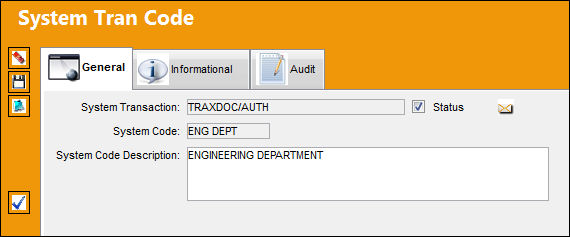
The following information/options are available in this window:
_____________________________________________________________________________________
Authorization Steps button
Select this button to configure the authorization steps for the specified transaction code. This authorization process works as it does system-wide. For information on how to set up and authorize authorization steps, see below.
_____________________________________________________________________________________
TraxDoc Authorization Steps
Select the Authorization button via the TraxDoc Authorization Routing transaction code. The user will be able to set-up multiple authorization steps by the nomenclature which best describes it in the TraxDoc Authorization Steps window.
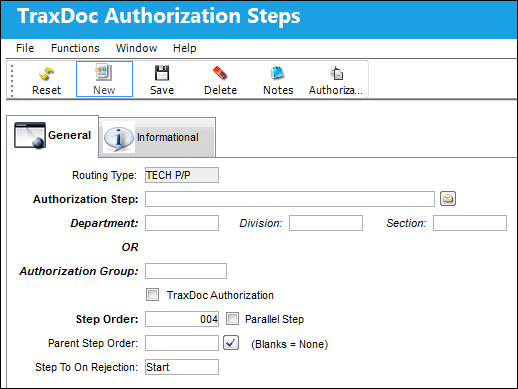
The following information/options are available in this window:
_____________________________________________________________________________________
Routing Type
The Transaction Code Name.
Authorization Step
A description of the Authorization Step; each Authorization Step can have its own unique description to describe the steps general purpose.
TraxDoc Authorization Step System Notification  button -
Select this button to set up system generated notifications to be sent to users when a TraxDoc with the specified E/C Category is modified. The following notification triggers can be set-up:
Open Step - Notifies when an authorization step has been created.
Close Step - Notifies when an authorization step has been accepted.
Rejected Step - Notifies when an authorization step has been rejected.
For information on how to set up System Notifications, refer to Set Up - System Notification, via System Notifications of the Settings Training Manual.
Department
The department which has authority for approval of this step. The Authorization Step can only be performed by an individual in the department specified here. See Settings/ Update/ Employee Master to verify that the employee is assigned to the appropriate department. Authorizing employees must have security access to the appropriate Authorization Explorer option. When this field is left blank, the Authorization Group field is available.
Division
The division which has authority for approval of this step. The Authorization Step can only be performed by an individual in the division specified here.
Section
The section which has authority for approval of this step. The Authorization Step can only be performed by an individual in the section specified here.
Authorization Group
The Authorization Group which has authority for approval of the step. The Authorization Step can only be performed by an individual that is included in the Authorization Group specified here.
TraxDoc Authorization checkbox
When selected, the checkbox indicates that the current Authorization Step will be the last step in the authorization process. During the creation of the Authorization Steps, this checkbox should only be selected for the final step before the record is to be released from authorization.
Step Order
This number indicates the order of Steps if one or multiple Steps are created. This number is automatically created and can be overridden and changed to any number. It is recommended that the user enter Steps in a standard incremental pattern (i.e. Step 5, Step 10, Step 15, etc.) to allow for the insertion of Steps into the sequence at a later time if required.
Parallel Step checkbox
The Parallel Step functionality allows for the grouping of a set of steps to be authorized in conjunction with one another during the Authorization Process. This is useful when several departments are required to authorize steps at the same time before the Authorization Process can continue on to the next step. When this checkbox is selected, the Parallel Group field becomes available.
Parallel Group - The system automatically creates a Parallel Group Number when the Parallel Step checkbox is checked. The Parallel Group Number acts as a container for all steps that are parallel.
Parent Step Order
The Parent Step Order field allows for the creation of a Parent/Child relationship between steps in the Authorization Process. This may be useful if two individuals from the same department need to authorize a particular step (i.e. a Manager and a Supervisor).
Step To On Rejection
This indicates how the Authorization Process will react when a Step is rejected (Start, Return To, Re-Release). When an authorization step has been rejected, the Step To On Rejection process begins based on the configuration of the TraxDoc Authorization Routing System Transaction Code.
Start - Will return the Authorization Process to the first step.
Return To - Will return the Authorization Process to a specific Authorization Step as specified by the 'Return To' Step number in the Return To Step Order field.
Re-Release - Will return the Authorization Process to the queue where it will await Release For Authorization.
_____________________________________________________________________________________
The user will be able to set-up multiple authorization steps by the nomenclature which best describes it.
Authorization Steps may be included in parallel authorization processes the steps included in a particular parallel group may be authorized in any order but all steps within this parallel authorization group must be authorized in order to move to the following step which is not part of said group.
Steps 002 and 003 are part of the same parallel authorization group, 003 may be accepted prior to step 002. However both will require authorization prior to moving on to Step 004.
When creating parallel authorization steps TRAX will auto assign parallel group numbers, upon saving the newly created parallel step the user will receive the following prompt:
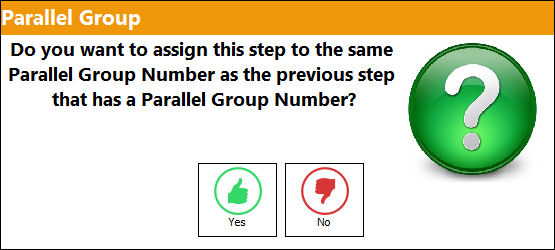
When the parallel checkbox is selected the prompt will ask the user to define the group to associate the newly created step to, if yes is selected then this step will be tied to the previously flag parallel step. If no is selected, then the next available parallel group number will be assigned to this step.
Parallel Authorizations Steps may not include the first step, child step or final authorization step in a process. TRAX will prevent the user from doing so.
Share
Print
|
©1997-2026 Trax USA Corp. All rights reserved. This manual may not be copied, photocopied, reproduced, translated, or converted to any electronic or machine-readable form, in whole or in part, without prior written approval from Trax USA Corp. |
 |