
 Share
Share
 Print
Print
|
|
|
|
|


Setup - System Notification
The System Notification module allows the system administrator to configure who will receive messages when general transactions occur throughout the system (e.g., when the weight of an A/C has been modified).
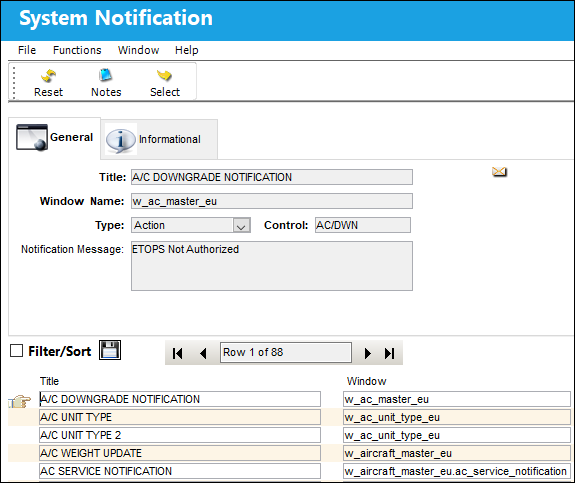
When the Notification  button is selected from a System Transaction Code, the user will not see the above window with a list of system notifications. A different System Window window will appear, similar to the example below, where the notification details are entered.
The following information/options are available in this window:
_____________________________________________________________________________________
Title
Name of the System Notification.
Window Name
The window/screen that triggers the system notifications functionality.
Type
The notification category (Action, Control, Location, New).
Control
The control identifies what triggers the system to generate the notification.
Notification Message
The text that will appear in the notification message. This may be edited by user.
_____________________________________________________________________________________
Use the Select  button to select into the desired notification. The system displays the following window.
A user system message, email notification, or SMS text message will be sent to the individuals designated in the below window when the appropriate conditions for this system notification are met.
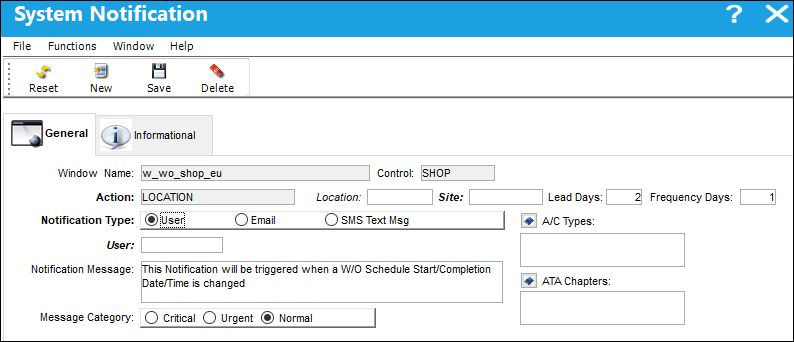
The above screenshot has been modified to show the different fields that may be available in the window. Depending on your scenario not all fields may appear.
The following information/options are available in this window:
_____________________________________________________________________________________
Window Name
The window/screen that triggers the system notifications functionality.
Control
The control identifies what triggers the system to generate the notification.
Action
This field is used to link the notification type and details.
Type 
A drop down list to specify certain parameters (Hours, Cycles, Days) for the notification.
Note: This field is distinct to MEL CREATION NOTIFICATION. When the same MEL number is applied to the same A/C within the set number of Hours, Cycles, or Days, a notification will be sent.
Lead Days
The number of days prior to a skills expiration date that a notification will be sent.
This field is distinct to SKILL EXPIRATION NOTIFICATION.
Location
The work order location that triggers the notification.
This field is distinct to SHOP W/O SCHEDULE DATE/TIME CHANGE.
Site
The work orders location site that triggers the notification.
This field is distinct to SHOP W/O SCHEDULE DATE/TIME CHANGE.
Frequency Days
The number of days, after the lead day event, that a notification will be re-sent.
This field is distinct to SKILL EXPIRATION NOTIFICATION.
Notification Type
The method by which notification will reach the necessary individuals.
User radio button - Select this radio button to have the notification sent as an internal system message to a user. For additional information, refer to System Notification via User which can be found in the Settings Training manual.
The User field only appears when the User radio button is selected.
Email radio button - Select this radio button to have the notification sent through email. For additional information, refer to System Notification via Email which can be found in the Settings Training manual.
The Email field only appears when the Email radio button is selected.
SMS Text Msg radio button - Select this radio button to have the notification sent through an SMS Text Message. For addition information, refer to the SMS Text Messages Button via Company Profile Buttons which can be found in the Settings Training manual.
The Country Code/Phone fields only appears when the SMS Text Msg radio button is selected.
Notification Message
The text that will appear in the notification message. This may be edited by user.
Message Category
The priority of the notification (i.e. Critical, Urgent, Normal).
A/C Types
Select this button to access a drop down menu of aircraft types to assign to the notification. Select the Select All  button to select all aircraft types. Select the De-Select All
  button to deselect all aircraft types. Select the Select button to confirm the marked aircraft types chosen.
This field is distinct to RECURRENT ALERT.
ATA Chapters
Select this button to access a drop down menu of ATA chapters to assign to the notification. Select the Select All button to select all chapters. Select the Deselect All button to deselect all chapters. Select the Select button to confirm the marked ATA chapters chosen.
This field is distinct to RECURRENT ALERT.
If Switch  CUSTOMNOTIFIC is set to Yes, the A/C Types and ATA Chapters fields are available and the system allows the user to specify an A/C Type and ATA Chapter for the recurrent alert notification. When set to No, the A/C Types and ATA Chapters fields are not available.
_____________________________________________________________________________________
All email accounts entered in this window will receive the same message - even if different messages are entered for different user email accounts. Individual notification emails are a way to ensure that all required parties receive the notification based on the action. This functionality is not intended to send different messages to different users but to help the administrator account for all messages and all users that require the notification.
Select the New  button to create a user notification record.
Select the Save  button to save any changes/updates.
The delete button also may be used to delete personnel from the notification list (which appears at the bottom of the screen.
Share
Print
|
©1997-2026 Trax USA Corp. All rights reserved. This manual may not be copied, photocopied, reproduced, translated, or converted to any electronic or machine-readable form, in whole or in part, without prior written approval from Trax USA Corp. |
 |