
 Share
Share
 Print
Print
|
|
|
|
|


Select the SMTP Email  button to set up additional SMTP email configuration. If the port is not defaulted to twenty five, the configuration file must be set up.
It is highly recommended that users configure TRAX to send e-mails via SMTP (as opposed to the older MAPI method) as you will gain benefits from it. This includes the e-mail sending working properly over a Citrix/Terminal Server environment, without the need for a local e-mail client to be installed or used.
For detailed information, including the TLS Protocol configuration, refer to How To Set up SMTP Configuration.
Setup:
1. Setup SMTP Email Configuration.
Go to Settings/Update/Company Profile.
From the Company Profile window, select the SMTP Email button.
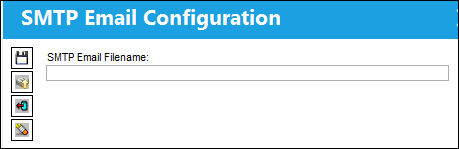
The SMTP Email Configuration pop up appears.
Be sure the correct .xml configuration file is uploaded. If not, upload it.
2. Setup e-mail SMTP server.
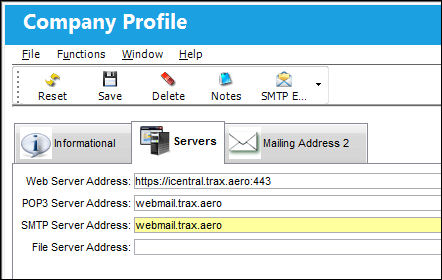
In the Company Profile, Servers tab enter the address of the SMTP server in the SMTP Server Address field.
3. Setup e-mail address of employees.
Go to Settings/Update/Employee Master.
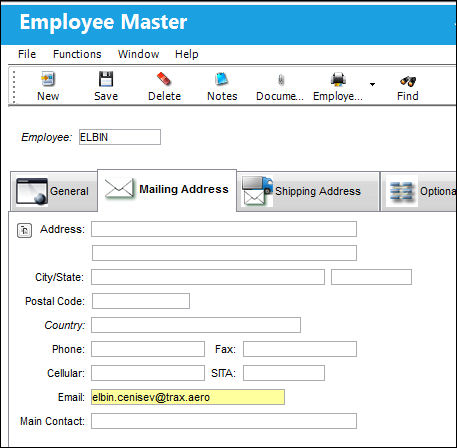
Select the Employee Master, Mailing Address tab.
The Email field displays the current users email address that will be used as the 'From' field when sending an SMTP email.
Send a Test Email:
In the following example, the user will email a print from the Library module.
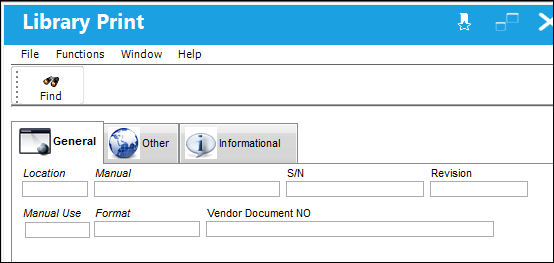
Go to Library/Print/Library Print.
From the Library Print window, select any one or more of the following fields to query for a Library Print. Select the Find  button.
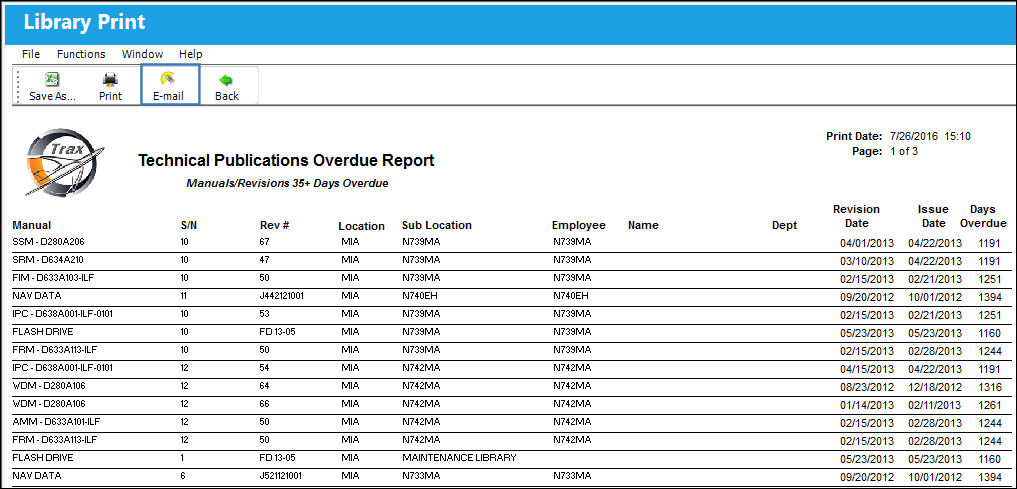
TRAX displays the following print.
Select the E-mail  button.
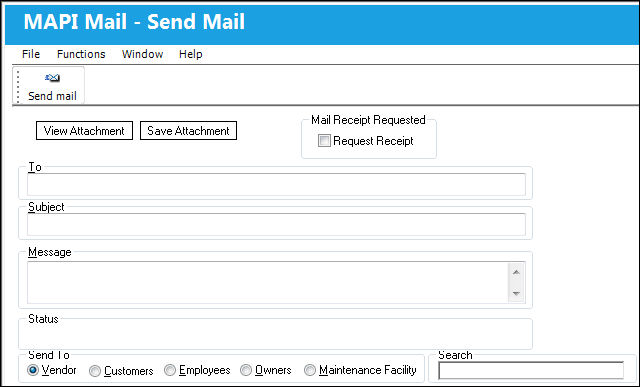
TRAX displays the following window. Enter the email address of the recipient in the 'To' field. Select the Send Mail  button.
Share
Print
|
©1997-2026 Trax USA Corp. All rights reserved. This manual may not be copied, photocopied, reproduced, translated, or converted to any electronic or machine-readable form, in whole or in part, without prior written approval from Trax USA Corp. |
 |