
 Share
Share
 Print
Print
|
|
|
|
|


From the Company Profile window (via Settings/Update) select the TRX Configuration  button.
 The TRX Configuration button is part of the TRX interface functionality and is only available for customers using this interface. For more information on the TRX interface refer to the TRX Interface (TCS) manual.
Once set up, the interface connection can be tested by selecting the Check Connectivity  button in this window.
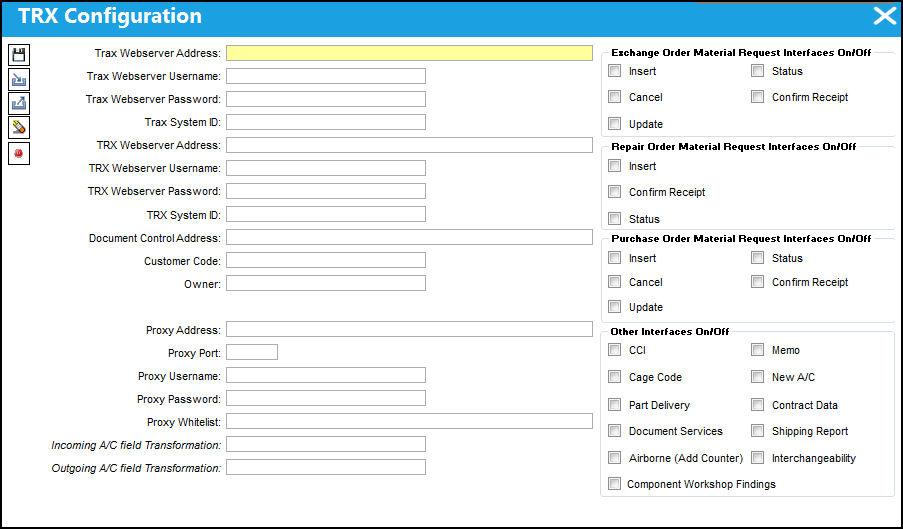
The information on the left of the TRX Configuration window consists of information linking the Customer to TRX. This information is specific to the Customer and TRX. The following fields must be populated:
The following information/options are available in this window:
_____________________________________________________________________________________
Trax Webserver Address
This is the address for each customers TomCat Server.
Trax Webserver Username
Enter the Trax Webserver username, if the system is configured for a username.
Trax Webserver Password
Enter the Trax Webserver password, if the system is configured for a password.
Trax System ID
This System ID enables TRAX to identify itself as a system.
TRX Webserver Address
This is the TRX Webserver Address, provided by TRX.
TRX Webserver Username
Enter the TRX Webserver username, if the system is configured for a username.
TRX Webserver Password
Enter the TRX Webserver password, if the system is configured for a password.
TRX System ID
This System ID enables TRX to identify itself as a system.
Document Control Address
This is the default address that documents are sent to.
Customer Code
The customer code as configured by TRX.
Owner
The owner as defined in the Owner Master.
Proxy Address
The address of the proxy server being used to connect to the TRX Interface through a firewall.
Proxy Port
The port number of the proxy server used to access TRX.
Proxy Username
The proxy username.
Proxy Password
The proxy password.
Proxy Whitelist
A server that does not require a proxy setup to overpass a firewall.
Incoming A/C Field Transformation
This field allows users to set up an automatic transformation of the incoming Aircraft naming convention used by a customer to link up with the TRX naming convention. For example, TRX may only accept A/C names to have a hyphen (-) between the aircraft type and series while a customer may not insert a hyphen. This functionality will add or remove the hyphen (or any other naming detail) depending on the configuration. To create the transformation, right-click in the field. The following window appears:
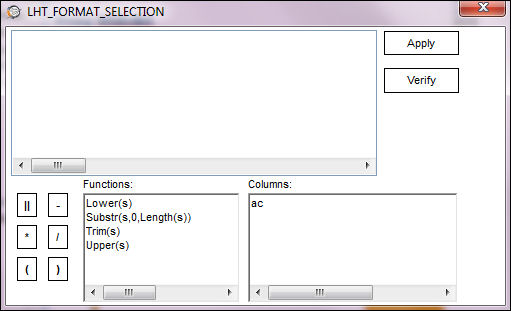
Enter transformation then apply it the field. For more information refer to a TRAX System Administrator.
Outgoing A/C Field Transformation
This field allows users to set up an automatic transformation of the outgoing Aircraft naming convention used by a customer to link up with the TRX naming convention (see above).
_____________________________________________________________________________________
To the right of the window all of the available TRX interfaces are listed. Customers are allowed to select the interfaces they wish to use to communicate with TRX. Select the checkbox to the left of each interface to apply its functionality. These interfaces are broken down into four categories as follows:
The following information/options are available in this window:
_____________________________________________________________________________________
Insert
Sends message to TRX whenever an Exchange Order is created involving an TRX pooled part and an TRX Vendor.
Cancel
Sends message to TRX whenever an TRX Exchange Order is canceled.
Update
Sends message to TRX whenever an TRX Exchange Order is updated.
Status
Allows users to view the current Status of the TRX Exchange Order.
Confirm Receipt
Provides a confirmation indicating that the order was received by TRX.
_____________________________________________________________________________________
The following information/options are available in this window:
_____________________________________________________________________________________
Insert
Sends message to TRX whenever an Repair Order is created involving an TRX pooled part and an TRX Vendor.
Confirm Receipt
Provides a confirmation indicating that the order was received by TRX.
Status
Allows users to view the current Status of the TRX Repair Order.
_____________________________________________________________________________________
The following information/options are available in this window:
_____________________________________________________________________________________
Insert
Sends message to TRX whenever an Purchase Order is created involving an TRX pooled part and an TRX Vendor.
Cancel
Sends message to TRX whenever an TRX Purchase Order is canceled.
Update
Sends message to TRX whenever an TRX Exchange Order is updated.
Status
Allows users to view the current Status of the TRX Repair Order.
Confirm Receipt
Provides a confirmation indicating that the order was received by TRX.
_____________________________________________________________________________________
The following information/options are available in this window:
_____________________________________________________________________________________
CCI
The CCI (Component Change Information) interface sends information to TRX concerning the installation and removal of their components in their customer's aircraft.
Cage Code
Identifies the vendor by Cage Code instead of by Vendor Name.
Part Delivery
Sends exchange issue information.
Document Services
Downloads component documents from TRX.
Airborne (Add Counter)
This interface sends the total A/C Hours for selected aircraft to TRX daily. The Transfer via Airborne checkbox in the A/C Master, Optional 1 tab must be selected for each A/C in order for its A/C Total Hours to be sent to TRX.
For more information refer to the A/C Master, Optional 1 Tab via the Settings Training Manual.
From the TRAX Database Jobs window, notice that the daily job hat performs this functionality is listed.
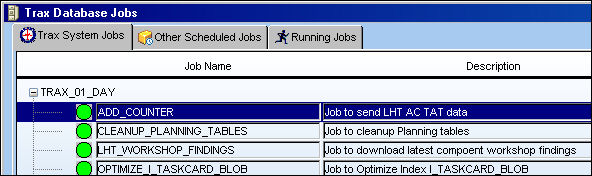
For more information refer to the TRAX Database Jobs via the System Administration Training Manuals.
Component Workshop Findings
Downloads reliability information from TRX.
Memo
Enables the sending/receiving of memo's between the customer and TRX.
New A/C
Sends new aircraft notifications to TRX.
Contract Data
Automatically updates the P/N Pool. Automatic updates are sent via the TRAX Database Jobs window (see above).
Shipping Report
Downloads shipping documents such as the Airway Bill from TRX.
Interchangeability
Select to view TRX interchangeability.
_____________________________________________________________________________________
All of the above interfaces are selected by default.
Additional interface configuration documentation can be accessed through the TRAX iCentral website. Go to the Online Resources / Technical & Interface page for how-to documentation regarding interface configuration including Application Update, Apache WebServer Update, and Configuration of WebServer (which all require the same basic setup/configuration for the TRX interface as they do for other interfaces). The Technical & Interface page can be found at this address:
Share
Print
|
©1997-2026 Trax USA Corp. All rights reserved. This manual may not be copied, photocopied, reproduced, translated, or converted to any electronic or machine-readable form, in whole or in part, without prior written approval from Trax USA Corp. |
 |