
 Share
Share
 Print
Print
|
|
|
|
|


From the Company Profile window, companies that are utilizing the Surplus Sales functionality must configure their connections to the World Part Locator interfacing system by selecting the WPL Sales  button. When selected, the WPL Sales Configuration window appears. Users must specify the webserver information, their company's CAGE Code, and proxy details.
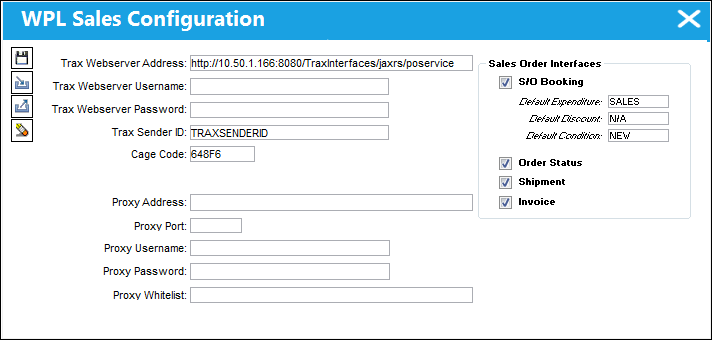
In order to connect to the interface, the TRAX operator must set up their own Glassfish server. Then, the Trax Webserver Address field must be set to:
<glassfish address:port>
For more information on the Surplus Sales functionality, refer to the Surplus Sales Overview via Customer Orders.
The World Part Locator is also available for purchasing parts. That portion of the interface is configured via the WPL Purchase Button, via Company Profile.
Share
Print
|
©1997-2026 Trax USA Corp. All rights reserved. This manual may not be copied, photocopied, reproduced, translated, or converted to any electronic or machine-readable form, in whole or in part, without prior written approval from Trax USA Corp. |
 |