
 Share
Share
 Print
Print
|
|
|
|
|


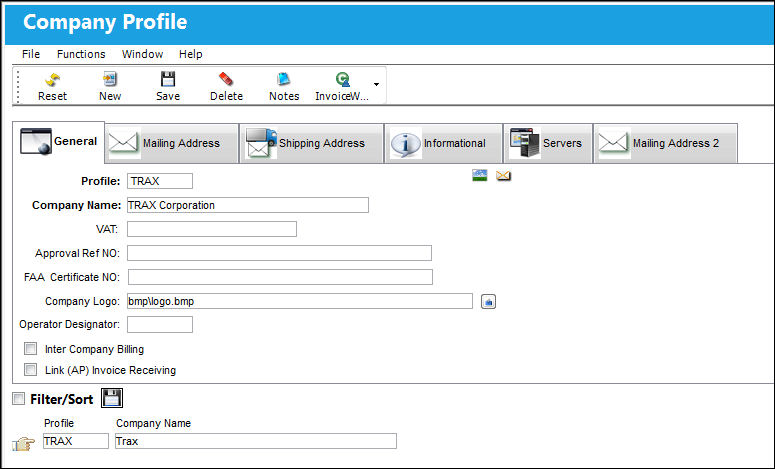
When G/L Interface Switch  COMPANYMULTI is set to 'Yes', users are allowed to enter multiple Company Profiles with the New
  button in order to differentiate between companies sharing the same database.
The Profile via the Control Panel must be the same as the Profile in the Company Profile window in order for the New button to appear in the below window.
For more information regarding the Multi-Company functionality, refer to Switch COMPANYMULTI via the G/L Interface Training Manual.
Select the New button to the left of the screen.
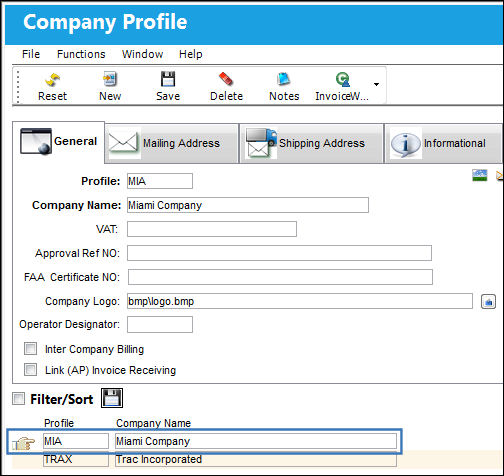
Enter the second company information then select the Save  button. Both entries will then appear at the bottom of the window.
Share
Print
|
©1997-2026 Trax USA Corp. All rights reserved. This manual may not be copied, photocopied, reproduced, translated, or converted to any electronic or machine-readable form, in whole or in part, without prior written approval from Trax USA Corp. |
 |