
 Share
Share
 Print
Print
|
|
|
|
|


The Bank  button allows users to add multiple bank information for customer invoices.
From the Company Profile window, select the Bank button.
TRAX displays the Customer Bank information window. Select the New  button to create/add a bank record for a specified customer invoice. Populate all mandatory and desired information.
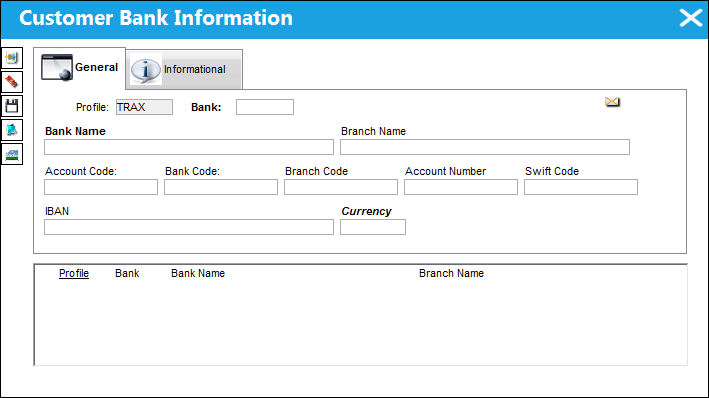
Select the Save  button to save the record.
The user may now add the bank information to a customer invoice.
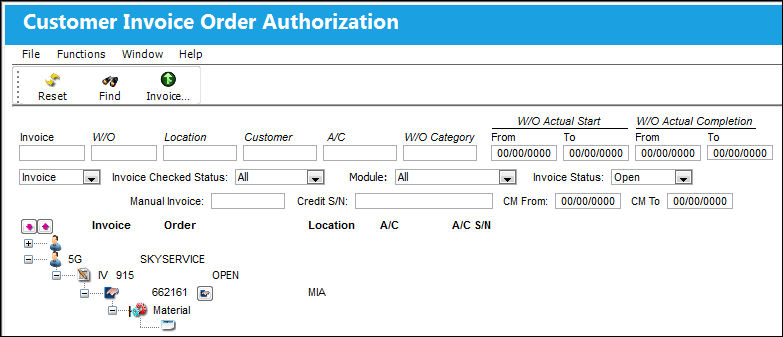
Go to Production/ Explorer/ Customer Invoice Authorization.
From the Customer Invoice Authorization window, navigate to the Customer Invoice Authorization Invoice window.
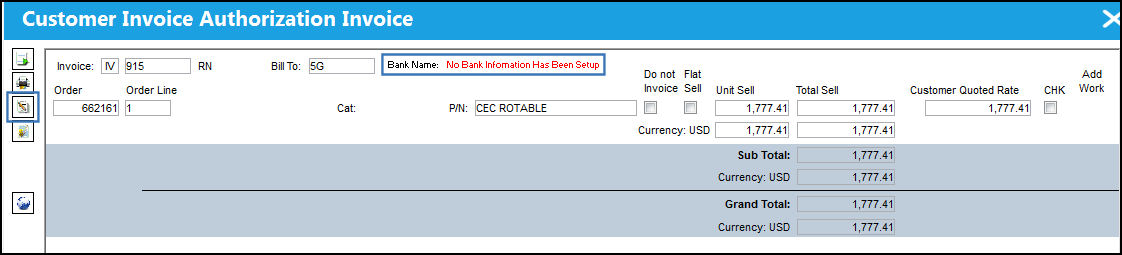
Notice that the text in red indicates that there is no bank information setup against the invoice.
Select the Invoice Header  button.
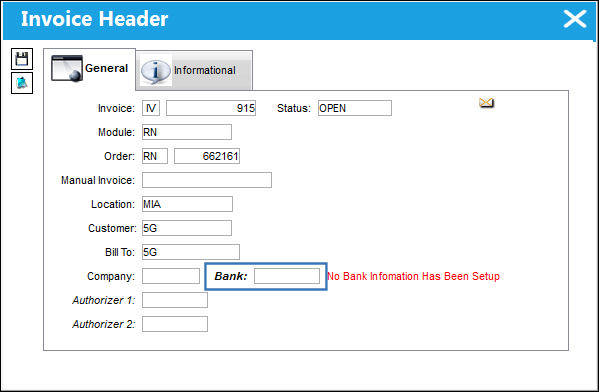
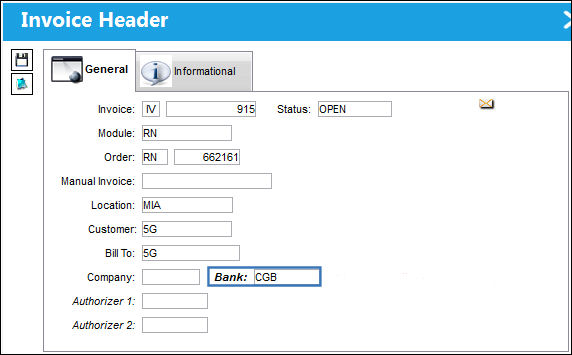
TRAX displays the Invoice Header window. Right-click into the Bank field.
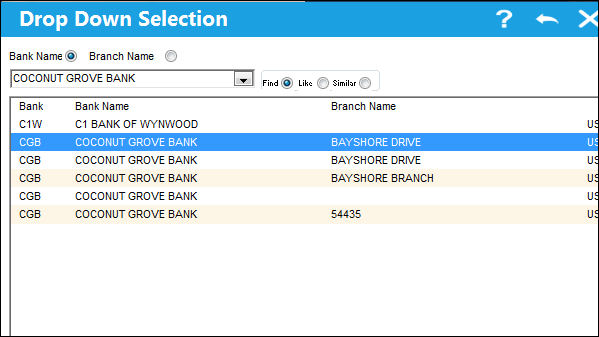
The following Drop Down Selection window appears. Select the bank that was created via the Bank button in the first screenshot.
The 'Bank' field is populated with CGB. Select the Save button.
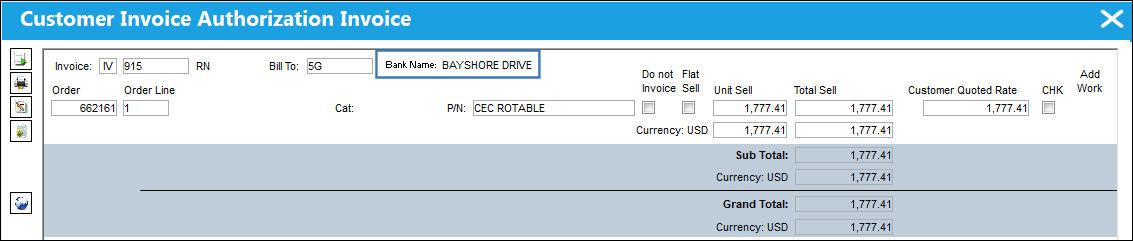
Return to the Customer Invoice Authorization Invoice window. The bank information is shown as highlighted below:
Share
Print
|
©1997-2026 Trax USA Corp. All rights reserved. This manual may not be copied, photocopied, reproduced, translated, or converted to any electronic or machine-readable form, in whole or in part, without prior written approval from Trax USA Corp. |
 |