 Download Online Help
 Print
|
|
|
|
|


Modifying Existing Reports
The system allows users to modify the format of all existing reports. In order to modify an existing report on the Report server, the user will have to log in to a separate server that has Jaspersoft installed. This Jaspersoft server is connected to the Report server which is used to generate reports that are requested from eMRO.
The user may change the format of the print in the following ways:
- remove fields
- delete fields
- re-locate fields
- merge existing fields
The user cannot add new fields or manipulate the current data in the report.
This functionality requires a two part process:
- Access Jaspersoft Studio (varies for Cloud vs On-Premise eMRO users)
- Modify Existing Report (see below)
See below.
1. Access Jaspersoft Studio
Access to Jaspersoft Studio varies depending on your eMRO deployment method:
- Trax Cloud: The Trax Cloud team will set up an environment for you to access Jaspersoft Studio via a Remote Desktop. Refer to Accessing Jaspersoft Studio - for eMRO Cloud Users.
- On-Premise: Jaspersoft Studio will need to be downloaded on premises. Refer to Accessing Jaspersoft Studio - for eMRO On-Premise Users.
2. Modifying Existing Reports
Before modifying an existing report, an original report will be shown so that the modification can be better illustrated.
Go to Settings/ Print/ Aircraft Type/Series Print.
In the following example, the user will generate an A/C Master print for A/C N183.
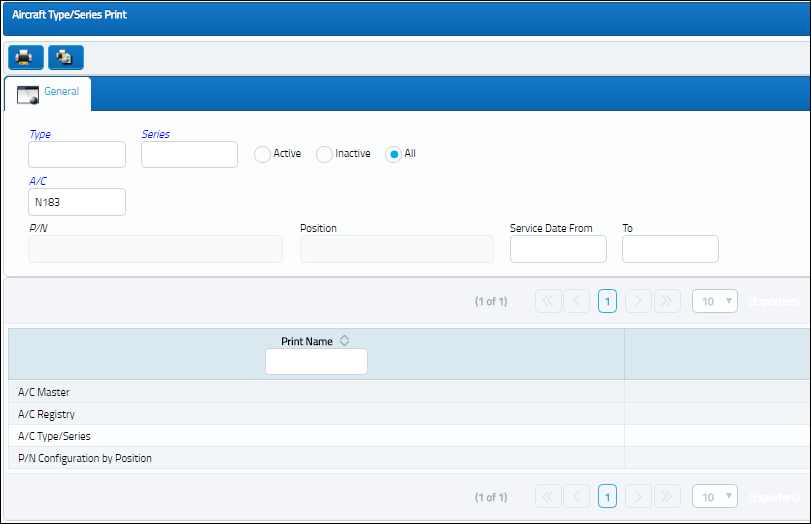
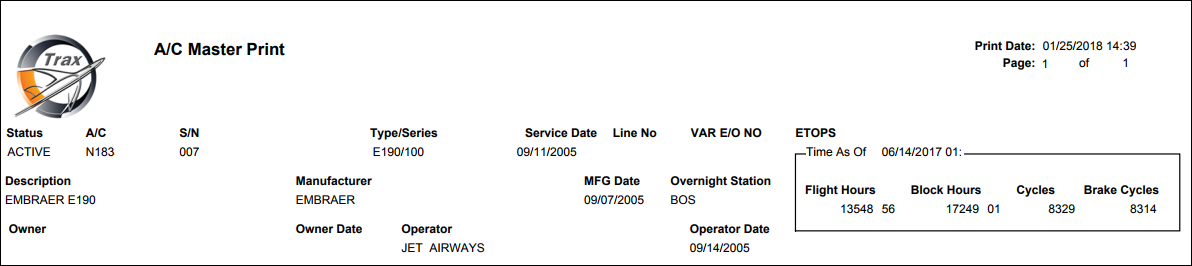
The print is generated and is now available in the Print Queue as shown below. This report will be modified for this example.
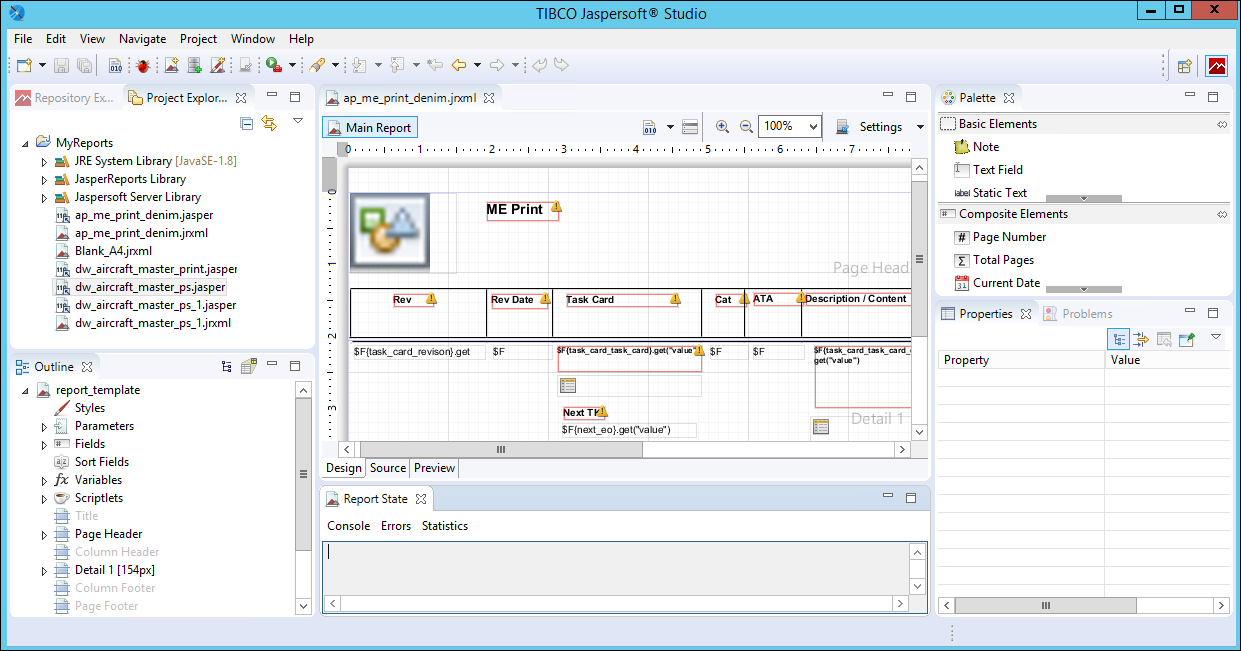
From Jaspersoft Studio, the following page will be displayed.
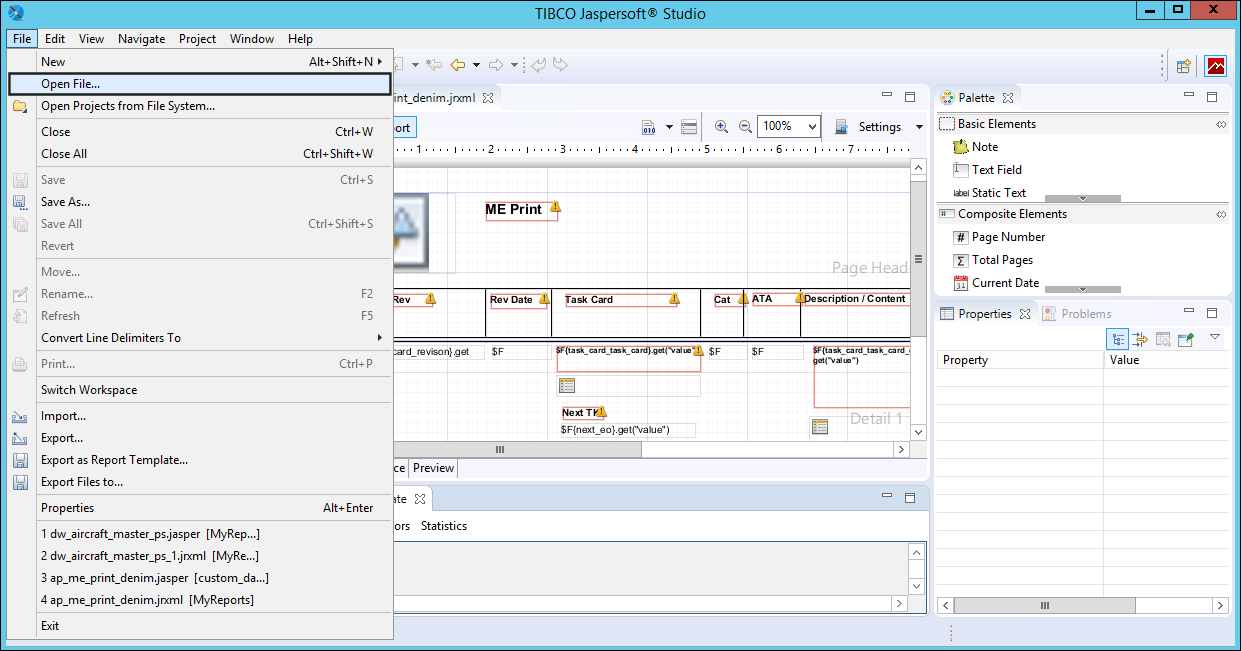
Locate the print to be modified. Go to File/ Open File
All reports will be stored in the Report Server drive.
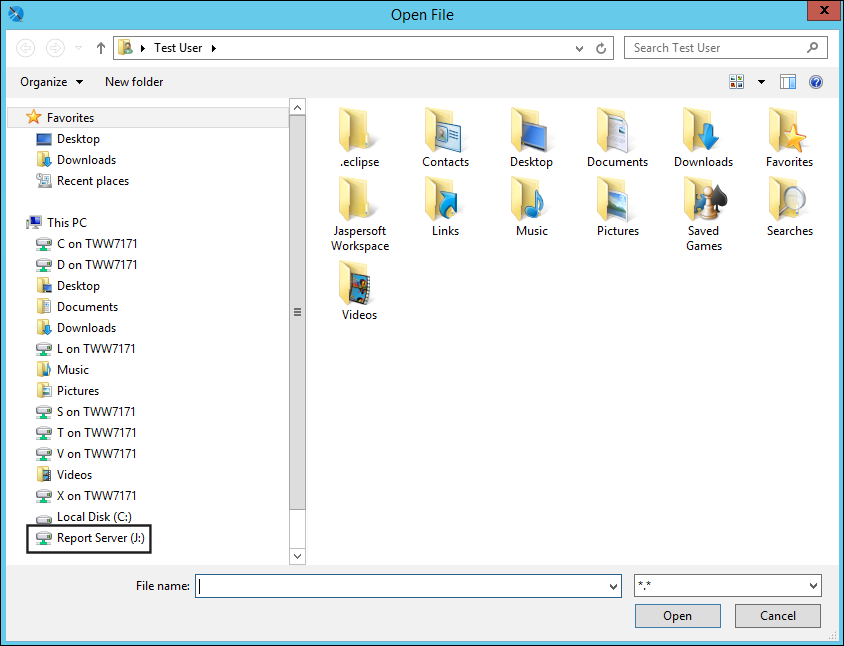
The folders in which the reports are located will appear. Locate the folder and report to be modified.
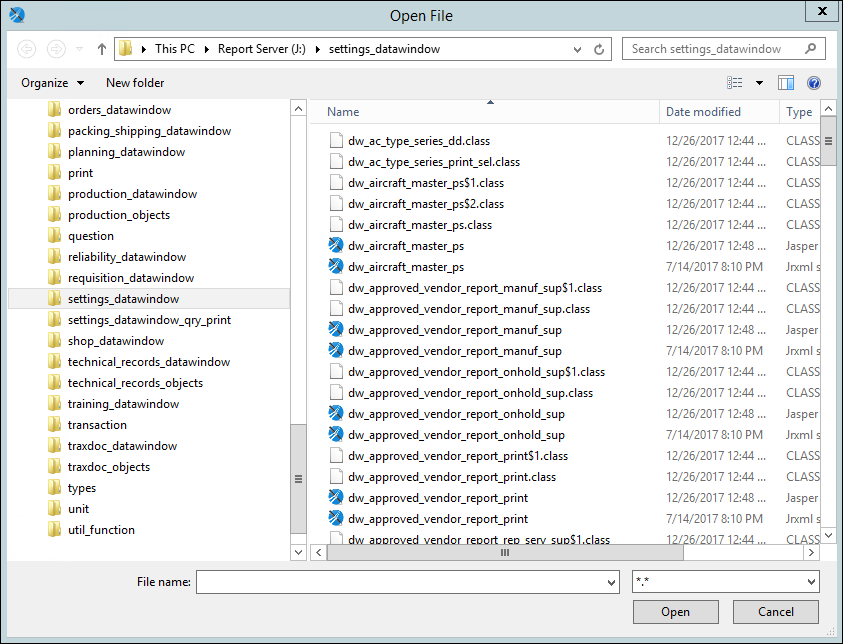
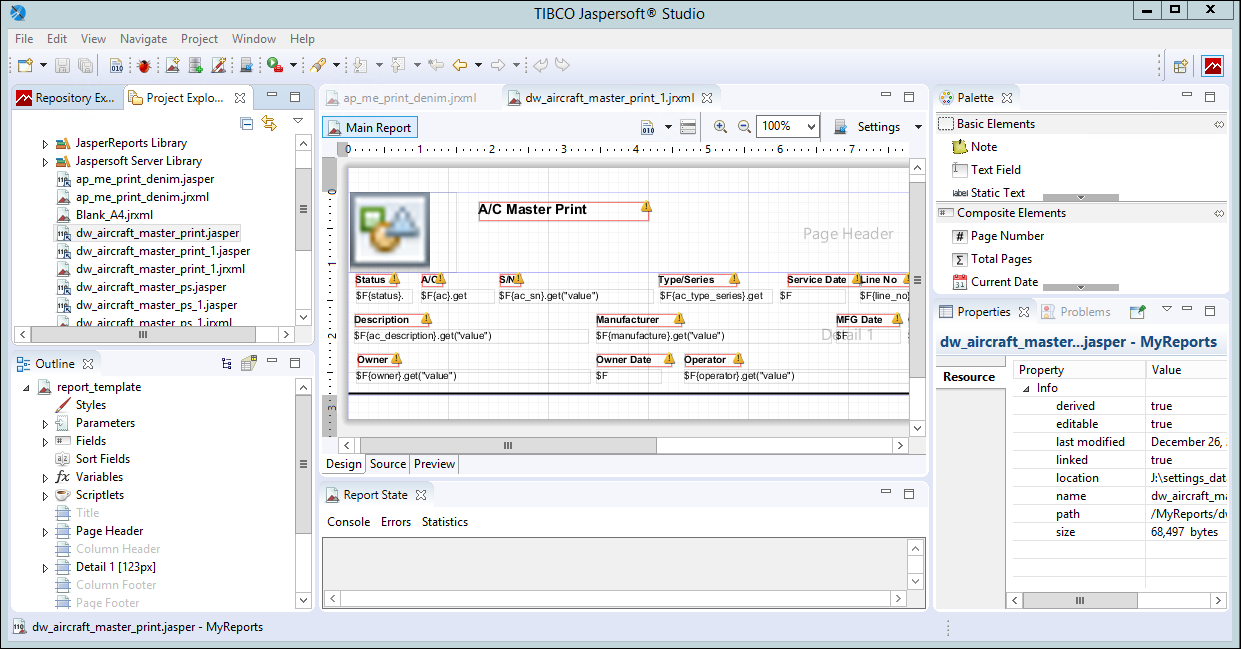
The report appears as shown below. In this example, the user will be modifying the A/C Master Print report (which is the same report displayed above).
The user may change the format of the print in the following ways:
- remove fields
- delete fields
- re-locate fields
- merge existing fields
The user cannot add new fields or manipulate the current data in the report.
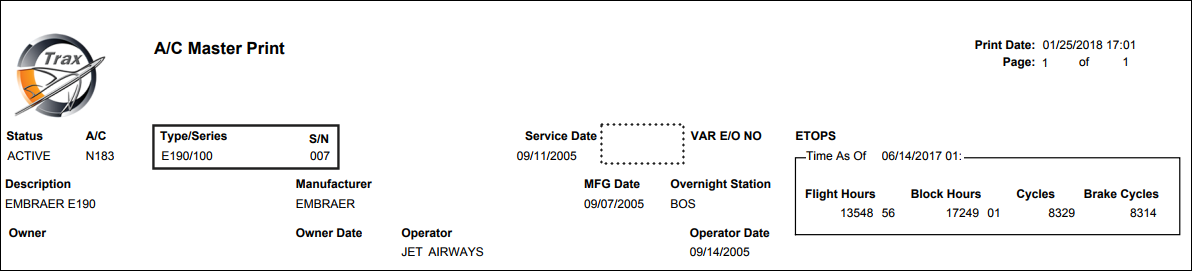
The Type/Series and S/N fields have been interchanged and the Line No field has been removed from the report. Once all modifications are complete, the changes will have to be saved and compiled.
Select File/ Save.
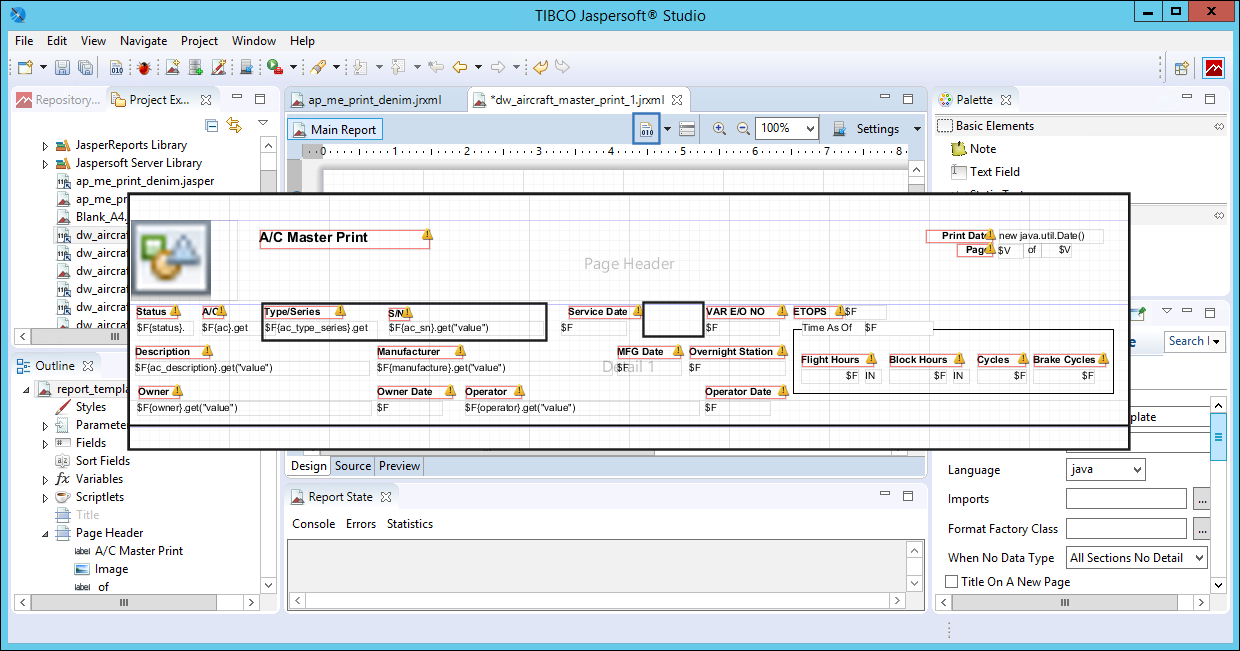
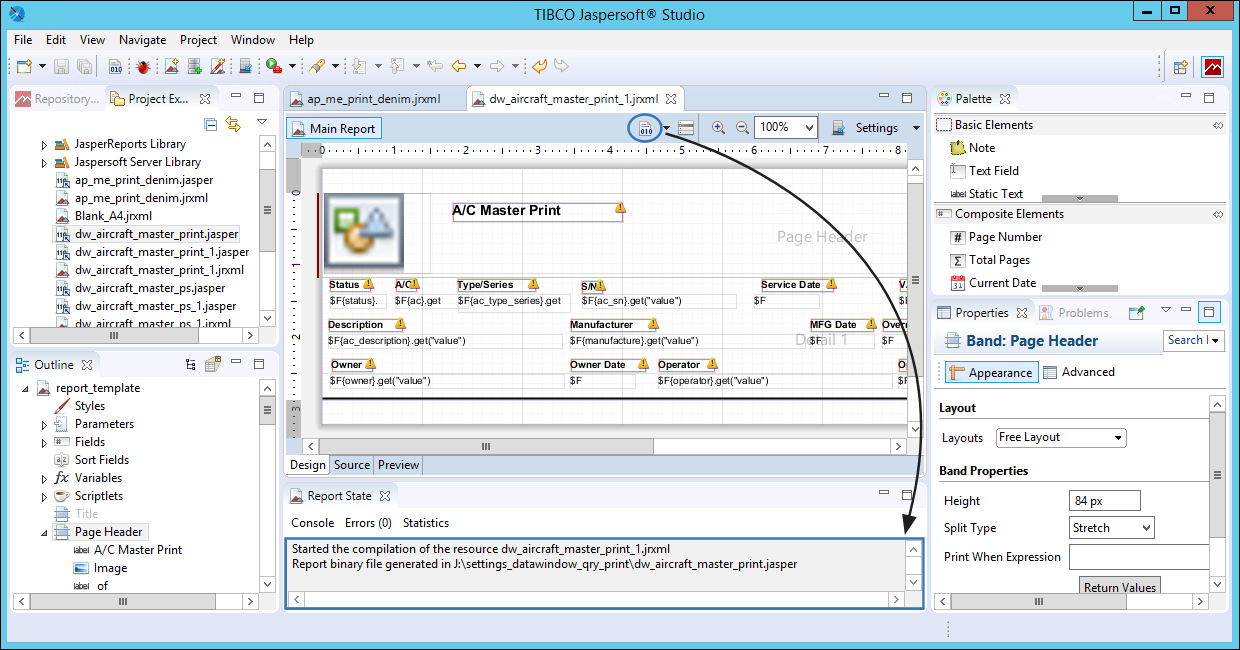
Select the Compile Report  button. Once the compile begins, information regarding the status of the compile will appear as shown below.
Run the report again via Settings/ Print/ Aircraft Type/Series.
Notice that in the new report, the Type/Series and S/N fields have switched places and the Line No field has been removed.
Original Report:
Modified Report:
Download Online Help
Print
|
©1997-2018 Trax USA Corp. All rights reserved. This manual may not be copied, photocopied, reproduced, translated, or converted to any electronic or machine-readable form, in whole or in part, without prior written approval from Trax USA Corp. |
 |