 Download Online Help
 Print
|
|
|
|
|


Schedule Print Button, via Standard Buttons
The Schedule Print  button allows users to schedule specific prints with unique filters to be automatically generated through a pre-configured schedule. The button is found in all Print windows in the system.
Once the fields have been filled, go ahead and select the Schedule Print button.
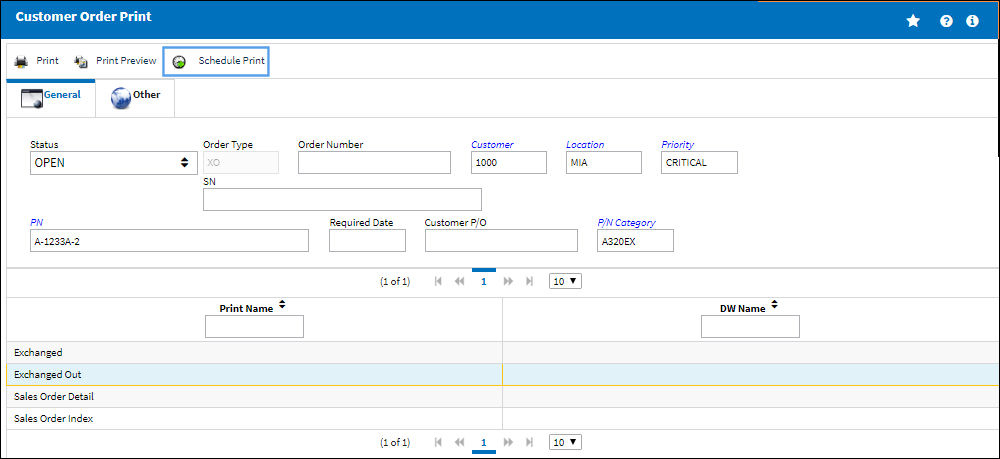
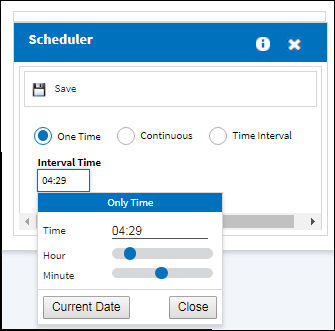
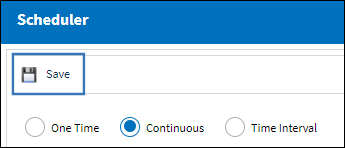
The Scheduler window appears as follows. Scheduling can be set at a specific time, day of the week, or by a recurring time interval. Choose from the following radio buttons:
One Time
Select this option to schedule a one-time print. Insert the time (Zulu Time) in the Interval Time field. Current Date and Time can be input by selecting the Current Date button.
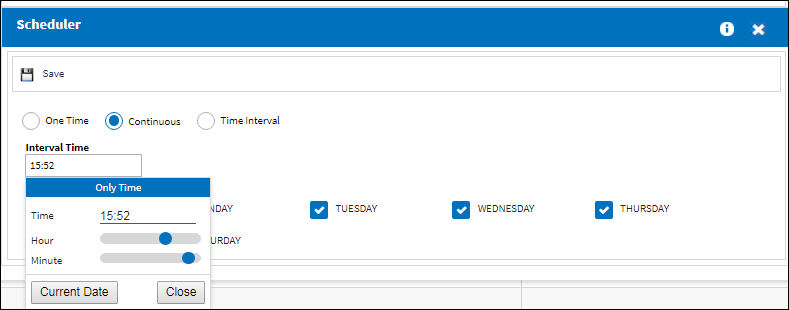
Continuous
Insert the time (Zulu Time) by selecting the cursors or it could be typed at the Interval Time box. It can be scheduled to print at any time or day of the week.
Time Interval
Select the radio buttons for minutes and hours, then type the desired amount of time on the Run Job Every box, to have your prints schedule to be printed on the time selected.
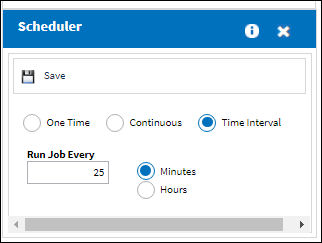
Once the Time has been selected click the Save  button so your Print jobs perform accordingly.
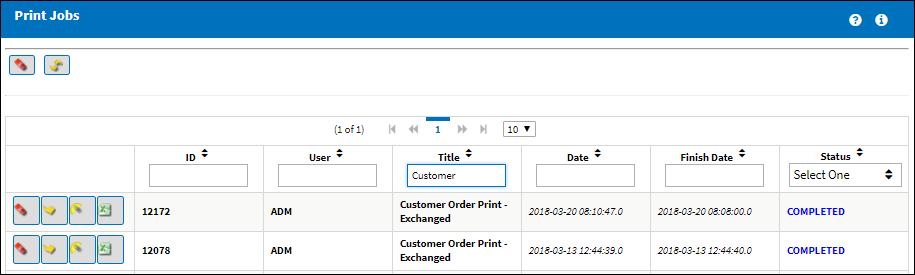
The Prints will be available on the Print Jobs section.
Download Online Help
Print
|
©1997-2018 Trax USA Corp. All rights reserved. This manual may not be copied, photocopied, reproduced, translated, or converted to any electronic or machine-readable form, in whole or in part, without prior written approval from Trax USA Corp. |
 |