 Download Online Help
 Print
|
|
|
|
|


Print Queue, via Navigation Panel
The Print Queue connects users to the prints generated from the separate Report Server. These prints include all reports that are generated from the system, as well as Work Packages. Prints are generated on a separate report server to allow for both the generation of the print(s) and eMRO to run concurrently, without interruption or lag time. Users may only view prints they generated in this print queue.
Select the Print Queue.
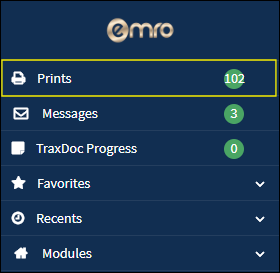
From the Print Queue, the user is able to manage their individual prints and work packages.
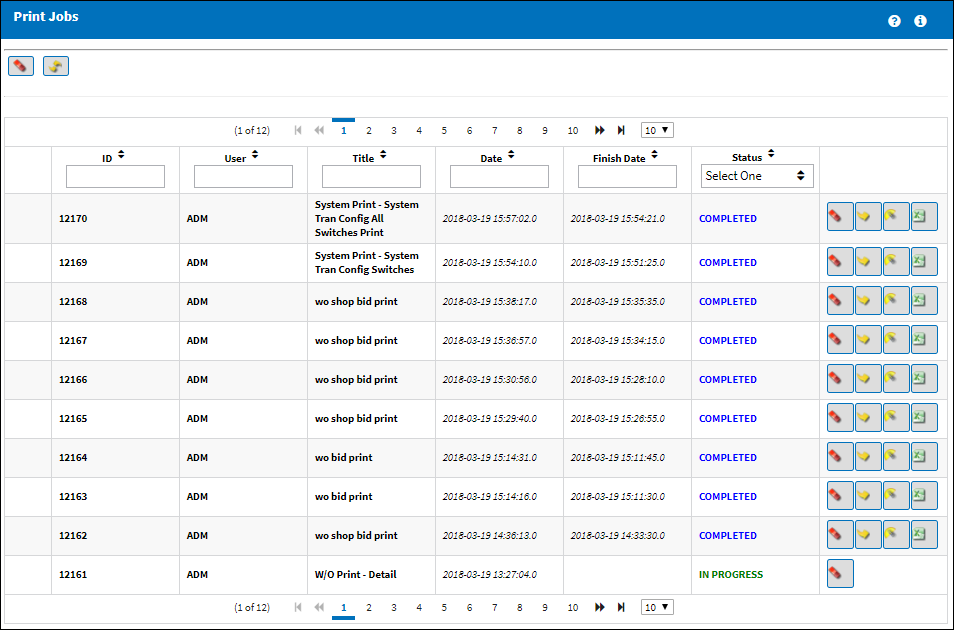
The following options/information is available in this window:
_________________________________________________________________________
ID
The Trax generated ID number for the designated print. Once generated, this ID number can be used to search for prints in the Print Queue.
Title
The title of the print.
Date
The date the print was generated.
Status
The status of the print (e.g., In Progress, Completed, etc.).
_________________________________________________________________________
Once a print has been generated, the user has additional options.can view, email, or delete the print from this queue.
Select the Delete  button to delete a print.
Select the Open Print  button to view a print
Select the Email  button to email a print.
Select the Excel  button to save a print in an excel file.
For more information on additional features, refer to Reporting Options.
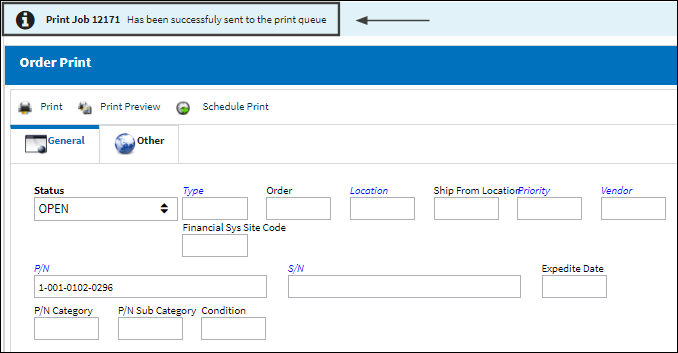
The following Print Job indication will appear with a Trax generated ID number to inform the user that a print has been sent to the Printer Queue. The user can then access the print/report to view the details via the Printer Queue.
Download Online Help
Print
|
©1997-2018 Trax USA Corp. All rights reserved. This manual may not be copied, photocopied, reproduced, translated, or converted to any electronic or machine-readable form, in whole or in part, without prior written approval from Trax USA Corp. |
 |