
 Share
Share
 Print
Print
|
|
|
|
|


Attaching a Task Card Zone to a Work Order
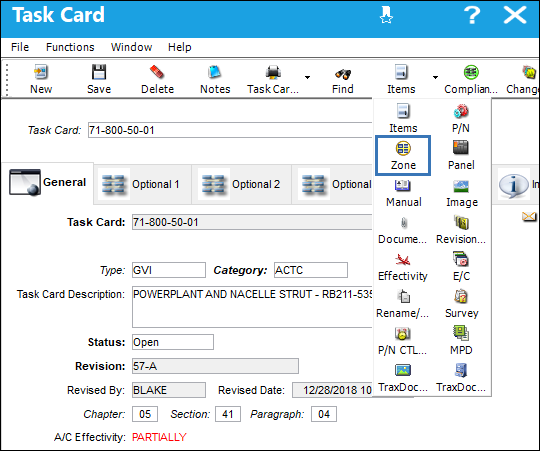
Create a Task Card or find an existing one. Select the Zone  button.
The system displays the Task Card Zone window.
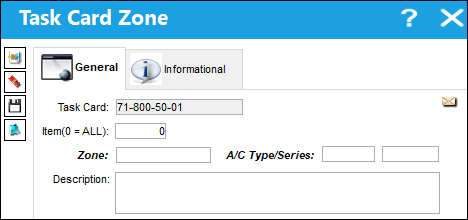
Use the Zone field drop down selection menu to select a zone.
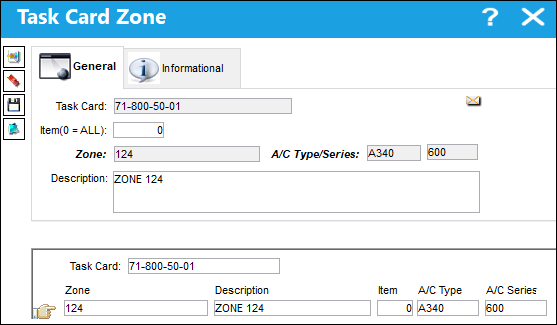
Ensure to select a zone with the same A/C Type/Series effectivity as the Task Card.
Select the Save  button; the zone is saved as shown below:
Create a Work Order for an A/C that has the same effectivity as the Task Card and zone.
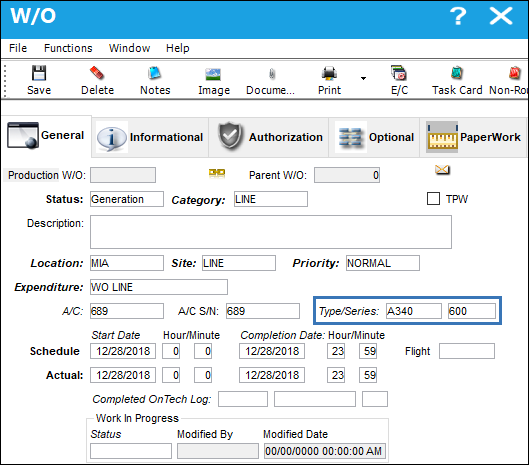
Select the Task Card  button and the W/O Task Card window appears; select the New
  button.
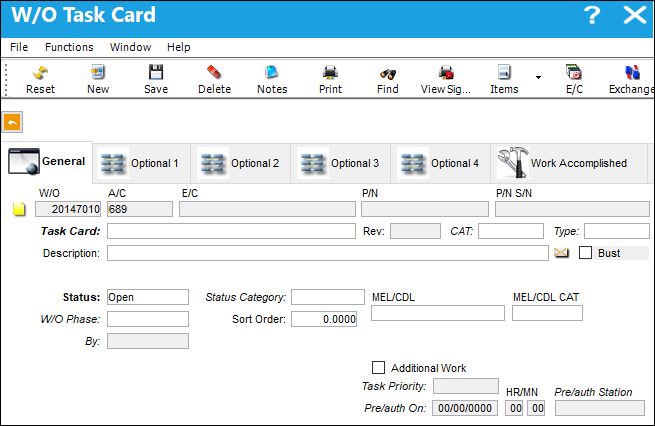
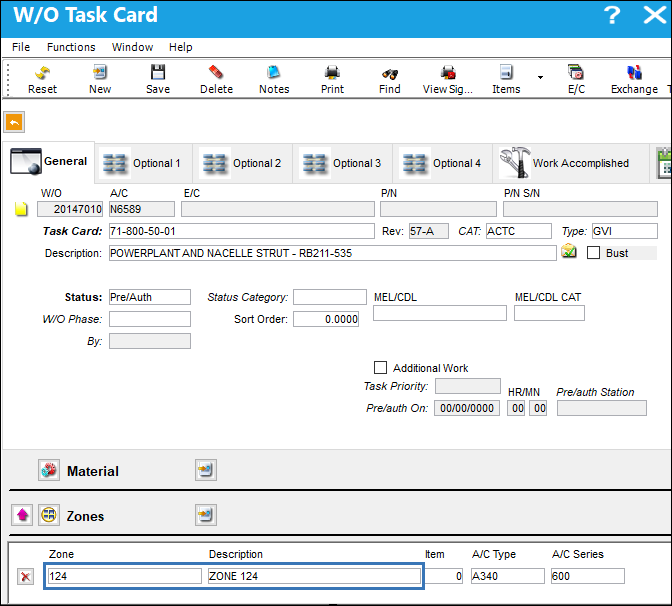
Attach the Task Card that the zone is linked to and save the record. The Task Card and associated zone have been added to the W/O.
Although a Task Card can be attached to any W/O, if the zone associated to the Task Card is not effective to the A/C Type/Series defined in the W/O, the zone will not follow the Task Card.
Share
Print
|
©1997-2026 Trax USA Corp. All rights reserved. This manual may not be copied, photocopied, reproduced, translated, or converted to any electronic or machine-readable form, in whole or in part, without prior written approval from Trax USA Corp. |
 |