
 Share
Share
 Print
Print
|
|
|
|
|


There are a few Invoice Order Selection Flags which a user may encounter when entering this window during the order selection process. They are as follows:
1. If an Order is currently associated with an Open or Hold status invoice the user will be flag as seen below:
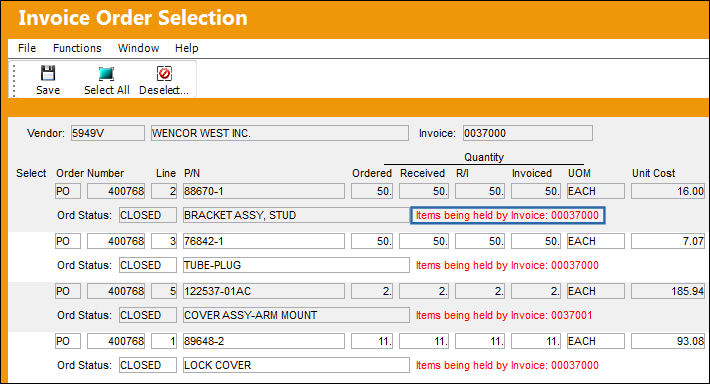
This Order may not be associated to another invoice until the 'Held' invoice is paid/ closed.
The Select checkbox will not appear for Orders while they are being held against another invoice. Additionally, paid Orders will not appear in the Invoice Order Selection queue.
2. If an Part Number is not defined as R/I (Receiving Inspection) required the N/A flag will appear in red R/I field as seen below:
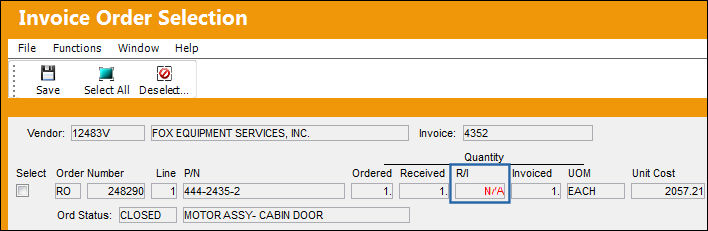
Upon completing the Order Receiving for a Part Number which doesn't require Receiving Inspection, the will be made available for issue in Inventory.
Parts maybe configured as R/I required via the P/N Master, Technical Engineering Tab.
3. If the Order that is entered in the Invoice Header does not match the content for the order in the Invoice Selection window, the user will receive the following informational warning message message.
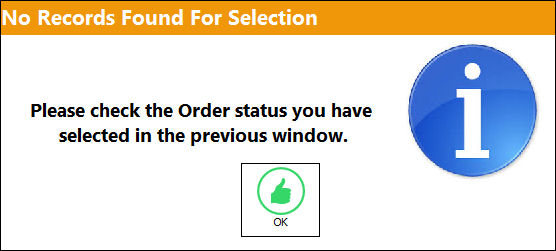
Select the OK. The following Order Status message box will appear. The user must review the order against the order invoice to make sure there are no discrepancies in the details. To facilitate the review, users may print the Order Status by selecting the Print  button.
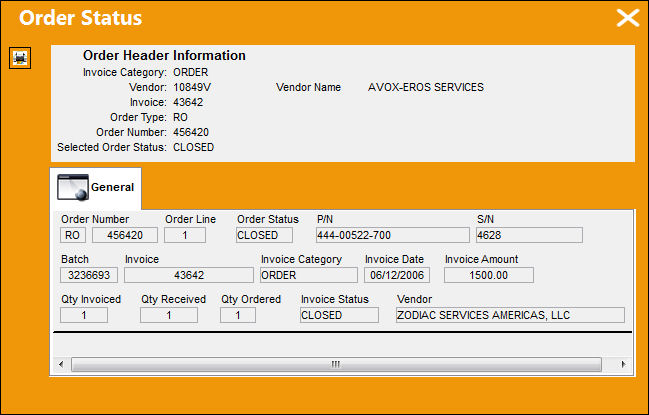
Note: The Order Header Information section contains most of the order's information, but not all details. Users may be required to verify the all of the order's details through the Order Query.
Once reviewed, return to the previous window (Invoice Selection). The user will then be required to edit the information in the Invoice Header. Once saved, the Invoice Order Selection window can be accessed.
Share
Print
|
©1997-2026 Trax USA Corp. All rights reserved. This manual may not be copied, photocopied, reproduced, translated, or converted to any electronic or machine-readable form, in whole or in part, without prior written approval from Trax USA Corp. |
 |