
 Share
Share
 Print
Print
|
|
|
|
|


Invoice Order Detail
The Invoice Order Item Detail Entry window allows the user to confirm any additional information required for the invoice entry.
From the Invoice Order Selection, be sure the Hand  pointer is pointing towards the desired invoice. Click on the Select
  button to select desired invoice or double click on it. The Invoice Header Window appears. Select the Save
  button. The Save prompt appears. Select OK. The Invoice Order Selection Window appears. After reviewing and entering the necessary information, the Invoice may be populated, as necessary and capable. For more information, refer to Posting an Invoice.
The Order Detail Window appears as shown below:
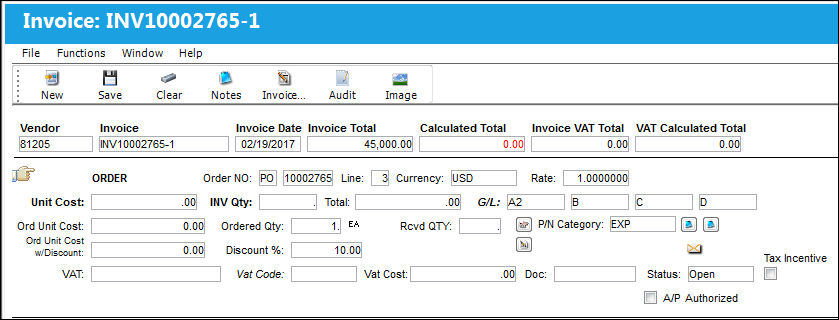
The following information/options are available in this window:
_____________________________________________________________________________________
Vendor
The system code for the service/part provider.
Invoice
The reference number (identification) on the received invoice and previously entered. This number is usually printed on the received invoice.
Invoice Date
The date the invoice was issued by the vendor.
Invoice Total
The total invoice amount.
Calculated Total
The total of all items on the Order will represent the Calculated Total.
The Calculated Total will appear in red if it is not in balance with the Invoice Total. The amount in the Invoice Total field is actually the amount specified on the Invoice Amount field of the Invoice Header. The Invoice Header  button appearing on this window will be used later to balance the amounts (via the Invoice Amount field on the Invoice header).
Unit Cost
The cost per unit according to the Order. This may be changed as necessary when adjusting costs for errors etc. See the Credit Memo and Order Add sections for additional information regarding adjusting costs.
 This field is security controlled via Link/Update/Invoice Entry/Invoice Order Detail Unit Cost and Invoiced Quantity through the Security Explorer window. For more information refer to the Security Explorer via the System Administration Training Manual.
 Unit Costs can be entered with up to four decimal places to be applied to the calculations of the Total Cost, VAT, etc.
INV Qty
Invoiced quantity of items in the Order.
This field is security controlled via Link/Update/Invoice Entry/Invoice Order Detail Unit Cost and Invoiced Quantity through the Security Explorer window. For more information refer to the Security Explorer via the System Administration Training Manual.
G/L
The General Ledger account that will be affected by this particular line item. You can have a unique G/L Account number for each line item appearing in the Invoice Order detail. Please see the New Invoice Item (Adding Lines/Items To The Invoice Detail) section for additional information regarding adding lines to this Invoice Order detail.
- When G/L Interface Switch
 COMPANYMULTI is set to 'Yes', the G/L field will be populated with a subsidized airline's G/L Account for an order involving its parent company's part. This is contingent on the code entered into the Company field of the relevant order header window. For more information refer to Switch COMPANYMULTI via the G/L Interface Switches Manual.
The G/L Code will auto populate based on the specified Invoice Tax selected to create the invoice. For additional information, refer to the Invoice Tax Transaction Code, via the Link Transaction Code Manual.
P/N Category 
The category of the part as defined in Settings/ Explorer/ System Transaction Code Explorer/ Settings/ P/N Category (e.g. Rotable, Consumable, Repairable) and entered for the particular part in the P/N Master.
VAT
Value Added Tax reference note.
VAT Code
Allows the user to add a Value After Tax percentage to the order. This is set up through the VAT Code System Tran Code.
 The VAT Cost of the line item is calculated from the percentage Rate set up in the Tran Code to contribute to the VAT Calculated Total of the Invoice.
VAT Cost
Value Added Tax amount.
This will not affect the calculated total.
Doc
Any reference document information related to the invoice.
Status
The current status of this invoice. The A/P Authorized checkbox must be checked to change the status.
CR/DB Memo
The CR/DB Memo field is a free text field that allows the user to note if a credit memo was requested and to reference which one. This field only appears if the Invoice is in 'Hold' status and will appear for Invoices that are created both manually or via an interface.
This field is informational only and has no financial impact in the system.
CR Amount
The CR Amount field is a free text field that allows the user to enter the amount requested for a credit. This field only appears if the Invoice is in 'Hold' status and will appear for Invoices that are created both manually or via an interface.
This field is informational only and has no financial impact in the system.
Request Credit Memo  button
The Request Credit Memo button allows the user to create a Credit Memo Request. This is usually done if there is a discrepancy with the invoice and it must be placed on Hold status.
Select the Request Credit Memo button. The Credit Memo Request window will appear. Most of the information in this window will auto populate from the invoice. Once the Reason Category and Reason fields are populated and saved, the request will be created and a notification will be sent (if applicable). The invoice will be placed on 'Hold' until the Credit Memo has been received.
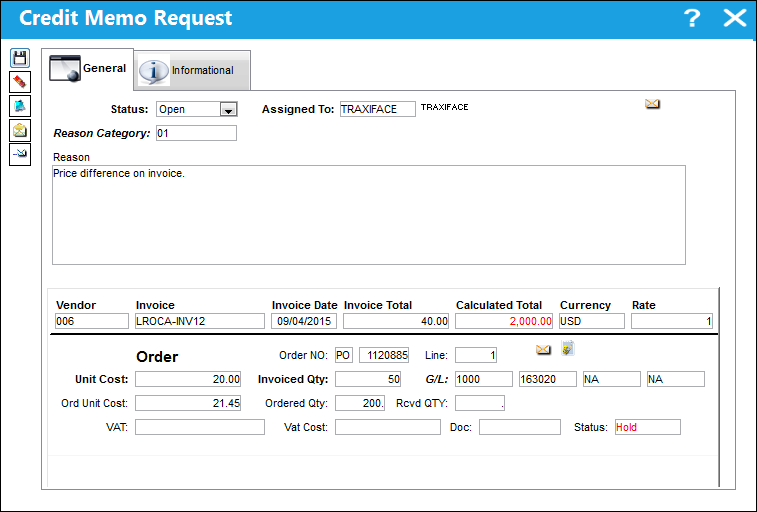
For additional information on handling Credit Memo Requests, please refer to Placing the Invoice on 'Hold' Until the Credit Memo is Received section of this manual.
A/P Authorized checkbox
Check this Account Payable Authorized checkbox to change the status of this invoice.
Tax Incentive
When this checkbox is selected, the Tax Incentive number is applied to the Invoice. The Tax Incentive is a federal number given to certain ordered parts that are eligible for said tax incentives. This functionality is only applicable for certain system users and varies depending on governmental procedures. This field is input into the Requisition or the Purchase Order prior to receiving the ordered part(s) into inventory. Once the Invoice is created and an order with a Tax Incentive is listed at the Invoice Header, the Tax Incentive field in this window is also populated. At any point the Tax Incentive number can be modified, including in the Invoice Detail window. Further, parts with Tax Incentives may not be able to be issued out to Customer Orders. For more information refer to Switch TAXINCPREVENT via the Orders Switches Manual.
_____________________________________________________________________________________
Within this window, the following buttons, checkboxes, and various features are available:
- New button
- Clear button
- Notes button
- Invoice Header button
- Audit button
- Image button
- A/P Authorized checkbox
- Invoice Totals Out of Balance
- Invoice Detail Items Out of Balance
- Buyer Notification
- Detail Item Hold Notification
- Order Information button
- Invoice History button
- Invoice Order Authorization button
Additional Functionality:
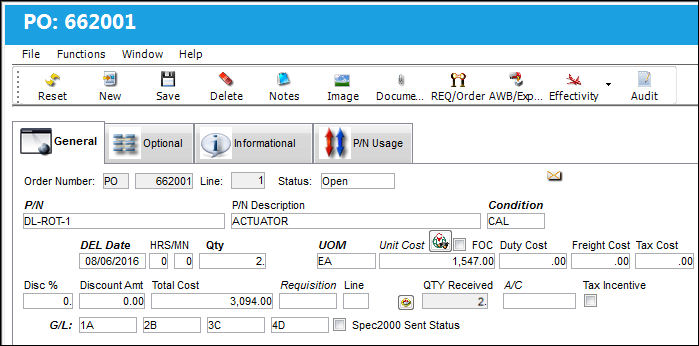
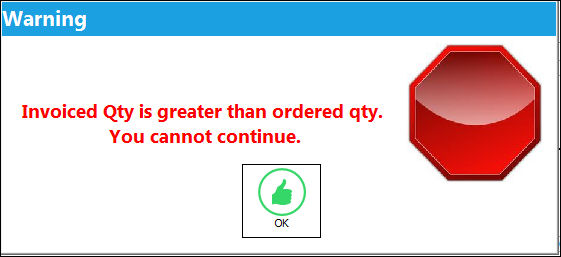
INV Qty cannot be changed to a greater quantity than the Ordered Qty in the Invoice Order Detail.
In the below PO, the ordered QTY is 2 and the QTY Received is 2:
Once the PO has been invoiced, the INV Qty and Ordered Qty is 2:
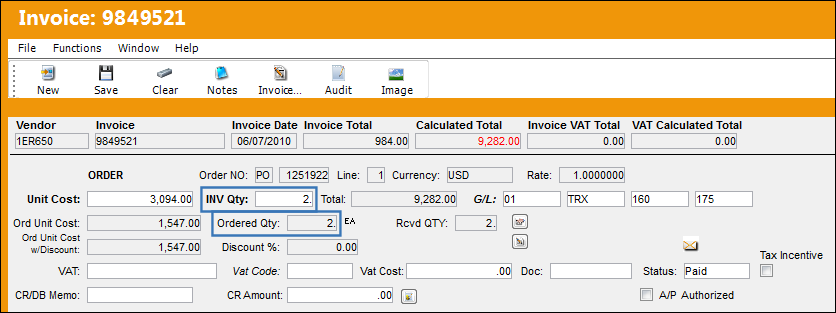
Change the INV Qty to 3 and select the Save button:
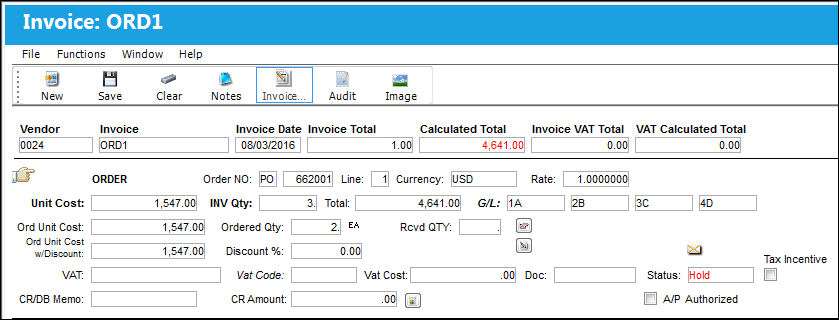
The user receives the following hard warning:
Security for this option is enabled:
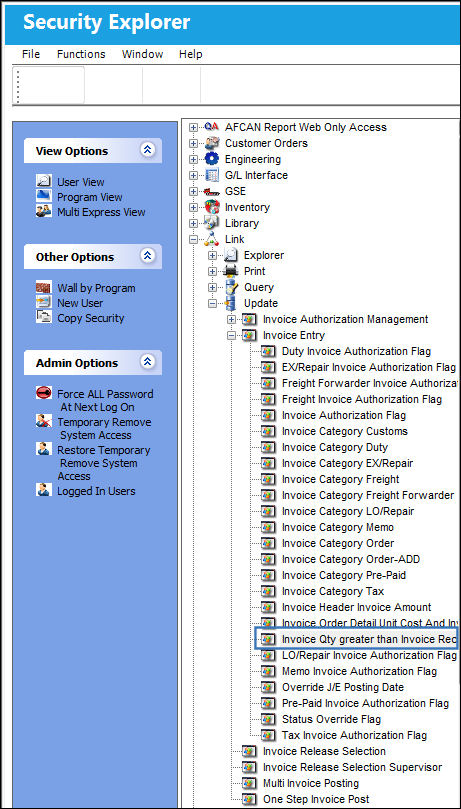
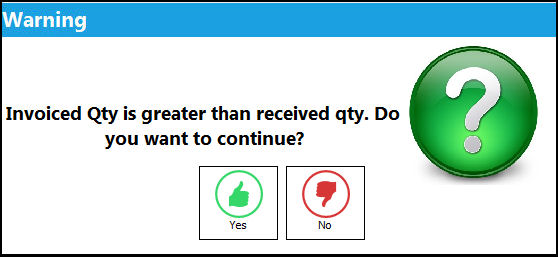
If the security is disabled, the user will receive the following soft warning:
Lock/Unlock Functionality
If one user attempts to edit an Invoice Order record that is currently being edited/viewed by another user, the following warning will prevent the second user from editing the same Invoice Order.
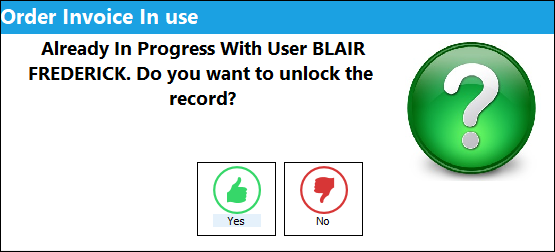
To unlock the Invoice Order, the secondary user who has locked it will need to exit the record.
Share
Print
|
©1997-2026 Trax USA Corp. All rights reserved. This manual may not be copied, photocopied, reproduced, translated, or converted to any electronic or machine-readable form, in whole or in part, without prior written approval from Trax USA Corp. |
 |