
 Share
Share
 Print
Print
|
|
|
|
|


From the Invoice Order Detail window users can add extra line items by selecting the New  button. This is used to differentiate between miscellaneous charges against the invoice.
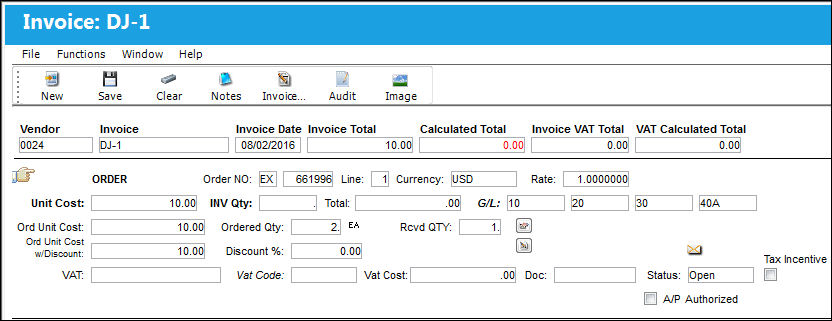
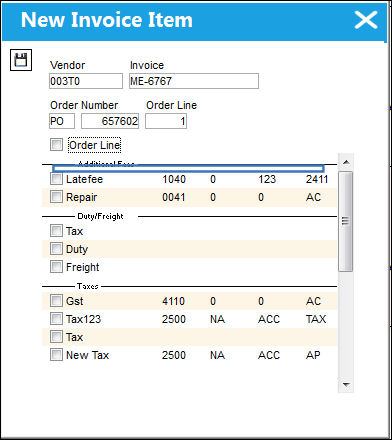
When the New button is selected, the New Invoice Item window appears:
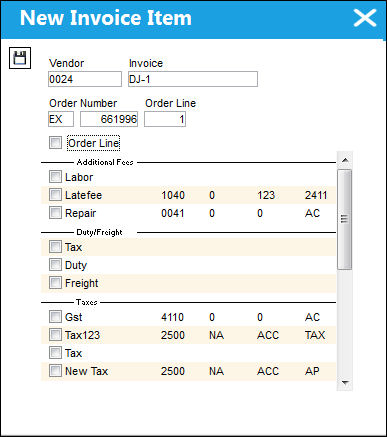
From the New Invoice Item window, the following options will be available:
_____________________________________________________________________________________
Vendor
The system code for the service/part provider.
Invoice
The reference number (identification) on the received invoice and previously entered. This number is usually printed on the received invoice.
Order Type / Number
The type of Order and order number entered with the Invoice.
Order Line
The Invoice Line item number.
Order Line checkbox
Select to attach a new order line to the invoice.
Number of Lines to ADD
Designates the number of order line Items to add to the invoice. This field is only available when the Order Line checkbox is selected.
Freight checkbox
Select to attach a Freight line item to the invoice.
Duty checkbox
Select to attach a Duty line item to the invoice.
Additional Fees
Additional fees, such AOG fees, can be added to the invoice through different line items by selecting the additional fee checkboxes. Each checkbox is linked to a G/L account that is triggered through the line item. These Additional Fees can be added, modified, or made active through the Invoice Additional Fees transaction code via Link/Update in the System Tran Code Explorer. For more information refer to transaction code Invoice Additional Fees via the Link Transaction Code Manual.
AOG checkbox
This checkbox allows users to add an Aircraft On Ground fee to the order invoice.
Taxes
Taxes can be added to the invoice through different line items by selecting the available taxes checkboxes. Each checkbox is linked to a G/L account that is triggered through the line item. These Taxes checkboxes can be added, modified, or made active through the Invoice Taxes transaction code via Link/Update in the System Tran Code Explorer. For more information refer to transaction code Invoice Taxes via the Link Transaction Code Manual.
Other Tax checkbox - Select to attach a Tax line item to the invoice.
A Goods and Services Tax will automatically be applied for a Vendor that has GST information via the Vendor Master, Optional tab. For more information refer to GST Functionality (Vendor) via the Settings Manual.
GST/ HST/ PST/ QST checkbox - Select from one of the taxes to attach a line item to the invoice.
_____________________________________________________________________________________
Select the applicable checkbox(es) then select the Save  button.
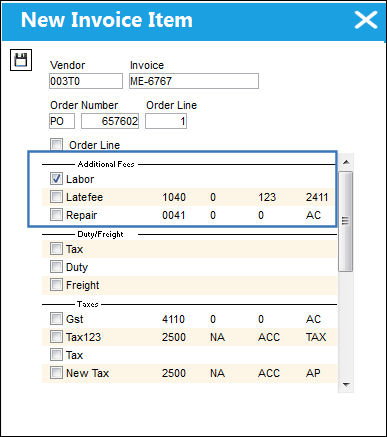
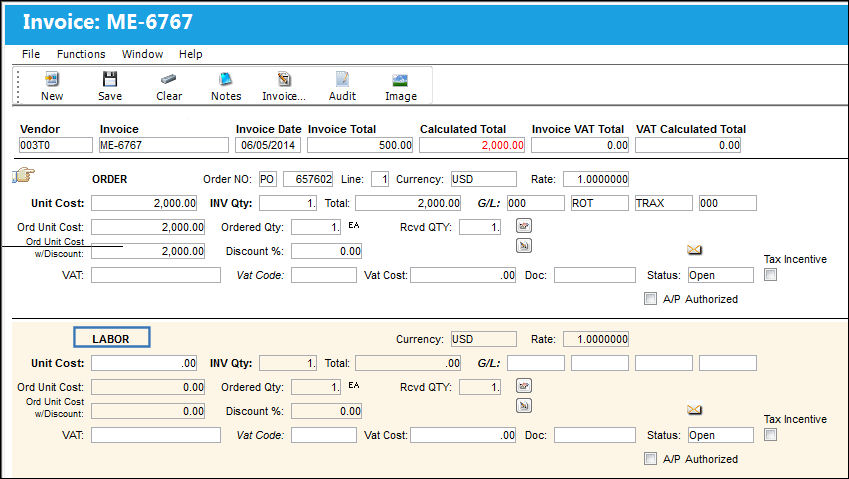
For each checkbox selected, a new line item will appear in the invoice. The new line items will appear with the type of item listed to the top left above the Order line item. The listing will contain all of the same fields found in the invoice detail.
Notice that the Unit Cost is defaulted to '0.00' and the G/L has been taken from the transaction code.
When the New button is selected, notice that any Additional Fee or Tax checkbox that has already been added to the invoice is not available.
To remove a line item from the invoice, select into the item and choose the Clear  button.
Share
Print
|
©1997-2026 Trax USA Corp. All rights reserved. This manual may not be copied, photocopied, reproduced, translated, or converted to any electronic or machine-readable form, in whole or in part, without prior written approval from Trax USA Corp. |
 |