
 Share
Share
 Print
Print
|
|
|
|
|


The Picklist Detail Creation window is used to add items to an already created Picklist.
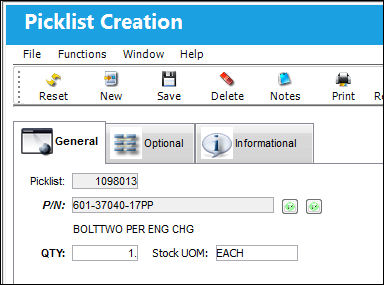
If a part is unavailable, upon saving the selection, the system will display a message in red stating that the P/N ordered was unavailable and the system requested an alternate part.
The following information/options are available in this window:
_____________________________________________________________________________________
Picklist
List of reserved components for a maintenance event or for transfer.
P/N
The Part Number reference for the aircraft part. The part number to add to the Picklist.
Users are allowed to reserve unserviceable parts.
Part Number Availability  button (Picklist Location)
Select the Part Number Availability button (green, yellow or red). TRAX displays the P/N Inventory Summary window to show all available inventory for the locations for a specific picklist.
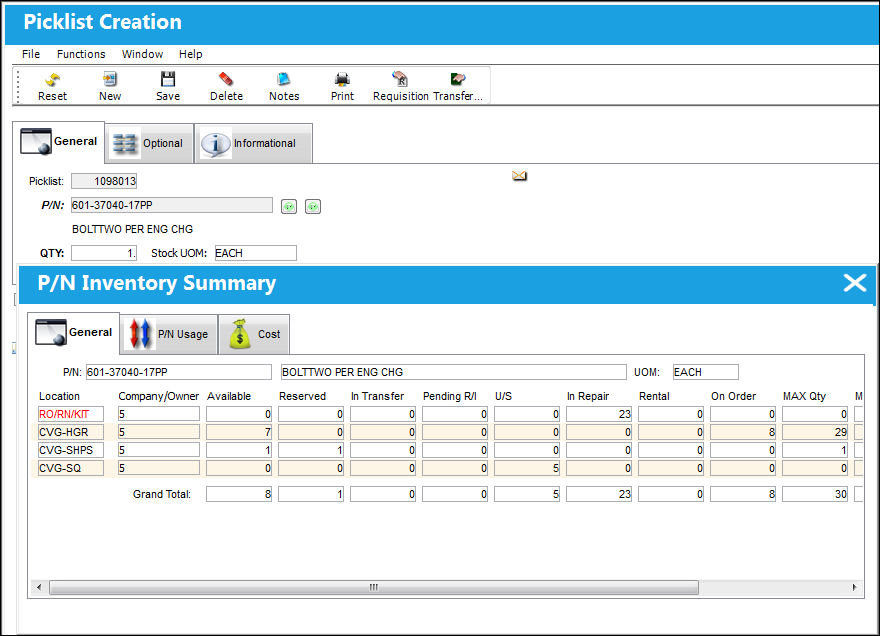
P/N Availability button (Picklist Locations) - The green button displays that all spares required are available in inventory at the Locations listed in the General tab. When selected, the P/N Inventory Summary window pops up (see above).
P/N Availability  button (Picklist Locations) - The yellow button displays that some, but not all spares are available in inventory at the Locations listed in the General tab. When selected, the P/N Inventory Summary window pops up (see above).
P/N Availability  button (Picklist Locations) - The red button displays that no spares are available in inventory at the Locations listed in the General tab. When selected, the P/N Inventory Summary window pops up (see above).
Part Number Availability button (Inventory Locations)
Select the Part Number Availability button (green, yellow or red). TRAX displays the P/N Inventory Summary window to show all available inventory for all locations.
P/N Availability button (all Inventory Locations) - The green button displays that all spares required are available in inventory at the Locations listed in the General tab. When selected, the P/N Inventory Summary window pops up (see above).
P/N Availability button (all inventory Locations) - The yellow button displays that some, but not all spares are available in inventory at the Locations listed in the General tab. When selected, the P/N Inventory Summary window pops up (see above).
P/N Availability button (all Inventory Locations) - The red button displays that no spares are available in inventory at the Locations listed in the General tab. When selected, the P/N Inventory Summary window pops up (see above).
QTY
The quantity of the part to add to the Picklist.
_____________________________________________________________________________________
If the quantity that you request is more than the quantity available, TRAX will display the following warning message:
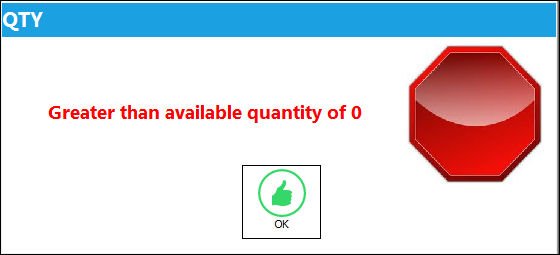
A requisition can be created if the quantity is not available by clicking on the Requisition  button. Refer to the Requisitions Training Manual for more information about the Requisition functionalities.
Share
Print
|
©1997-2026 Trax USA Corp. All rights reserved. This manual may not be copied, photocopied, reproduced, translated, or converted to any electronic or machine-readable form, in whole or in part, without prior written approval from Trax USA Corp. |
 |