
 Share
Share
 Print
Print
|
|
|
|
|


The Linked MEL  button allows the user to link an MEL to an already existing MEL to create a sub-MEL.
Create a Defect Report. In the Defer tab, attach the MEL/CDL created:
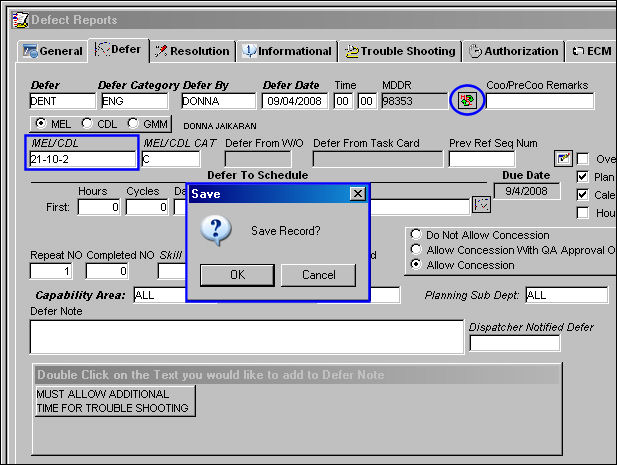
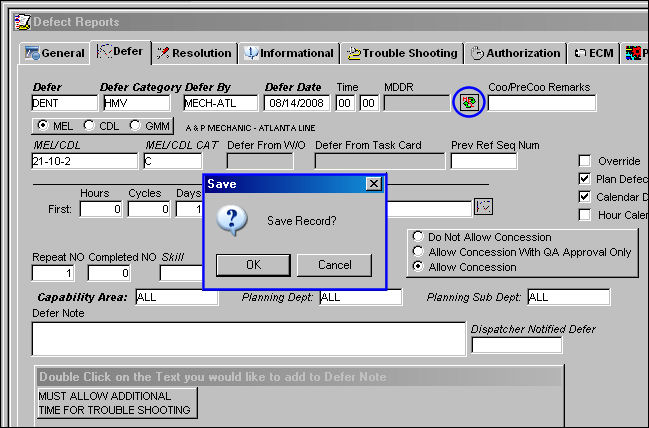
Populate all mandatory fields and select the Save  button. The Linked MEL button will appear. The Save prompt will appear. Select 'OK.' Select the Linked MEL button.
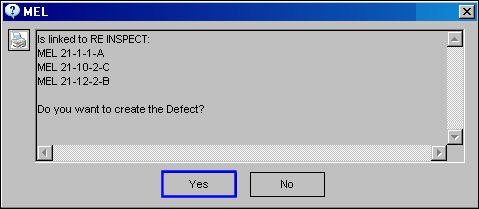
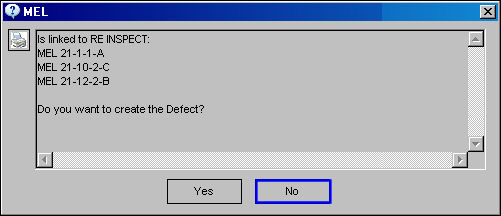
The MEL information pop-up window will appear asking the user if they would like to create the defect.
For information regarding the setup of an MEL, refer to the MEL Master, via the Settings Training Manual.
Select 'No' to cancel the defect creation.
Select 'Yes' to continue with the defect creation.
The Linked MEL window appears. Using the Select checkbox, select the MEL/CDLs to be attached to the defect. Populate the Defect and Item fields. Select the Save button. The Save prompt will appear. Select 'OK.'
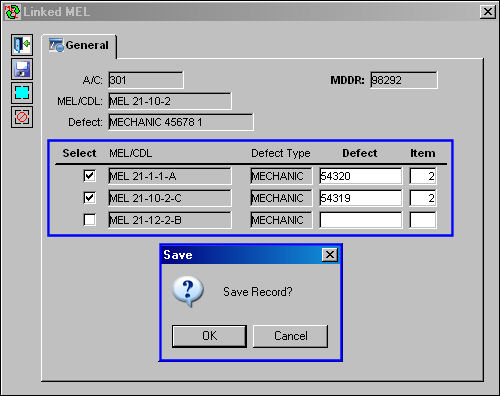
All of the selected defects are linked via the MDDR number:
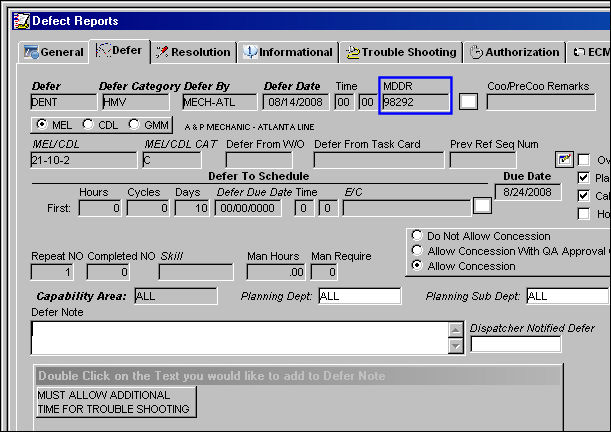
Quick MDDR Linked Defect:
Create a Defect Report. In the Defer tab, attach the MEL/CDL. Select the Save button. The Linked MEL button will appear, then the Save prompt will appear. Select 'OK.'
The MEL information pop-up window will appear asking the user if they would like to create the defect.
Select 'No' to cancel the defect creation.
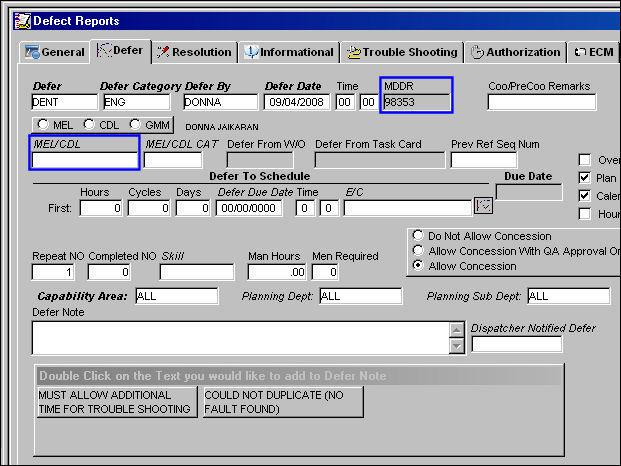
The Quick MDDR will be created without creating an MEL Link:
Share
Print
|
©1997-2026 Trax USA Corp. All rights reserved. This manual may not be copied, photocopied, reproduced, translated, or converted to any electronic or machine-readable form, in whole or in part, without prior written approval from Trax USA Corp. |
 |