
 Share
Share
 Print
Print
|
|
|
|
|


The Create Items From Reference  button allows users to create/add TraxDoc Items to the Items window of a Task Card.
 Note: TraxDoc Referenced Items can be added to authorized or pending Task Cards referenced to an S1000D manual.
TraxDoc Editor:
From the Task Card Item window, select the Create Items From Reference button.
In the following example, the Editor selected for the Task Card being used is TraxDoc.
TRAX displays the Create Items from Reference window
The default number that appears in the TraxDoc No field is the same as the TraxDoc No identified in the Task Card, Optional 1 tab.
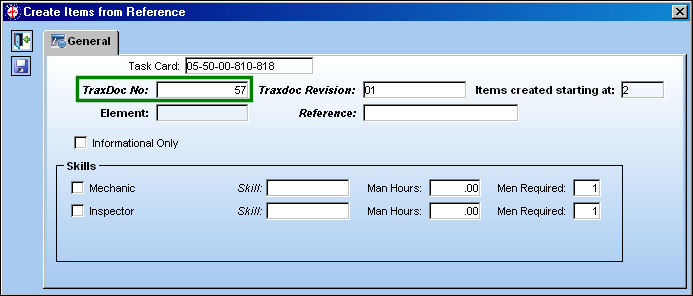
Right-click in the Reference field. TRAX displays the Reference Search window.
The default element is TASKCARD.
Expand the TC TC Task Card Deck and select (highlight) TASKCARD 06-001-01-01. Select the Find  button.
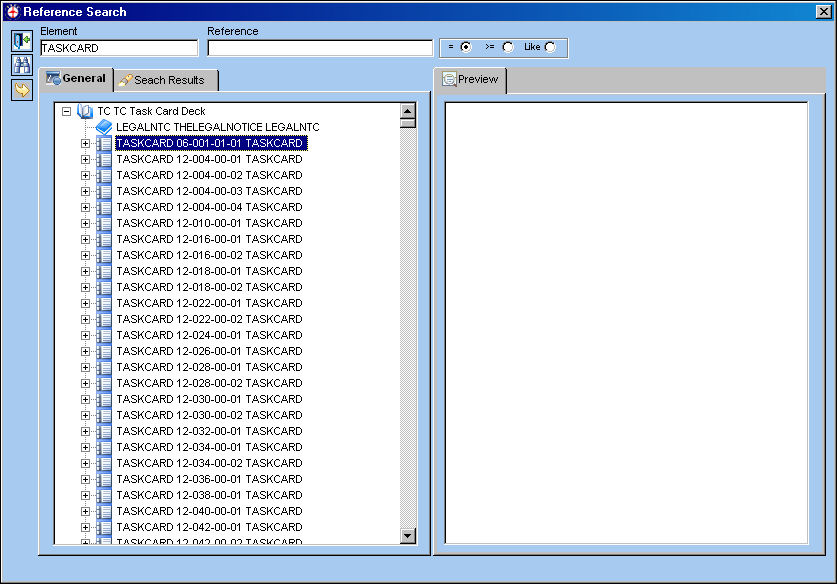
The following information/options are available in this window:
_____________________________________________________________________________________
Element
The type of record being referenced.
Reference
The manual reference of the TraxDoc.
(=) radio button
Filter for data that is equal to.
(>=) radio button
Filter for data that is greater than or equal to.
Like radio button
Filter for data that is like or similar to.
_____________________________________________________________________________________
The Search Results tab opens displaying the following records. Select desired reference and select the Preview  button.
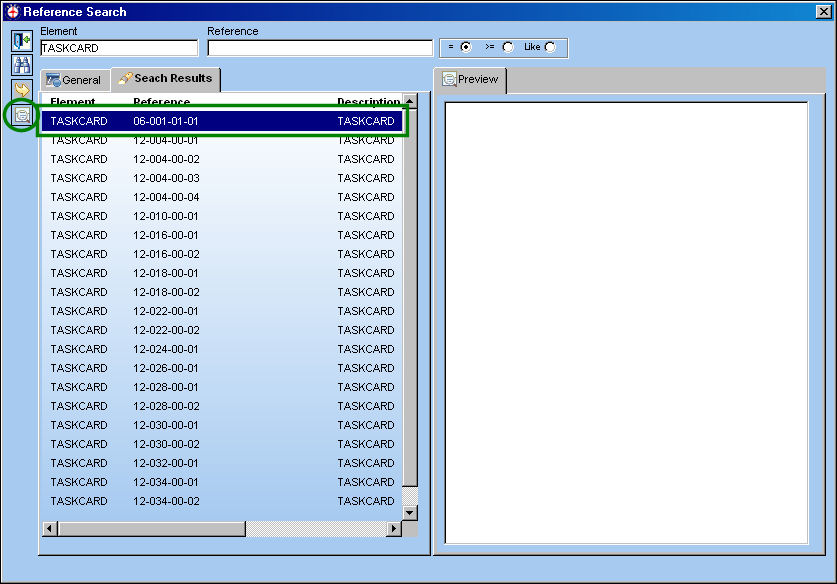
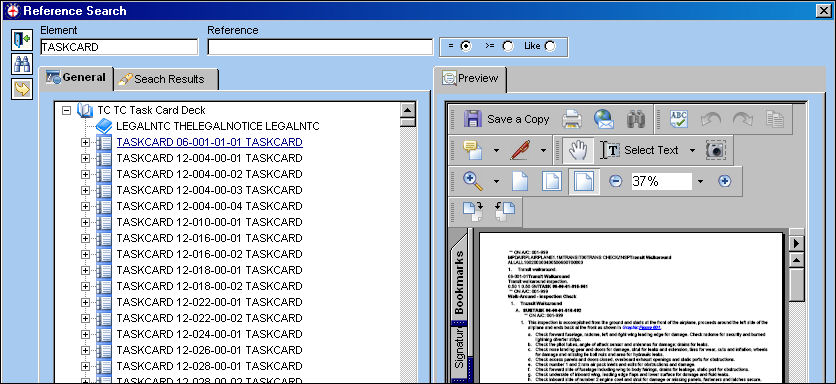
The PDF appears on the right side of the Reference Search window:
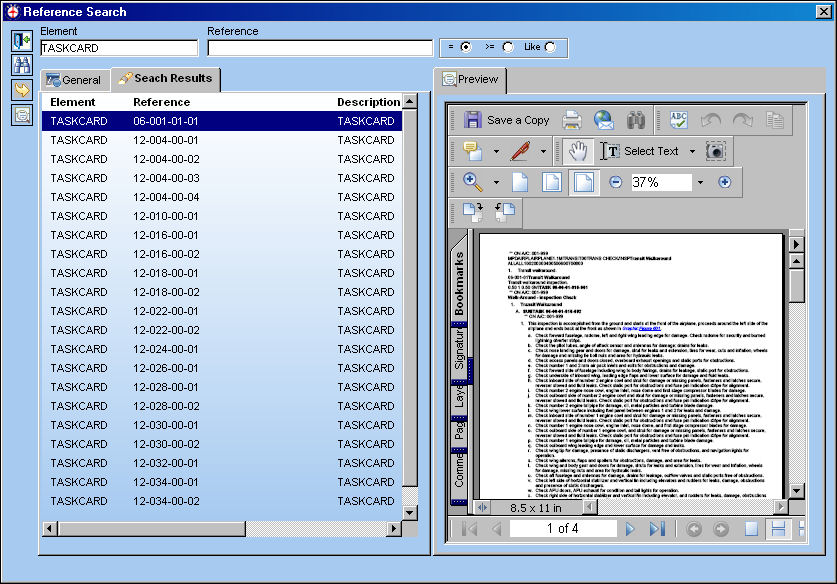
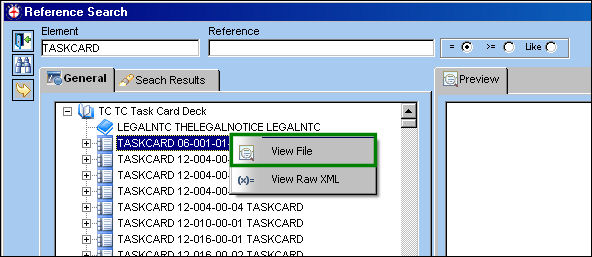
The user may also highlight the Task Card reference and right-click.
The two following buttons appear. Select the View File button.
The PDF appears on the right side of the Reference Search window:
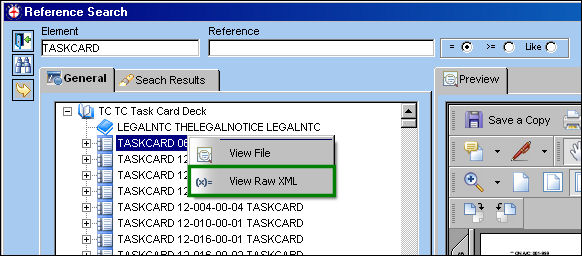
Select the View Raw XML  button.
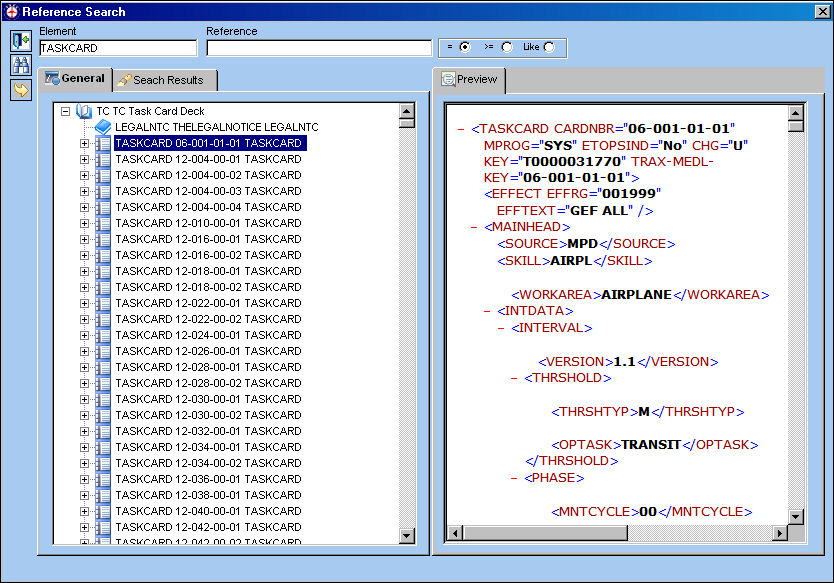
The Raw XML appears on the right side of the Reference Search window:
Double clicking the Task Card reference or clicking on the Select  button will automatically close the Reference Search window and the user will return to the Task Card Item window.
Click on the Select button.
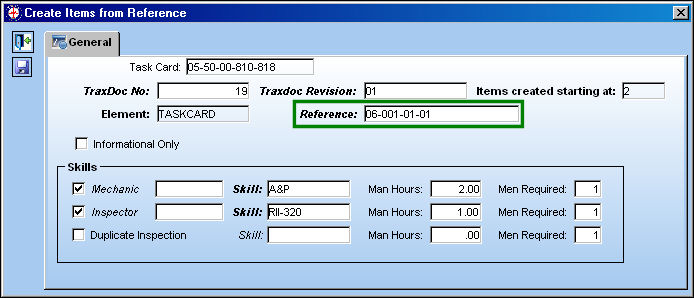
TRAX displays the Create Items from Reference window.
Populate the Reference field with the highlighted Task Card reference from the above window. Enter the Mechanic and Inspector requirements. Select the Save  button.
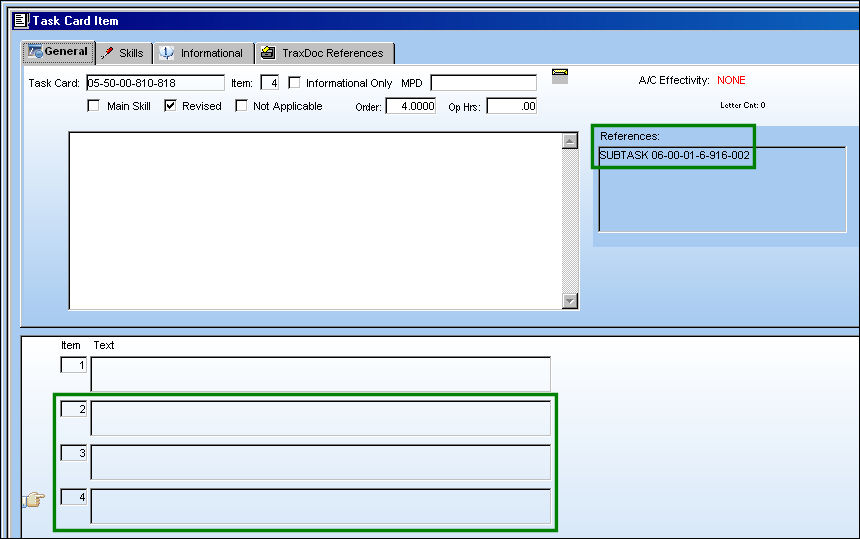
TRAX displays the Task Card Item window.
Items 2 through 4 and related sub-task have been created for Task Card 06-001-01-01. References have been noted against each item as well.
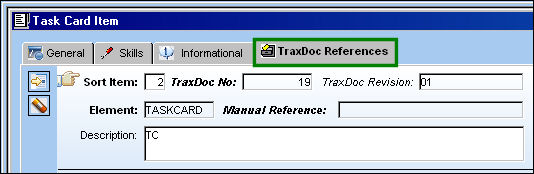
The TraxDoc References tab appears once a new item(s) has been created:
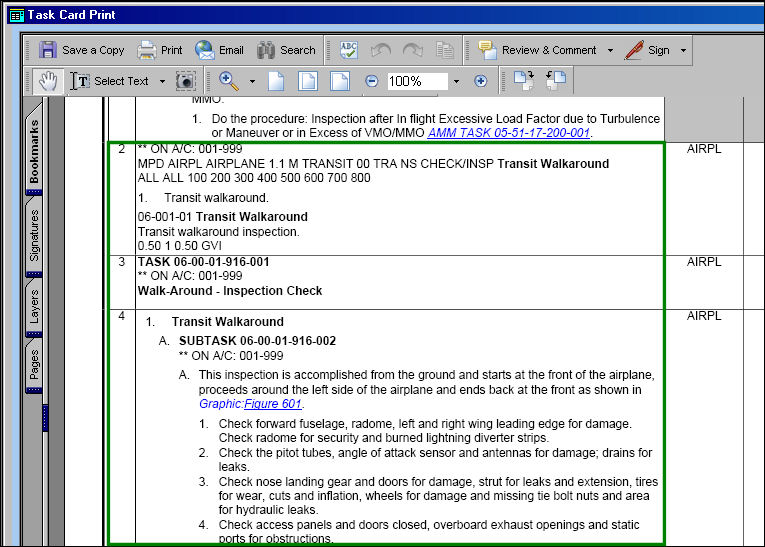
Items 2 through 4 are now included on the print:
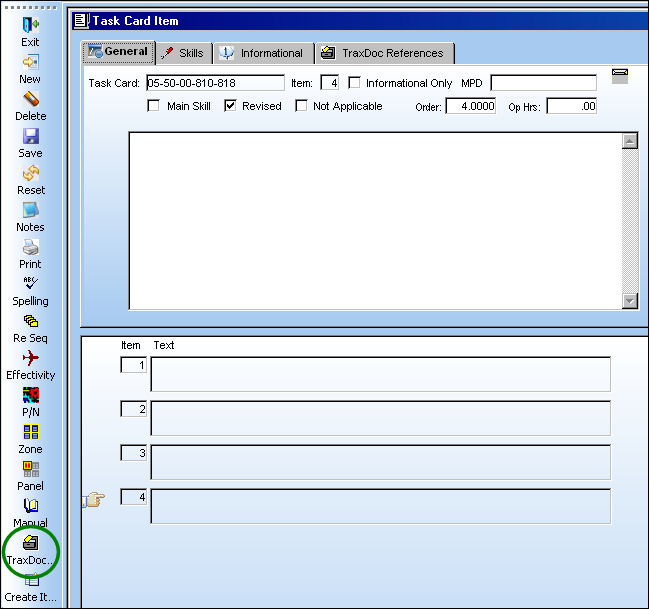
With the addition of the TRAX items, the TraxDoc  button appears. Select the TraxDoc button.
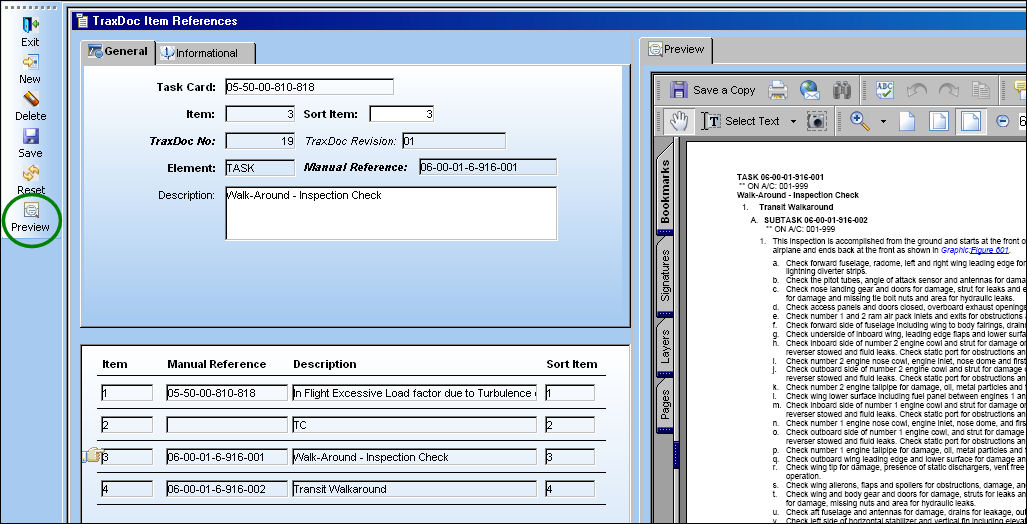
TRAX displays the TraxDoc Item Reference window. Place the Hand  pointer on the desired item number and select the Preview button to view the Traxdoc PDF as shown below:
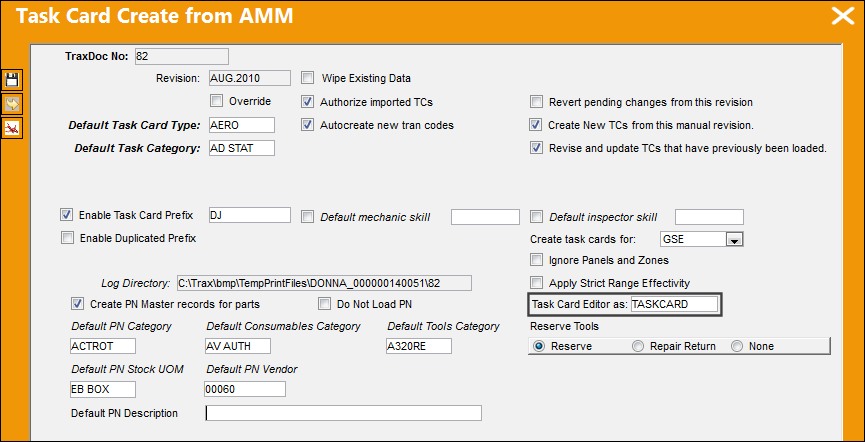
 TASK CARD Editor
The following Task Cards are created with the TASKCARD Editor. Click on the Select button.
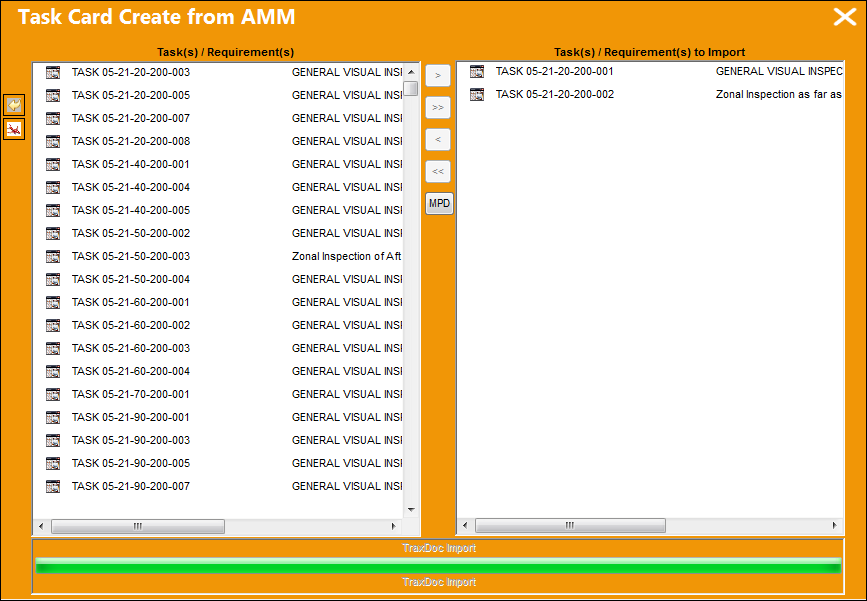
From the Task Card Create from AMM, select the Task Cards to be imported:
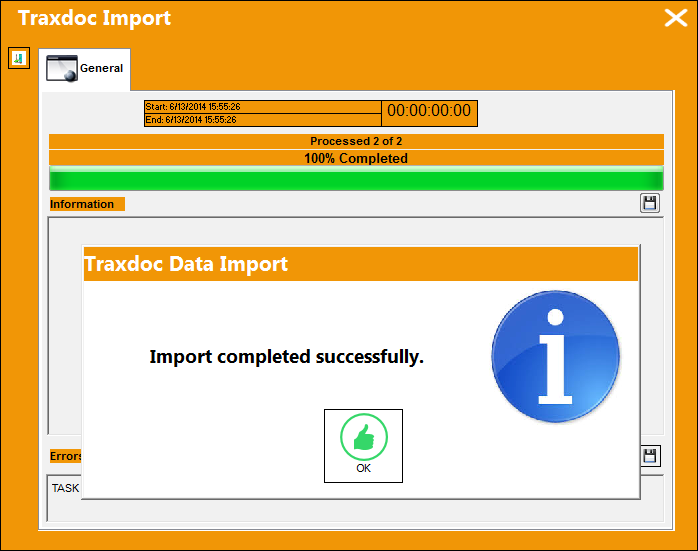
When the Task Cards have been imported, the following pop up message will appear informing the user that the import has been completed successfully.
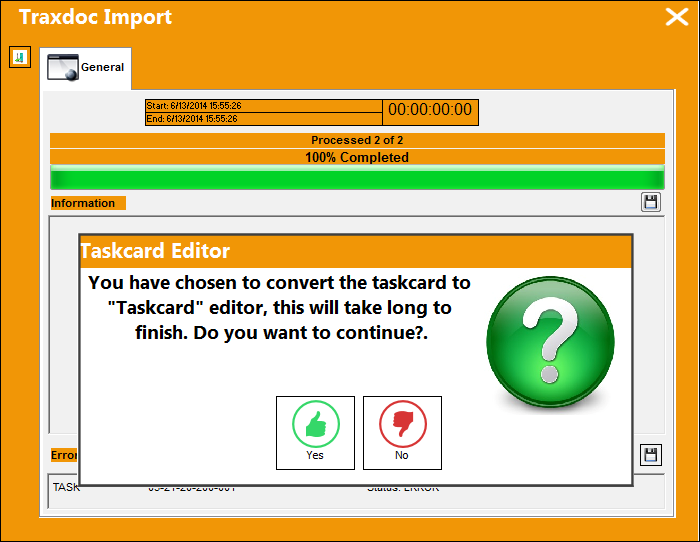
Once the data import has completed successfully, the following pop up will appear. Select 'Yes' to convert the Task Cards to the TASKCARD Editor.
Once the Task Cards have been converted, go to Engineering/ Update/ Task Card
The following Task Card is created:
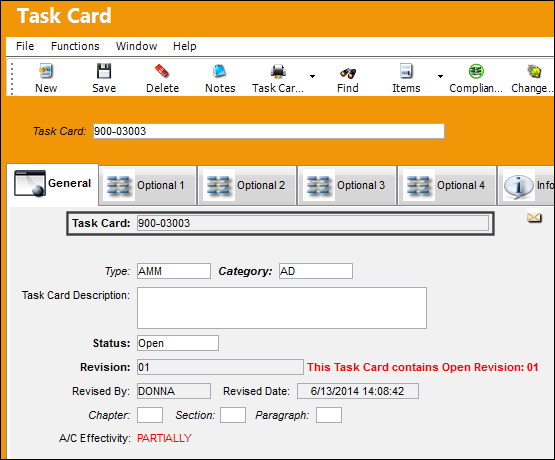
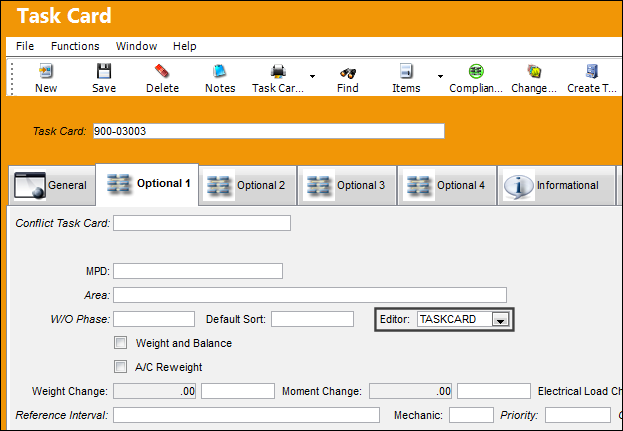
The Task Card was created with the TASKCARD Editor:
Select the Create Item From Reference  button
The Create Items from Reference window appears. Populate all relevant information and select the Save button.
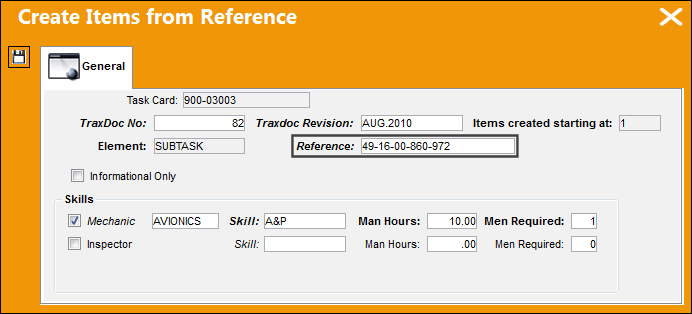
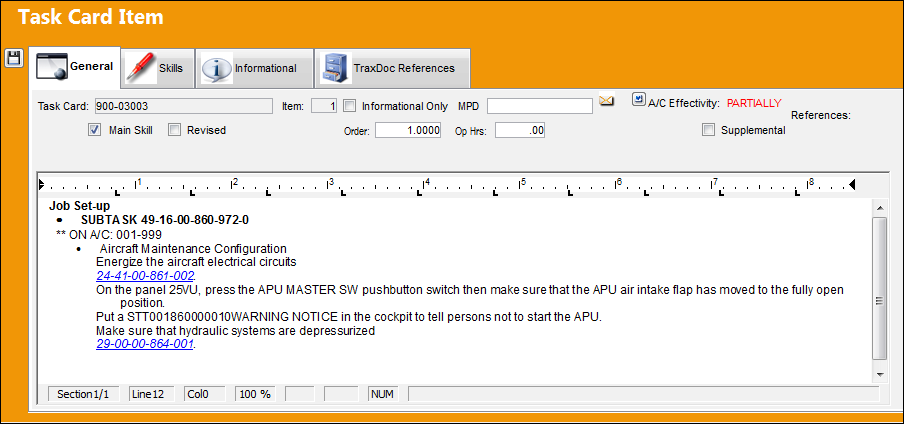
From the Task Card window, select the Items  button.
The Task Card item text is converted to RTF (Rich Text Format)
Share
Print
|
©1997-2026 Trax USA Corp. All rights reserved. This manual may not be copied, photocopied, reproduced, translated, or converted to any electronic or machine-readable form, in whole or in part, without prior written approval from Trax USA Corp. |
 |