
 Share
Share
 Print
Print
|
|
|
|
|


The Mass Check-In  button via Inventory/Update/Inventory Transactions/Tools Check-In button allows users to check in all selected tools into inventory.
This button is only available when the Tool Check-In  button is selected from the Inventory Transaction window before any criteria is queried. So before any criteria is entered, select the Find
  button. The Tool Check In window then appears displaying all check-out tools. The Mass Check-In button is also available in this window.
Users can use the available search fields to narrow down the results.
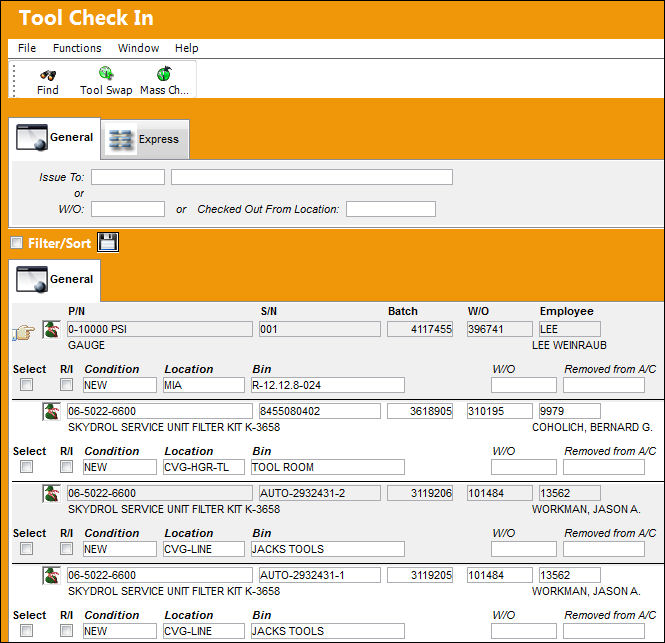
In order to perform the Mass Check-In functionality, the desired tools must first be selected. To do so, flag the Select checkboxes to the right of the tools.
Users will also be allowed to select the R/I checkbox to require Receiving Inspection for individual tools.
Before selecting the Mass Check-In button the Condition, Location and Bin fields must be populated for each of the selected tools. This information can be the same for all of the tools or vary between each.
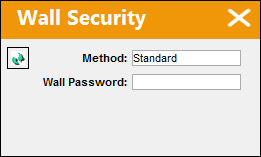
Select the Mass Check-In button when all required information has been selected. If necessary, enter the Wall Password to proceed.
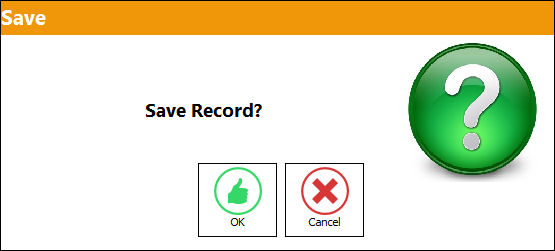
The Save prompt will appear. Select 'OK' to check in the tools.
When complete, the checked-in tools will be removed from the Tool Check-In window.
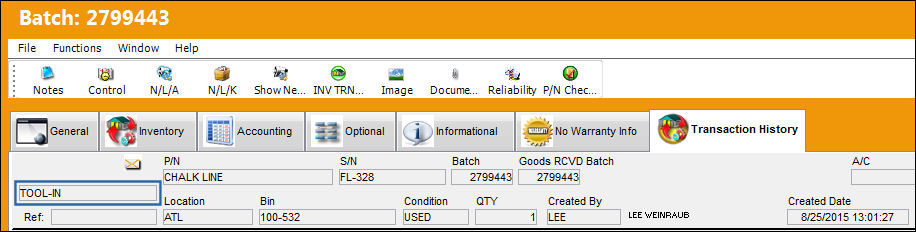
Notice that the tools that were checked back into inventory contain a 'TOOL-IN' Transaction History entry via the Inventory Detail window.
Share
Print
|
©1997-2026 Trax USA Corp. All rights reserved. This manual may not be copied, photocopied, reproduced, translated, or converted to any electronic or machine-readable form, in whole or in part, without prior written approval from Trax USA Corp. |
 |