
 Share
Share
 Print
Print
|
|
|
|
|


Use the Tool Check-In  button to return the serialized tool back into inventory. Users can either find the specific checked-out tool to check back in, or they can query for all currently checked out tools (see below).
Consumable tools cannot be returned to inventory using the Tool Check-In button. Click on the Return to Stock button in the Inventory Transaction window to return un-serialized tools to stock.
From the transaction type drop list of the Inventory Transaction window, choose Tools Locator. Find the checked-out tool. The checked out tools will appear with a specific icon to indicate that the tool is currently checked out  .
.
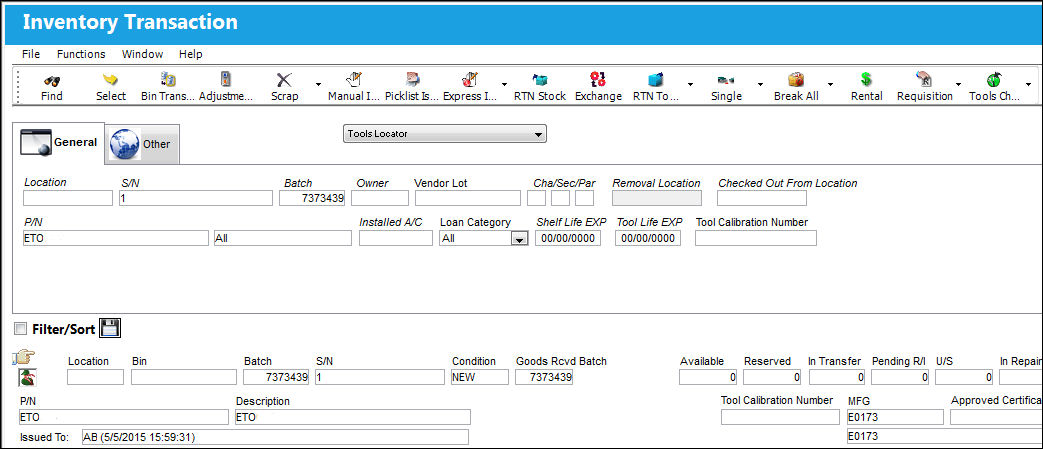
Select the Tool Check-In Button. TRAX displays the following screen:
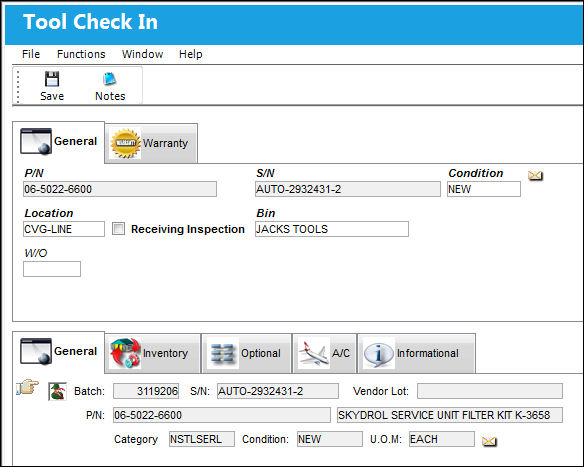
The following information/options are available in this window:
_____________________________________________________________________________________
P/N
The Part Number reference for the aircraft part.
S/N
The Serial Number for the specific serialized part.
Condition
The condition of the checked in tool.
Location
The Location for maintenance events, inventory stores, orders, transactions, or training events. The location at which the tool will be checked back into.
If the location selected is Quarantine, the unserviceable (U/S) code field replaces Receiving Inspection (RI).
This field cannot be utilized with the Protect Location checkbox selected in the user's Security settings. For more information, refer to the Security, General tab.
 This field can be locked or unlocked using Switch
  TOOLCHKINLOCPROTECT.
Receiving Inspection checkbox
Indicates if a receiving inspection is required for the tool.
 This checkbox is security controlled for calibrated tools through the Security Explorer via Inventory/ Update/ Inventory Transaction/ Tool Check In / Tool Calibration Control with Switch TOOLCALCONTROL set to Yes. For more information, refer to the Security Explorer via the System Administration Training Manual.
Bin
The specific storage bin within the inventory location.
W/O
The Work Order used to categorize, manage, and schedule work requirements for aircraft maintenance.
_____________________________________________________________________________________
Click on the Save  Button to save all information.
The user will be asked if you want to print a tag. The Tool Check In functionality can be wall password enabled.
Querying for all Checked-Out Tools
From the Inventory Transaction window, select the Tools Locator option from the drop down menu. With the search results field empty, select the Tools Check-In button.
TRAX displays the Tool Check-In window.
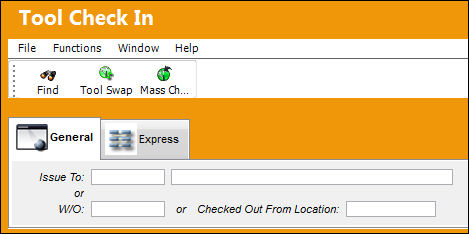
The following information/options are available in this window:
_____________________________________________________________________________________
Issue To
Employee to whom the Tool(s) has been checked out to.
W/O
Work Order for which the Tool(s) has been checked out to.
Checked Out From Location 
The Location to which the Tool was originally checked out from.
This field cannot be utilized with the Protect Location checkbox selected in the user's Security settings. For more information, refer to the Security, General tab.
_____________________________________________________________________________________
Select the Find  button to display tools that fit the search criteria that have been checked out.
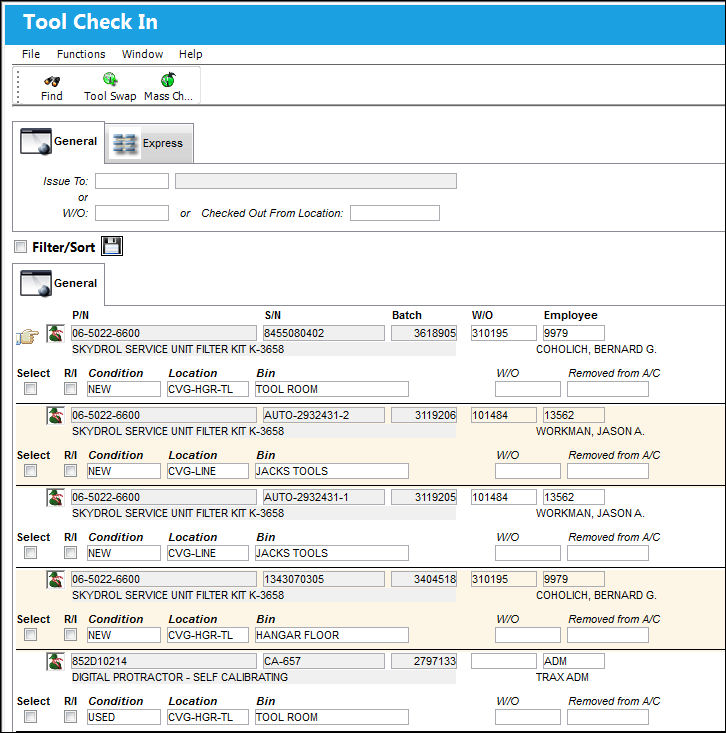
The following information/options are available in this window:
_____________________________________________________________________________________
Select checkbox
Select the checkbox(es) of the Tool(s) that have been checked out that are to be swapped or checked in.
R/I checkbox
Select the checkbox(es) of the Tool(s) being swapped or checked in that must go through a Receiving Inspection.
Condition
The condition of the checked out Tool.
Location
The Location where the Tool has been checked out to.
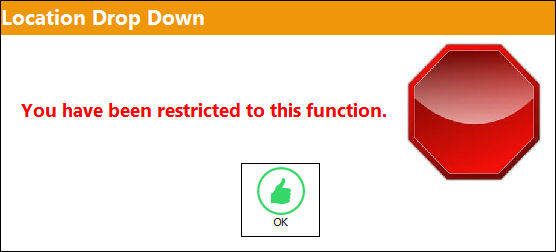
This field cannot be selected into to choose a Location from the drop down menu with the Protect Location checkbox selected in the user's Security settings. For more information, refer to the Security, General tab. However, this field can be manually changed. Upon attempting to select into the Location with this checkbox selected for the user, the following error appears:
Bin
The specific storage bin within the inventory location.
W/O
The Work Order for which the Tools has been checked out for.
Removed from A/C
The aircraft from which the Tools has been utilized for.
_____________________________________________________________________________________
From this window users are allowed to perform tool swaps and tool check-ins for the listed tools. Upon populating the necessary fields, select the Tool Swap  or Mass Check-In
  button. Additional information can also be included through the Notes
  button.
Share
Print
|
©1997-2026 Trax USA Corp. All rights reserved. This manual may not be copied, photocopied, reproduced, translated, or converted to any electronic or machine-readable form, in whole or in part, without prior written approval from Trax USA Corp. |
 |