
 Share
Share
 Print
Print
|
|
|
|
|


The Return to Stock  button is used to place parts back into inventory. Parts that meet these conditions may need to be returned to stock using the RTS transaction:
- Parts that were issued to a Work Order but not used,
- Parts which were removed from the aircraft, and
- Parts which may have been missed during the data migration process.
This functionality is only for internal purposes. If parts are received on an order they cannot be put into stock using this functionality, instead they have to go through a Receiving Process.
If the part is serialized, when the serial number is entered, the system can determine if the part was installed on an aircraft.
If the part is non-serialized, the S/N field will disappear and the W/O field will appear. If a Work Order is entered, the system will Credit Work Order. If no Work Order is entered, the system will return the item as Unknown Inventory.
From Inventory Transaction, select the RTN Stock button. TRAX displays the Return To Stock window:
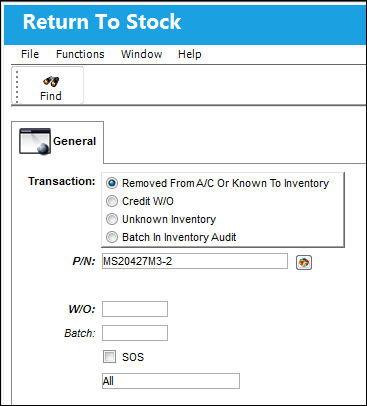
The following information/options are available in this window:
_____________________________________________________________________________________
Transaction
Available transaction types when returning a part to stock.
Removed From A/C Or Known to Inventory radio button - Select this radio button to remove parts from an aircraft (serviceable or unserviceable) that need to be returned to stock. Completing the process with this Transaction will affect the Fixed Assets of Inventory.
Credit W/O radio button - Select this radio button to return a part to stock which was issued to a Work Order but not used. Completing the process with this transaction will affect the finances related to the specified Work Order.
Unknown Inventory radio button - Select this radio button to load unknown parts to the inventory system. This will create a new batch/serial number in the system. Completing the process with this Transaction will create a new part in Inventory.
Batch In Inventory Audit radio button - Select this radio button to return parts that are no longer in inventory, but have an inventory history. This option is used for Consumable parts that were adjusted or scrapped from inventory. Completing the process with this Transaction will merge the part into a pre-existing Batch.
 Return to Stock with 'Batch In Inventory Audit' radio button can be utilized when parts are returned after W/O Closing.
P/N
The Part Number reference for the aircraft part. This is the part being returned to stock.
Inventory Detail Transaction History  button
Select this button to display hard coded transaction history information for consumable/expendable parts. If the user attempts to query for any other part type, the following pop up will appear:
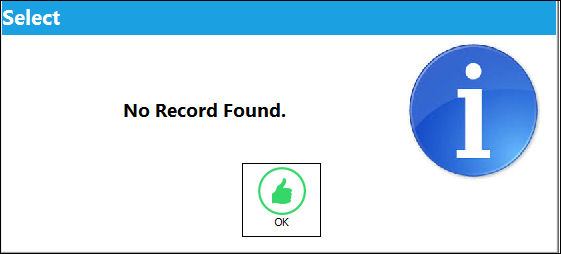
For additional transaction history information for any part in the system, utilize the Inventory Transaction History Query, via Inventory/ Query/ Inventory Transaction History Query.
S/N
The Serial Number for the specific serialized part. This is the serial number being returned to stock.
W/O
The Work Order used to categorize, manage, and schedule work requirements for aircraft maintenance.
This field is only available when the Credit W/O radio button is selected.
SOS checkbox
Click on this checkbox if the part(s) are going to be saved or spared (SOS). For more information, refer to the SOS Eligible Parts.
Type of Inventory
The type of inventory the item is registered as in the system. The available options are All, General, GSE and Maintenance Inventory. All is set as the default.
_____________________________________________________________________________________
Security setting will determine which options are made available. If access is required to any of the above feature please contact a TRAX Administrator. The three transaction types are explained on the following pages.
Select the Find  button to proceed to the Return to Stock Detail window. The Detail for each transaction selected may vary. For information on the specific transaction's detail window, refer to the RTS transactions linked above. Within each record, populate the Return to Stock Detail, Warranty/No Warranty Tab, as necessary.
 System Notification - Advanced Exchange Order RTS:
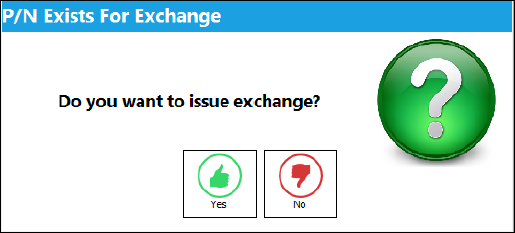
If a user attempts to RTS transaction for a P/N that currently exists on an open Exchange Order, the user will receive the following 'P/N Exists For Exchange' prompt informing the user that the P/N they are attempting to RTS exists on an open Exchange Order. If the user selects 'No', they will receive a system notification called 'RETURN FOR OPEN EX'. The notification informs the configured user(s) that a 'Potential core part for an E/X has been returned to stock. For preventing any kind of latency, please perform necessary action.' For information on how to set up this system notification, refer to System Notification via the Settings Training Manual.
After the system notification has been received, the user can return to the pop up message and select 'Yes' to proceed with the RTS transaction for the Exchange Order.
Additional information can be included through the Notes  button.
 Share
Print
Share
Print
|
©1997-2026 Trax USA Corp. All rights reserved. This manual may not be copied, photocopied, reproduced, translated, or converted to any electronic or machine-readable form, in whole or in part, without prior written approval from Trax USA Corp. |
 |