|
TRAX MANUALS > Inventory > Inventory Module > Inventory, Update Menu > Inventory Transaction > Inventory Transaction Buttons > Rental Button, via Inventory Transaction
Rental Button, via Inventory Transaction
The Rental  button is used to issue a rented part out of the system to the customer via a Rental Order. button is used to issue a rented part out of the system to the customer via a Rental Order.
First, the Rental Order is created via Customer Orders/Update/Rental Order. Then, the Rental button is used to issue the part to the Rental Order (assign the serial number as the part to be issued on the Rental Order). After the order is created, a part can be issued out of the stock. In Inventory Transaction, select the part to be sent out to the customer.
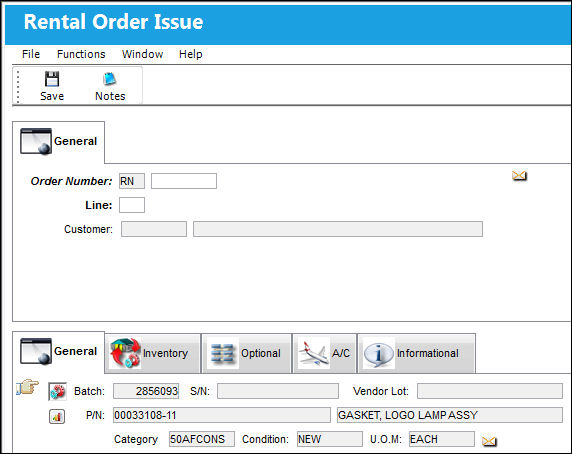
The following information/options are available in this window:
_____________________________________________________________________________________
Order Number
Rental Order number to issue to selected part to.
Line
The specific Line item of the Order. Each Line item could represent a different part included in the same order.
_____________________________________________________________________________________
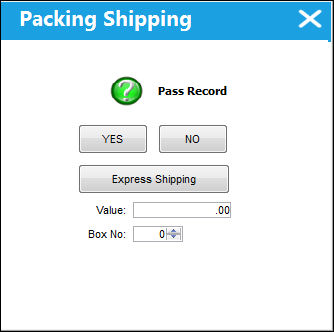
After saving, the system will now ask you if you want to pass the item to the Packing and Shipping Module for further processing.
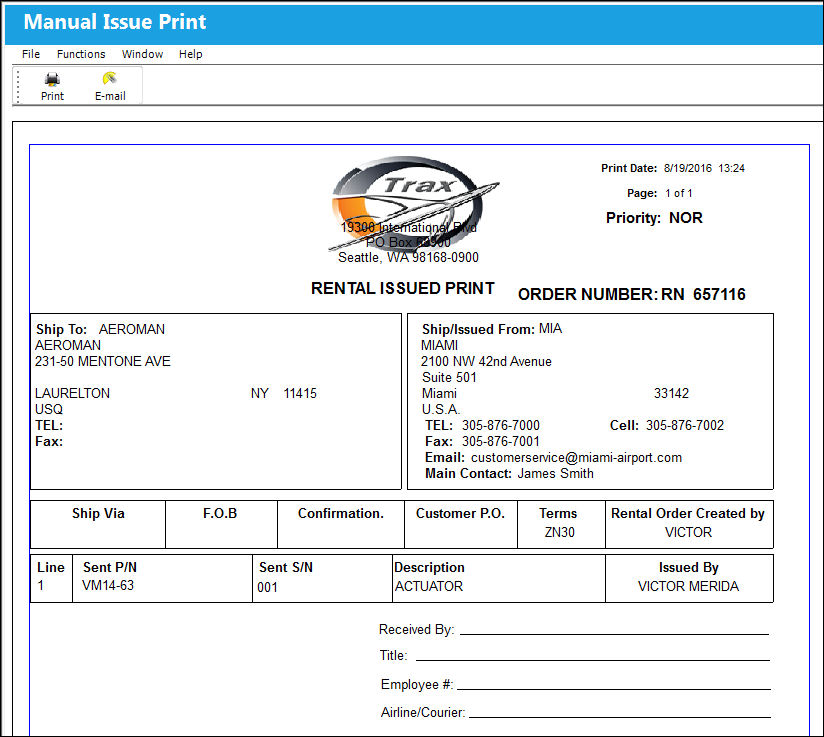
TRAX then prints the Issue document.
Note: There are one error message that can appear on this screen: "Rental Order P/N Condition and Issue P/N are not the same." The user must select another part to issue to the selected Rental Order.
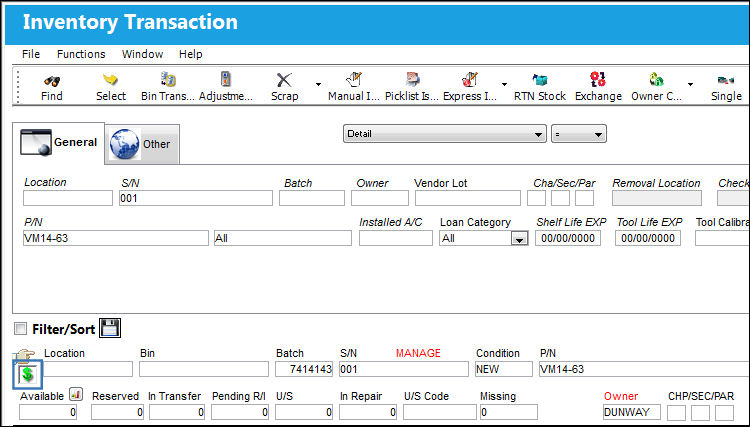
The user may view the specific item (specific serial number) that has been issued. Go to Inventory/Update/Inventory Transaction and enter the part number in the P/N field. Select the Find  button. button.
Scroll down to find the serial number which was just rented out. Note that the item now has the green Rental icon to the left of the record, indicating that the item is currently being rented. This icon will appear next to the item while it is being rented to alert the user that the part is currently rented out. The user can track this rental order by running the Rental Order print via Customer Orders/Print/Customer Orders Print. When the part is returned, the user will record the transaction using the Receiving module in the system.
Additional information can be included through the Notes  button. button.
|
In This Section Notes Button, via Rental Order Issue |
See Also Inventory Transaction Buttons Bin Transfer Button, via Inventory Transaction Adjustment Button, via Inventory Transaction Scrap Button, via Inventory Transaction P/N Missing Button, via Inventory Transaction Lost Button, via Inventory Transaction Manual Issue Button, via Inventory Transaction Picklist Issue Button [V15], via Inventory Transaction Picklist Issue Button, via Inventory Transaction Express Issue Button, via Inventory Transaction Express Issue Auto Button, via Inventory Transaction Return To Stock Button, via Inventory Transaction Exchange Button, via Inventory Transaction Return To Vendor Button, via Inventory Transaction Loan Return Button, via Inventory Transaction Return To Owner Button, via Inventory Transaction Owner Change Button, via Inventory Transaction Return From Customer Button, via Inventory Transaction Company Change Button, via Inventory Transaction Return to LHT Button, via Inventory Transaction Return From Quarantine Button, via Inventory Transaction Single Button, via Inventory Transaction Multi Button, via Inventory Transaction ASRS Transfer Order Button, via Inventory Transaction ASRS Multi Store Button, via Inventory Transaction Request Tray Button, via Inventory Transaction Break All Button, via Inventory Transaction Break P/N Button, via Inventory Transaction Re-Build Kit Button, via Inventory Transaction Build Multi Kit Button, via Inventory Transaction Requisition Button, via Inventory Transaction Custom Duty Change Button, via Inventory Transaction P/N Master Button, via Inventory Transaction Interchangeable Button, via Inventory Transaction Order Button, via Inventory Transaction Bin Control Button, via Inventory Transaction Image Button, via Inventory Transaction P/N S/N Change Button, via Inventory Transaction Document Control Button Manual Button, via Inventory Transaction P/N-S/N Position Change Button, via Inventory Transaction Document Change Button, via Inventory Transaction P/N Detail Print Button, via Inventory Transaction P/N Initial Times Accrual Button, via Inventory Transaction Release From RO Button, via Inventory Transaction Import Software Button, via Inventory Transaction Bin Replace Import Button Notes Button, via Inventory Transaction Import P/N Birth Date Button, via Inventory Transaction Update Reserved Quantity Button, via Inventory Transaction Update Transfer Quantity Button, via Inventory Transaction Cycle Count Button, via Inventory Transaction Box Button, via Inventory Transaction Hold Button, via Inventory Transaction NLA Position Swap Button, via Inventory Transaction Tool Check-In Button, via Inventory Transaction (Tools Locator) Tool Check-Out Button, via Inventory Transaction (Tools Locator) Tool Concession Button, via Inventory Transaction (Tools Locator) Tool Calibration Change Button, via Inventory Transaction (Tools Locator) |
|

 Share
Share
 Print
Print


