
 Share
Share
 Print
Print
|
|
|
|
|


The Express Issue  button is used to issue parts from the system ‘Over the Counter’ using bar coding. For example, line maintenance on an aircraft requires that specific parts be available (on hand) to perform the line maintenance routine.
Select the Express Issue button. TRAX displays the following screen:
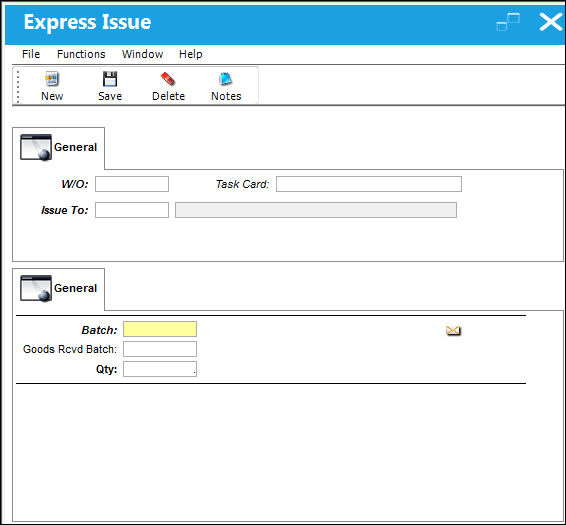
The following information/options are available in this window:
_____________________________________________________________________________________
W/O
The Work Order used to categorize, manage, and schedule work requirements for aircraft maintenance.
Task Card
The Task Card / Job Card that details the scheduled maintenance work.
 ISSTCMAND - Make Task Card Mandatory in Picklist Creation/Manual Issue/Express Issue
If the W/O in which the Manual Issue is being performed against is Third Party, then the Task Card field will be Mandatory, appear bold and be required for the save of the record.
Issue To
The employee that the part is issued to. The Issue To may be configured to be mandatory and validate the employee’s status for issue.
Batch
The inventory number that is currently associated with a part or group of parts. A part's Batch number can change after various types of transactions take place.
Goods Rcvd Batch
The original inventory number assigned to the part or group of parts when initially introduced/received into inventory. This number will remain the same for a part even if/when the part's Batch number changes.
QTY
The actual quantities that are being issued.
_____________________________________________________________________________________
The Note tab (following the Issue To field) displays notes (in RED text) that are created via Settings/Update/P/N/ Inventory Tab/Issue Notes Button. If no notes were created for the issued part, the note tab will not appear.
Process for the Completion of the Express Issue:
- Scan the batch number using the bar code reader of the Part Tag.
- Scan the Work Order and the Task Card number. The system must have at least one Work Order and one Task Card created for the issue to take place.
- Then scan the ID Badge of the Issue To employee, where applicable or right click and to select the Issue To employee.
- Click on the Save
 button.
TRAX will produce a Manual Issue print, which can be printed if required. Financial journal entries are written and the information is also stored in Work Order actuals. Please note that expendable/consumable parts are expensed to the W/O, while rotable/serialized units are not. The only time that rotable/serialized units are expensed to the W/O is when the W/O part is issued to a ‘Third Party’ W/O. At that point the part is sold to the customer as defined in the P/N Master, Unit Sell window. For additional information on how to set-up the unit sell price, please refer to the P/N Master of the Settings Training Manual.
Users may also issue multiple lines/batches in one transaction in the system.
Select the New  button to add multiple batches to this transaction.
Select the Delete  button to delete a record.
Select the Save button to save a record.
NLA Effectivity:
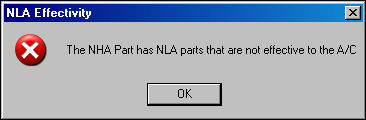
If the user attempts to issue an APU part where the APU is effective to an aircraft, but it's NLA does not have effectivity, the system will display the following error:
Issuing a Consigned Part Message:
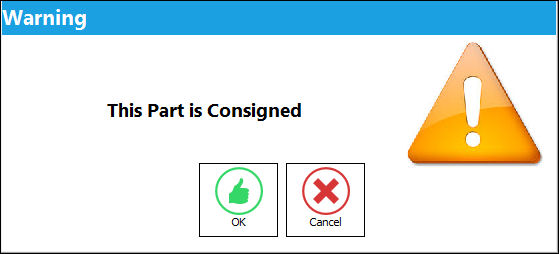
If issuing a Consigned Part, the following soft warning will appear. For detailed information, refer to Issuing Consigned Inventory via the Inventory Training Manual.
Additional information can be included through the Notes  button.
Share
Print
|
©1997-2026 Trax USA Corp. All rights reserved. This manual may not be copied, photocopied, reproduced, translated, or converted to any electronic or machine-readable form, in whole or in part, without prior written approval from Trax USA Corp. |
 |