
 Share
Share
 Print
Print
|
|
|
|
|


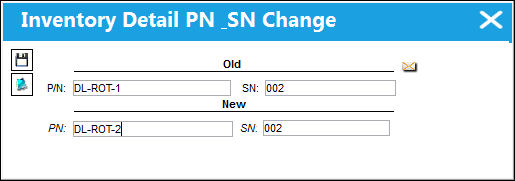
Select the P/N S/N Change  button to edit existing Part Numbers and/or Serial Numbers. This button will only record Journal Entry transactions if the New P/N’s G/L Account is different than the Old P/N’s G/L Account or the P/Ns involved have Average Costing Methods (see below notes).
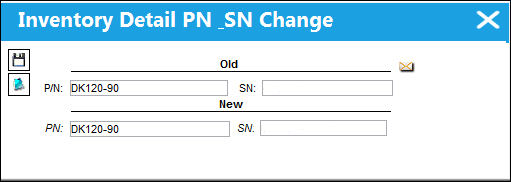
The following information/options are available in this window:
_____________________________________________________________________________________
Old P/N
Verify the P/N from which the number will be changed.
Old S/N
Verify the S/N from which the number will be changed.
New P/N
Enter the P/N it will be changed to.
New S/N
Enter the S/N it will be changed to.
_____________________________________________________________________________________
The Notes  button can be utilized to include additional information.
After a P/N S/N Change has taken place, P/N S/N Change effectivity will be affected depending on the configurations of the FOLLOWGRB switch, Follow GRB checkbox, the PNSNCHG/EFFECTIVITY switch, and parts' interchangeability setup. For more information on how P/N E/C Effectivity is affected after a P/N S/N Change, refer to P/N S/N Change Transactions.
For more information on how P/N E/C Effectivity can be affected throughout the system, refer to the P/N E/C Effectivity Tracking Guide.
Users cannot change from rotable to expendable (Kit, Tool, etc.) or serialized to un-serialized. A transaction history record for the change is automatically created. Security access to this button should be limited as the functionality does not validate for P/N description, controls, installed on A/C or assembly, etc.
The part cannot be changed to a P/N that is not already set up in the P/N Master. Otherwise, an error message will appear stating 'P/N not found.'
If the part is changed to a non-interchangeable P/N, any P/N Control or P/N E/C Effectivity that the original part had will not be transfered to the non-interchangeable part. A soft warning message prompt appears stating: 'Part Numbers are not interchangeable.You will need to reconcile the P/N Controls and E/C for the P/N - S/N manually.' 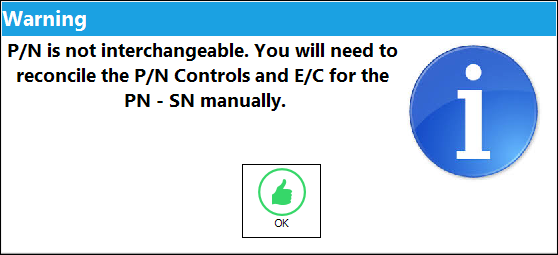
The system validates if the PN/SN combination already exists with a warning message.
The system validates if the PN/SN combination is being used on a Open, Completed, or Line Work Order, and will return a hard warning if it is. The same applies to P/N S/N used in Shop Work Orders.
 A P/N S/N change will not be allowed for tools that are checked out and are not physically located in inventory. The hard warning displayed will read, 'May not be changed because this part is checked out.'
 If a P/N S/N Change takes place for a P/N that had triggered a Reliability Alert, the Reliability Alert Level information for the part will be updated accordingly. For example, a part was removed multiple times thereby triggering a reliability Alert Level. If a later P/N S/N Change for that part overrides the Alert Level calculation, the Alert Level will be updated in the P/N Reliability prints accordingly.
 Note: There is an audit table in Trax Quick Print called 'pn_sn_change_control_audit' that shows the before and after of the data that is updated via a P/N Change transactions. This information pertains to serialized parts. The data captured includes:
- Previous E/Cs linked to P/N S/N & Actuals
- Previous P/N Controls and Actuals
- New E/Cs being linked
- New P/N Controls being linked
- Transfer of Actuals
 This button is security-controlled for calibrated tools through the Security Explorer via Inventory/ Update/ Inventory Transaction/ P/N S/N Change / Tool Calibration Control with Switch
  TOOLCALCONTROL set to Yes. For more information, refer to the Security Explorer via the System Administration Training Manual. Upon attempting to select the button without the necessary security, the following prompt will appear: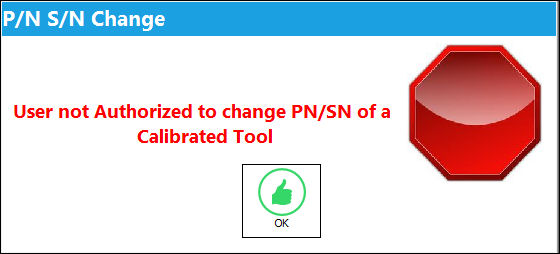
Additional Functionality - ETOPS:
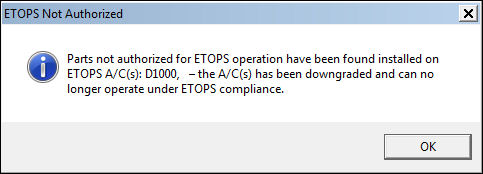
When attempting to change an ETOPS authorized P/N with an ETOPS non authorized P/N, the system will issue a warning.
P/N |
ETOPS Status |
DL-ROT-1 |
ETOPS Authorized |
DL-ROT-2 |
ETOPS Not Authorized |
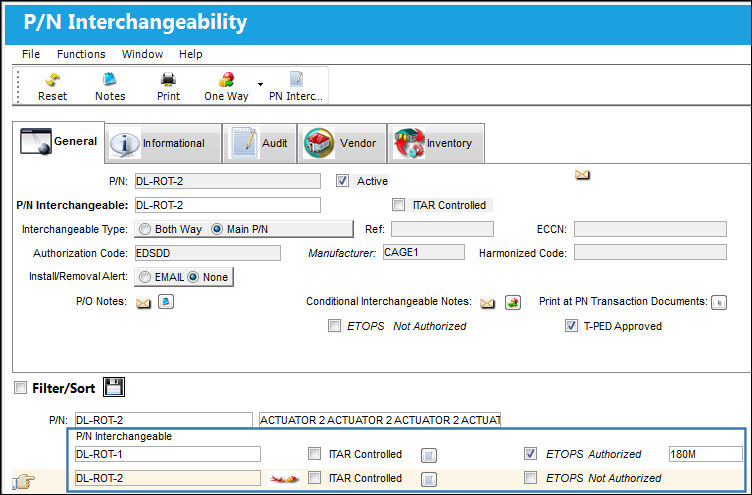
Enter the new P/N to be changed and select the Save  button.
The system issues the following warning stating that since the part changed was ETOPS not authorized, the aircraft the part was issued to has been downgraded and can no longer be operated under ETOPS compliance:
Share
Print
|
©1997-2026 Trax USA Corp. All rights reserved. This manual may not be copied, photocopied, reproduced, translated, or converted to any electronic or machine-readable form, in whole or in part, without prior written approval from Trax USA Corp. |
 |