
 Share
Share
 Print
Print
|
|
|
|
|


If required, an item that was purchased via a Purchase Order may be returned to the vendor. The part may have been received damaged or it may be the wrong part. In either case, the Return to Vendor  button must be used. If the item being returned to the vendor does not have a Fixed Asset record associated, the user will be notified by the system.
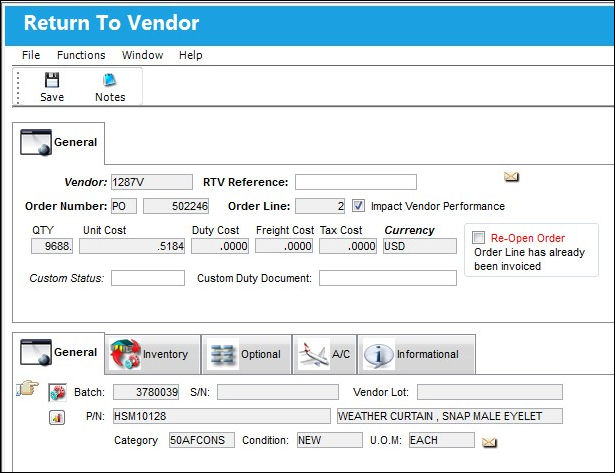
The following information/options are available in this window:
_____________________________________________________________________________________
Vendor
The Vendor to which the part will be returned.
RTV Reference
Any Return To Vendor Reference information.
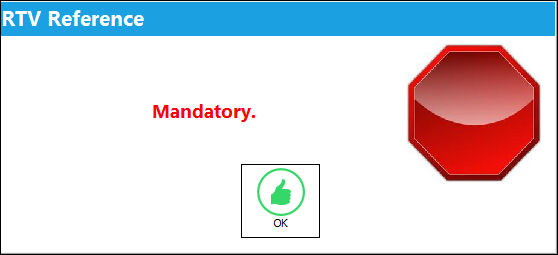
This field may become mandatory if the RTV Reference Mandatory checkbox is selected in the Vendor Master, Optional Tab window. As a result, when the user attempts to save, the following hard stop warning will appear.
Order Number
The Order number associated with the returned part.
Impact Vendor Performance checkbox
Check this to have the system automatically deduct points from the Vendor for poor performance.
This functionality must be set up in System Transaction Codes/Settings/Vendor Performance.
Order Line
The line number on the Order associated with the returned part.
QTY
The quantity of parts to be returned.
Cost
The Cost associated with the part.
Currency
The currency code to be used for the transaction.
 When Switch
  INVCURO is set to Yes, if the rate of currency for a part has changed from the time it was received into the system and the time a Return To Vendor transaction has occurred, the system will acknowledge the change in currency by noting the date the part was received into the system against the Journal Entry. When Switch INVCURO is set to No, the system will acknowledge the change in currency by noting the date of the currency conversion against the Journal Entry.
Re-Open Order checkbox
Check to re-open the associated order upon saving this record. The Order will be in ‘Open’ status via Orders/Update/Purchase Orders and will contain only the items that were returned via the Return To Vendor button (i.e. if the order contains three of the same part, and only one part was returned via the Return To Vendor button, the order will re-open with only one part). The system flags if the order has already been invoiced and a new line will be opened on the order.
Custom Status
Customs status that applies to the part in the transaction, as applicable.
Custom Duty Document
Document used to verify that the part was accepted by customs.
_____________________________________________________________________________________
Select on the Save  button to save all information. TRAX will produce a Return to Vendor document.
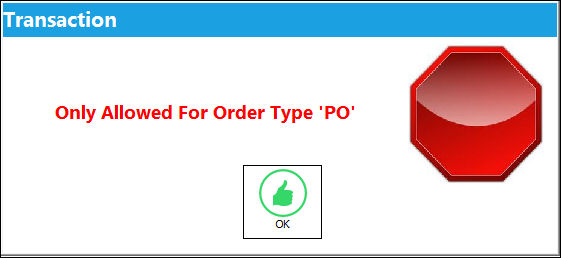
As mentioned above, parts that were not received into inventory through a Purchase Order cannot be returned to its original vendor. When a part that was not received through a P/O is selected, the following warning error appears:
TRAX displays the following warning messages regarding the batch and transaction quantity:
-"Batch belongs to a kit. Transaction not allowed."
-"Transaction Quantity: Not allowed for batch."
The Return To Vendor functionality cannot be utilized for Exchange Orders. A new Exchange Order must be created at zero cost in order to return a part number and receive the correct part number.
If the user wishes to send the part to the Packing and Shipping module, answer Yes to the systems question ‘Send to Packing and Shipping?’.
The information for that part will then be in the open unassigned items for Packing and Shipping.
Financial adjustments will be made according to the items returned, and Journal Entries written. For more detailed information refer to RETURN/TO/VENDOR via the General Ledger Training Manual.
Additional information can be included through the Notes  button.
 Share
Print
Share
Print
|
©1997-2026 Trax USA Corp. All rights reserved. This manual may not be copied, photocopied, reproduced, translated, or converted to any electronic or machine-readable form, in whole or in part, without prior written approval from Trax USA Corp. |
 |