
 Share
Share
 Print
Print
|
|
|
|
|


The Exchange  button is used to issue an exchange unit to an Exchange Order or Exchange Order Out. First, an Exchange Order must be created via Orders/Update/Exchange Order or an Exchange Order Out must be created via Customer Orders/Update/Exchange Order Out. The inventory clerk will first select the component(s) in the Inventory Transaction window when will click this button to issue the component(s) to the order.
 Conducting an Exchange Order Issue via the P/N Explorer will automatically populate the most recently Closed (received) E/X Order Number and/or oldest open E/X Order (not yet received) to complete the transaction as a whole, but can manually be overridden and populated as needed.
When the Exchange button is selected, the Exchange Order Issue window appears.
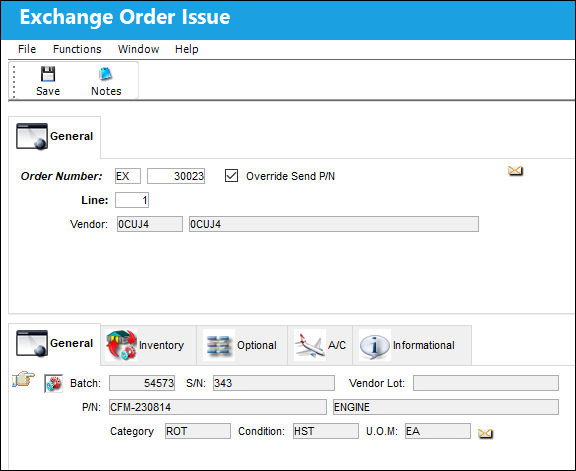
The following information/options are available in this window:
_____________________________________________________________________________________
Order Number
The Exchange Order or Exchange Order Out number to issue the part to. Selecting into the field will display a list of all exchange orders for the selected part number.
Line
The specific Line item of the Order. Each Line item could represent a different part included in the same order.
Vendor
The system code for the service/part provider. Additionally, the description of the Exchange Order vendor is displayed.
Override Send P/N checkbox 
Appears when Switch  SAMEINERC is set to Yes. When that switch is set to Yes, the Send and Receive P/N must be the same or interchangeable. This checkbox bypasses the restriction. When set to No, the system does not require the Send and Receive P/N to be the same nor interchangeable; therefore the Override checkbox is not available in this window.
 Note: This checkbox is security-controlled via the Security Explorer/ Inventory/ Update/ Inventory Transaction/ Override Send P/N. For additional information, refer to the Security Explorer, via the System Administration Training Manual.
_____________________________________________________________________________________
Select the Save  button to save all information. The system then displays the Exchange Order Issue Print.
Accessing the Exchange Order Issue from the P/N Explorer or the Return To Stock  button, via P/N Explorer automatically populates the S/N To Be Sent with the selected P/N's S/N of the P/N Explorer.
If the Exchange item is received, the Exchange Order or Exchange Order Out status will go to ‘Closed’. If the Exchange unit has not been received, the Order will still appear on the ‘Open Order’ and the ‘Unfulfilled Exchange Order’ report. Until such a time as the Exchange unit is received.
The wall password may be enabled to ensure appropriate user access.
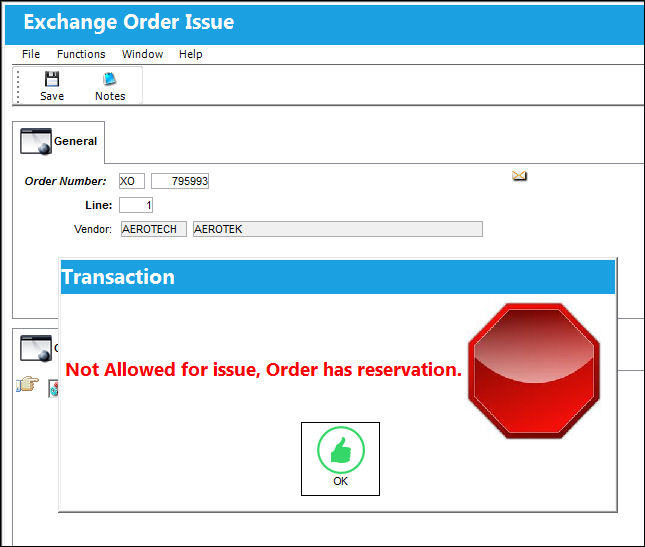
Various error messages about part conditions and/or availability to issue to exchange order may be displayed:
- 'Warning: Exchange Order P/N and Issue P/N are not the same.'
- 'Transaction not allowed for batch.'
- 'Batch belongs to a kit. Transaction not allowed.'
- 'Exchange Order line has already been issued to S/N: [xyz]'
- 'Invalid P/N to Exchange: This part is installed on A/C: [xyz], a removal transaction needs to be performed.'
As part of the Multi Company functionality, when switch COMPANYMULTIEX is set to Yes, a part belonging to one company in Inventory cannot be issued to an Exchange Order belonging to another Company. For more information refer to switch COMPANYMULTIEX and the Multi-Company Functionality.
Note: If Switch SAMEINTERC is set to No, the system will allow for parts that are neither same, nor Interchangeable, nor One-Way Interchangeable to be issued to the order. A warning message will appear when attempting this transaction.
 An Exchange Order Issue transaction cannot be performed for a part that has already been reserved against a picklist.
Additional information can be included through the Notes  button.
Share
Print
|
©1997-2026 Trax USA Corp. All rights reserved. This manual may not be copied, photocopied, reproduced, translated, or converted to any electronic or machine-readable form, in whole or in part, without prior written approval from Trax USA Corp. |
 |