
 Share
Share
 Print
Print
|
|
|
|
|


The Manual Issue functionality is used to issue parts ‘over the counter’ in order to keep the line maintenance routine running. These parts are not issued with a picklist and are thus handled with the Manual Issue functionality. For the majority of parts, the Picklist Issue option should be used.
From the Inventory Transaction window, find the part that needs to be issued then select the Manual Issue  button. TRAX displays the Manual Issue window as follows. Populate all mandatory and desired information and select the Save
  button.
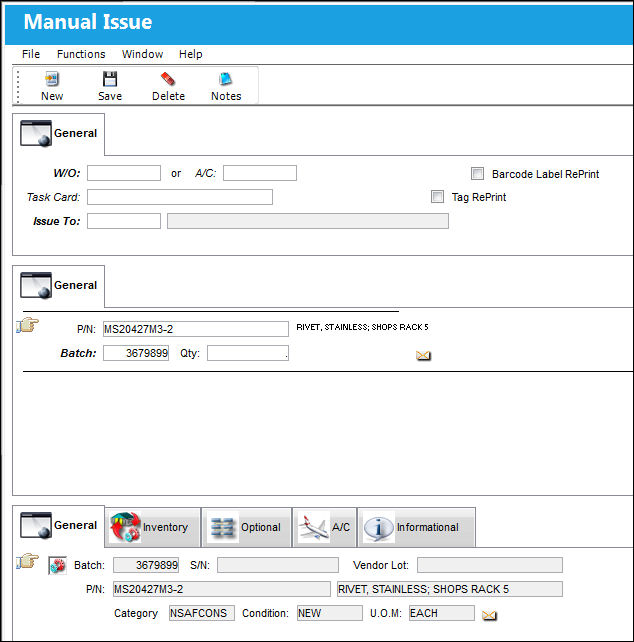
The following information/options are available in this window:
_____________________________________________________________________________________
W/O
The Work Order used to categorize, manage, and schedule work requirements for aircraft maintenance.
A/C
The individual aircraft tail number.
Task Card
The Task Card / Job Card that details the scheduled maintenance work.
 ISSTCMAND - Make Task Card Mandatory in Picklist Creation/Manual Issue/Express Issue
If the W/O in which the Manual Issue is being performed against is Third Party, then the Task Card field will be Mandatory, appear bold and be required for the save of the record.
Issue To
The employee that the part is issued to. The Issue To may be configured to be mandatory and validate the employee’s status for issue.
Barcode Label RePrint checkbox
Select this checkbox to reprint the barcode label for this P/N at Manual Issue.
Tag RePrint checkbox
Select this checkbox to reprint the tag for this P/N at Manual Issue.
_____________________________________________________________________________________
The fields in the tabs in the lower portion of the window are informational.
Once a serialized part is Manual Issued to a W/O or Aircraft, that batch will be in Pending Technical Records  status in the Inventory Transaction window.
 A Manual Issue transaction cannot be performed for a part that has already been reserved against a picklist.
NLA Effectivity:
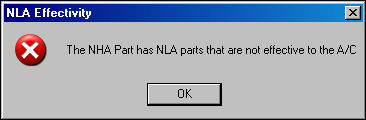
If the user attempts to issue an APU part where the APU is effective to an aircraft, but its NLA does not have effectivity, the system will display the following error:
Prox Card Issue:
Users can use their Proximity credentials to manually issue a part. From the Inventory Transaction window, select te desired part to be issued and select the Manual Issue button.
The user must have their Proximity credentials set up in the Employee Master in order for the system to detect their badge ID for the manual issue. For additional information on how to set this up, refer to the Enroll Badge Button, via the Employee Master Buttons of the Settings Training Manual.
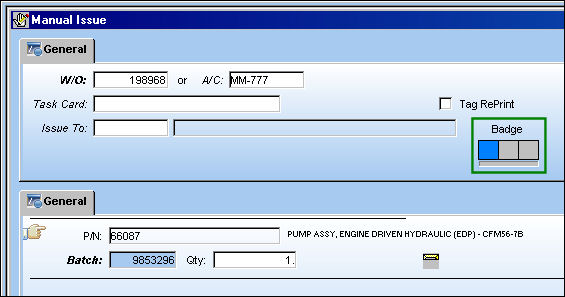
Notice the badge barcode appears to the right in the Manual Issue window. Once all mandatory fields have been populated, scan the barcode.
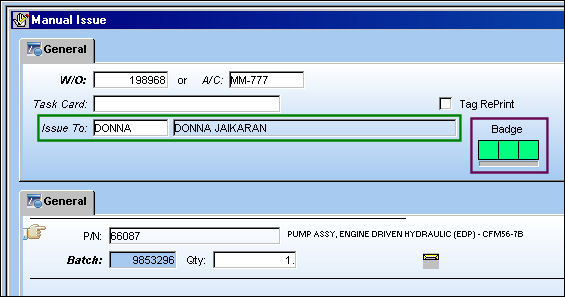
The badge has been scanned and the system correctly recognizes the employee who is associated to the badge:
For more information, refer to the Prox Card  button.
Issuing a Consigned Part Message:
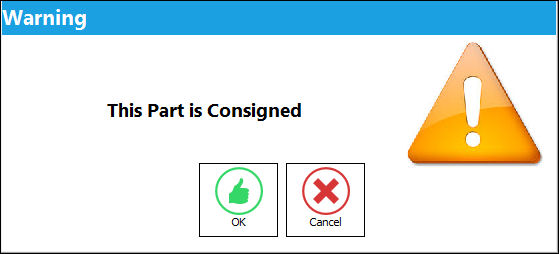
If issuing a Consigned Part, the following soft warning will appear. For detailed information, refer to Issuing Consigned Inventory via the Inventory Training Manual.
Issuing ETOPS Parts:
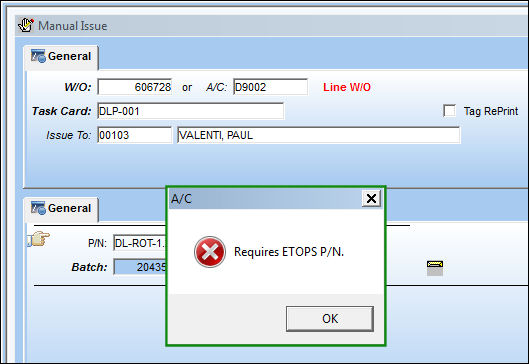
When attempting to manually issue (or complete any other type of transaction) a non authorized ETOPS P/N against an ETOPS's aircraft, the system issues the following hard warning:
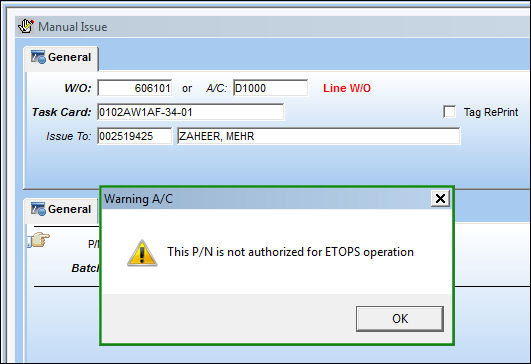
When attempting to manually issue (or complete any other type of transaction) a non authorized P/N against an ETOPS downgraded aircraft, the system issued the following soft warning and will allow the user to continue with the transaction:
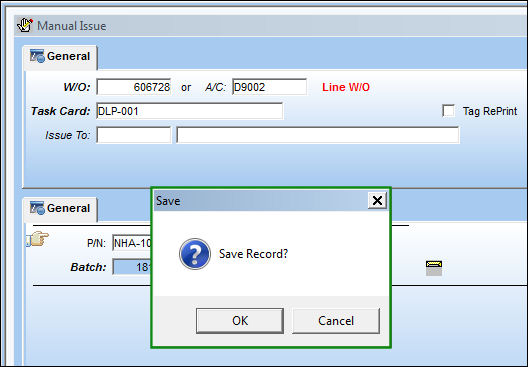
When attempting to manually issue (or complete any other type of transaction) an ETOPS authorized P/N against an ETOPS downgraded aircraft, the system allows the user to continue with the transaction:
All ETOPS transactions will be recorded in the A/C Master Master window. For additional information, refer to the A/C Audit Button, via the A/C Master of the Settings Training Manual.
Additional information can be included through the Notes  button.
Share
Print
|
©1997-2026 Trax USA Corp. All rights reserved. This manual may not be copied, photocopied, reproduced, translated, or converted to any electronic or machine-readable form, in whole or in part, without prior written approval from Trax USA Corp. |
 |