
 Share
Share
 Print
Print
|
|
|
|
|


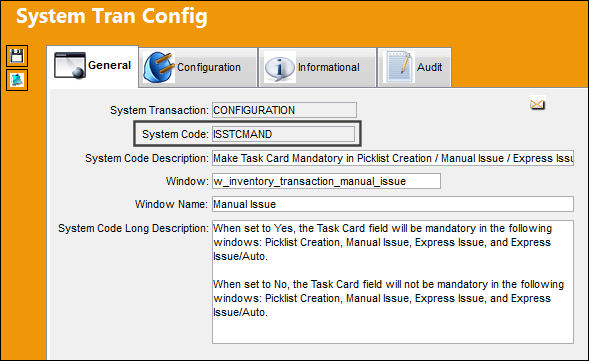
ISSTCMAND - Make Task Card Mandatory in Picklist Creation / Manual Issue / Express Issue
Make Task Card Mandatory in Picklist Creation / Manual Issue / Express Issue
Affected Window: w_inventory_transaction_manual_issue
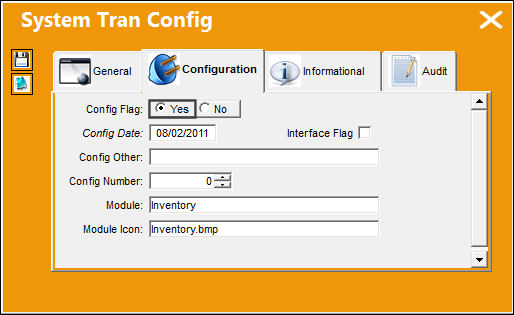
Switch Set to Yes:
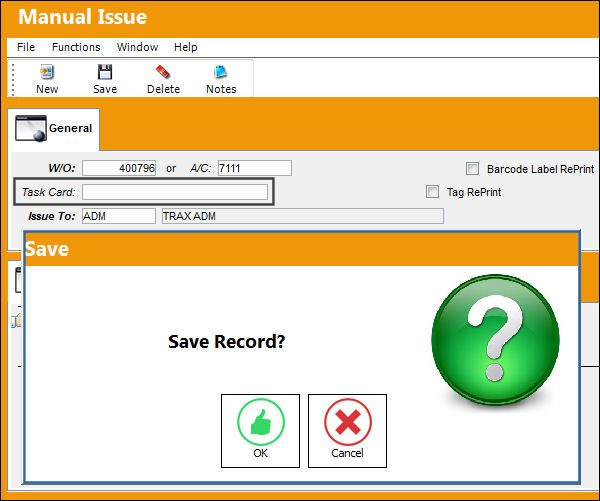
When set to Yes, the Task Card field will be mandatory in the following windows: Picklist Creation, Manual Issue, Express Issue, and Express Issue/Auto.
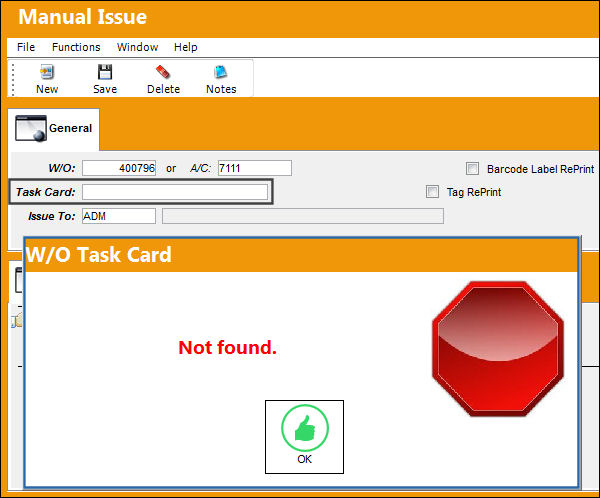
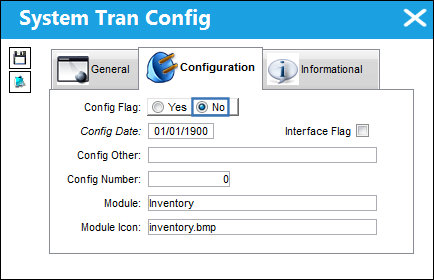
The following Manual Issue is being conducted. Notice the Task Card field is mandatory.
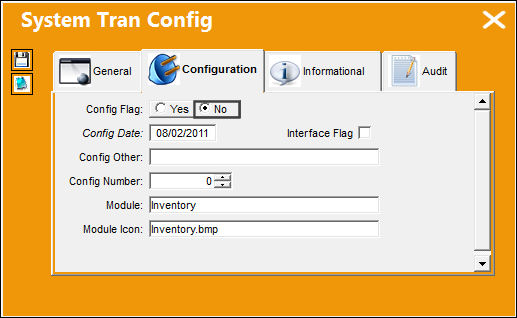
Switch Set to No:
When set to No, the Task Card field will not be mandatory in the following windows: Picklist Creation, Manual Issue, Express Issue, and Express Issue/Auto.
The following Manual Issue is being conducted. Notice the Task Card field is not mandatory.
ISSUEPRINT - Only Generate One Print per Issued Line Item Within a Picklist

Only Generate One Print Per Issued Line Item Within a Picklist
Affected Window: w_picklist_issued_print
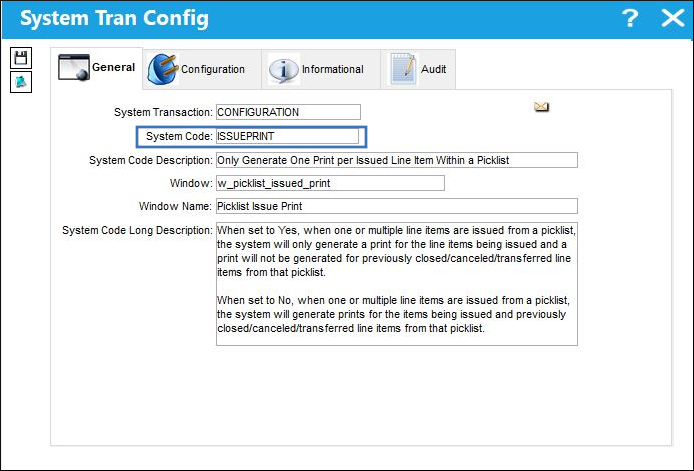
Note: This switch is a custom modification and may not be available for your company. For additional information, refer to your Trax Administrator.
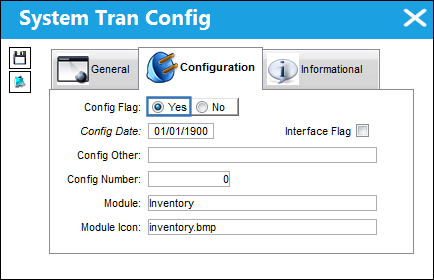
Switch Set to Yes:
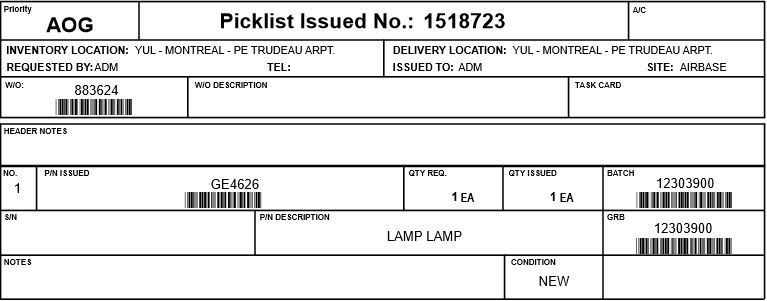
When set to Yes, when one or multiple line items are issued from a picklist, the system will only generate a print for the line items being issued, not for previously closed/canceled/transferred line items from that picklist.
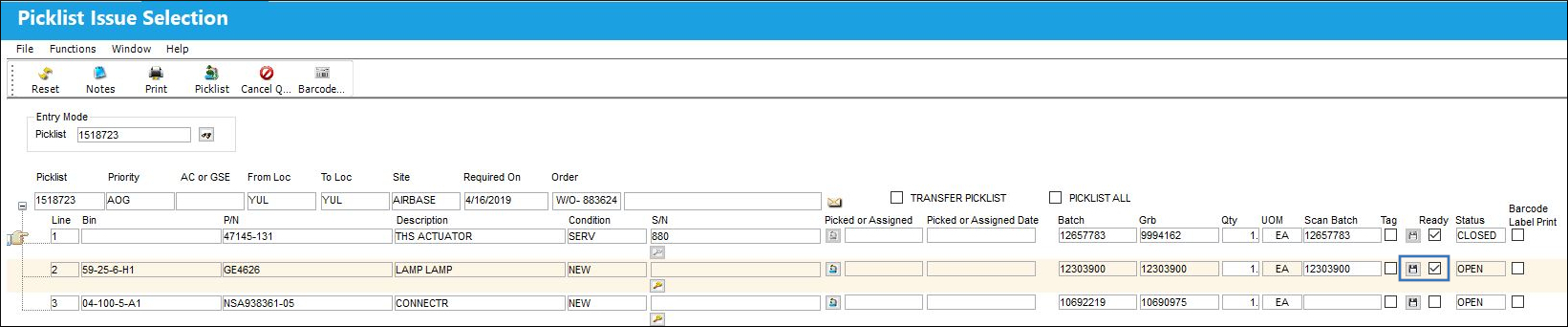
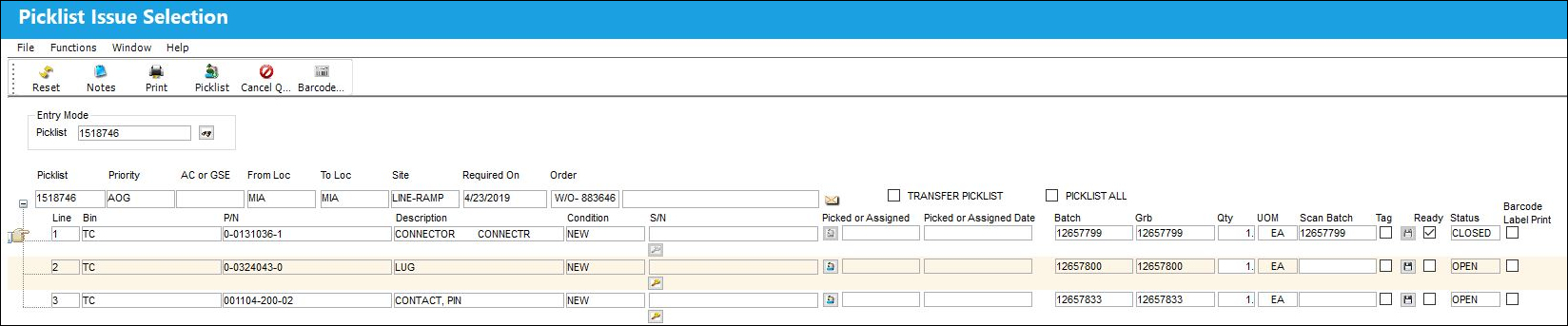
The following picklist contains one closed and two open line items.
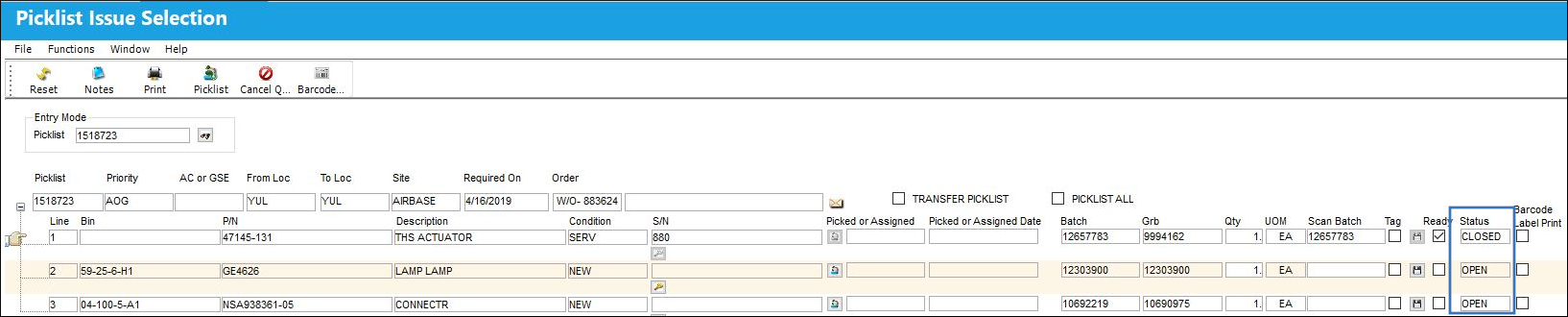
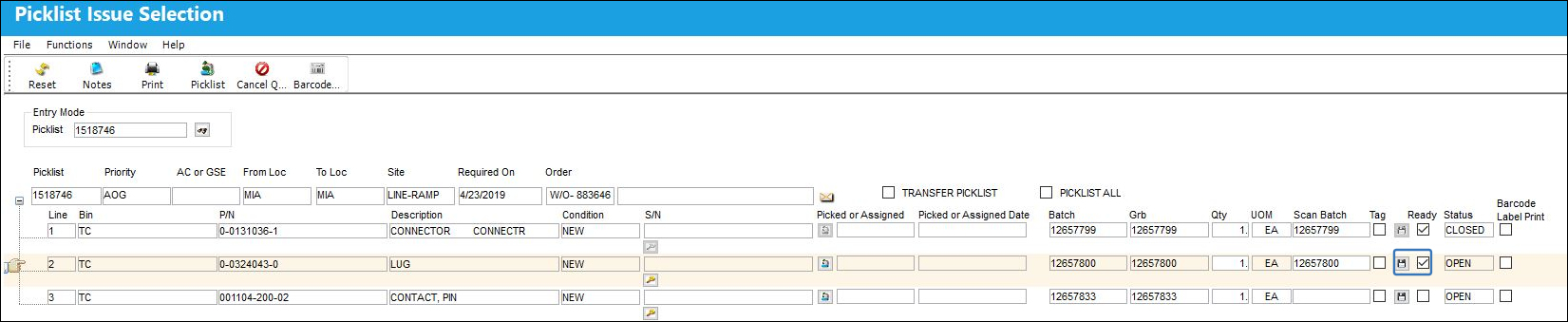
The second line item is ready to be issued. Click the Save button to issue the line item.
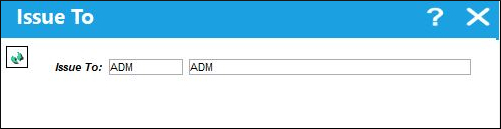
Enter the issue to information and click continue.
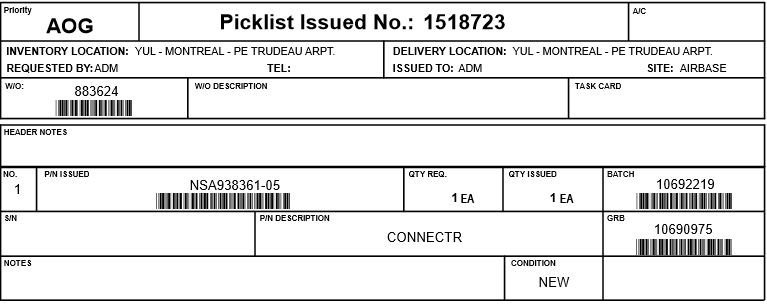
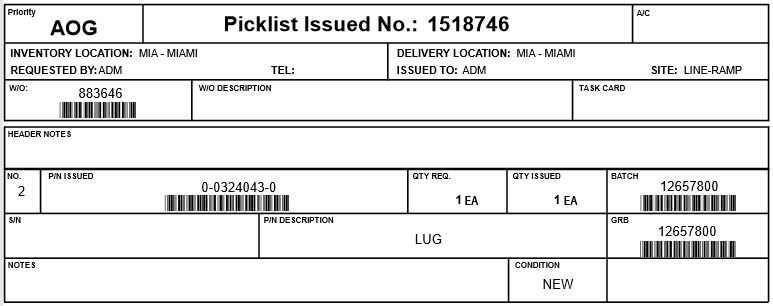
A print will be generated for the line item issued.
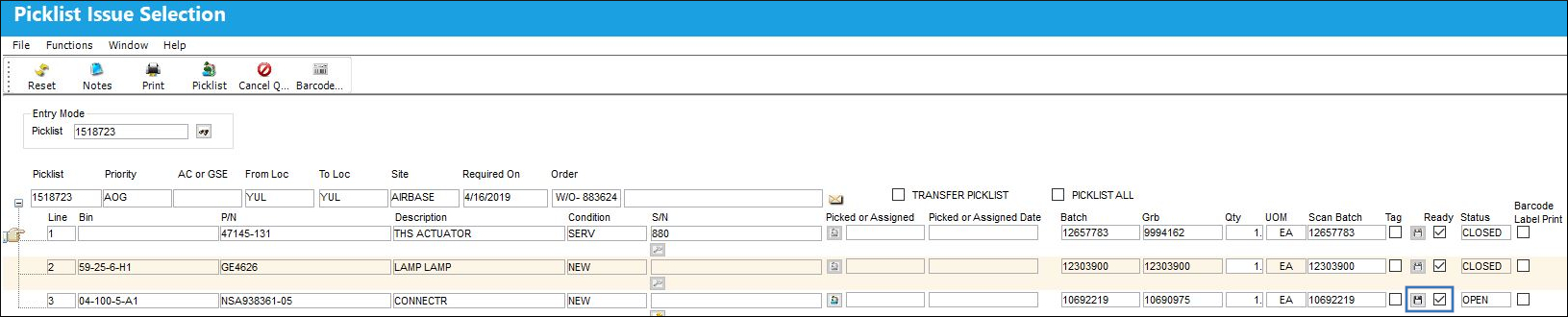
The third line item is ready to be issued. Click the Save button to issue the line item.
Enter the issue to information and click continue.
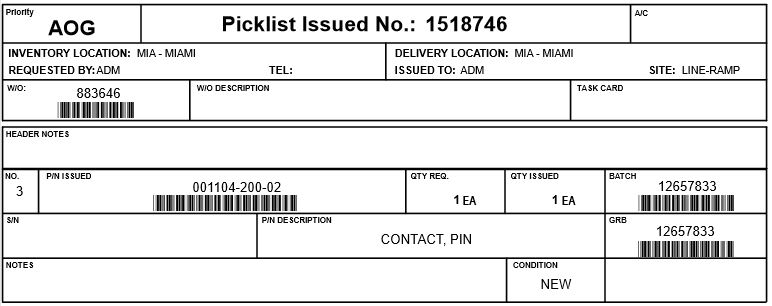
A print will be generated only for the line item issued.
Switch Set to No:
When set to No, when one or multiple line items are issued from a picklist, the system will generate prints for the items being issued as well as previously closed/canceled/transferred line items from that picklist.
The following picklist contains one closed and two open line items.
The second line item is ready to be issued. Click the Save button to issue the line item.
Enter the issue to information and click continue.
Prints will be generated for the previously closed line item and the line item being issued.
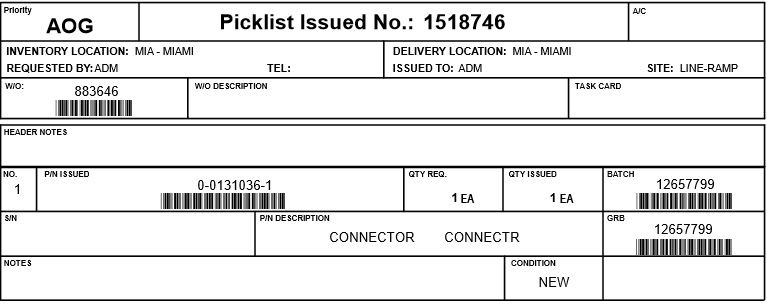
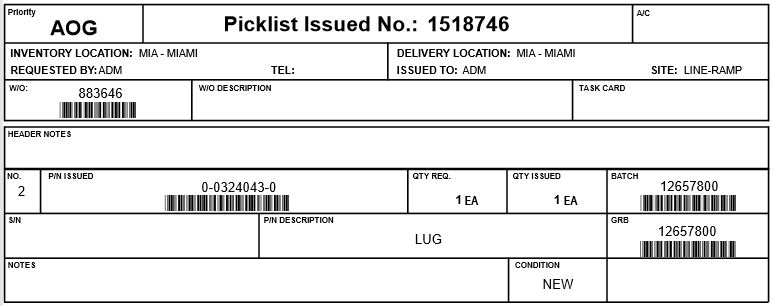
The third line item is ready to be issued. Click the Save button to issue the line item.
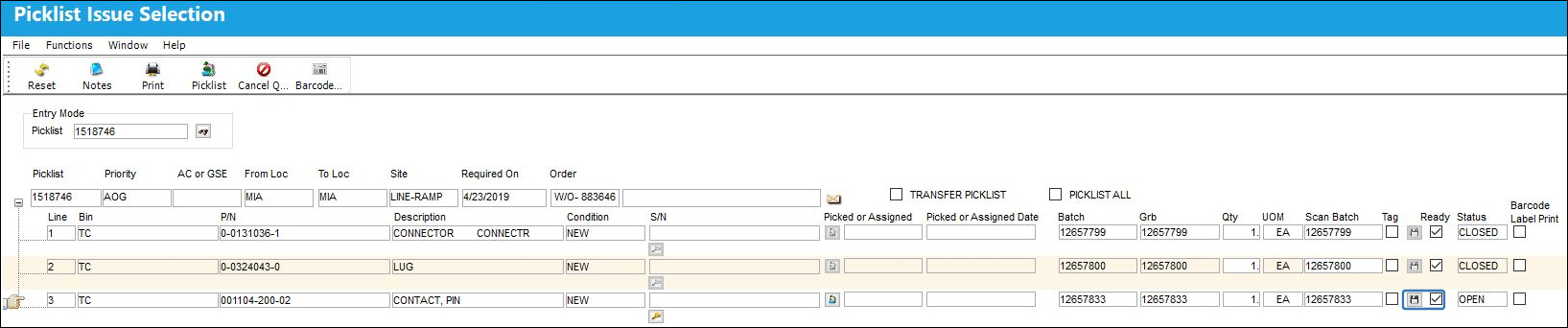
Enter the issue to information and click continue.
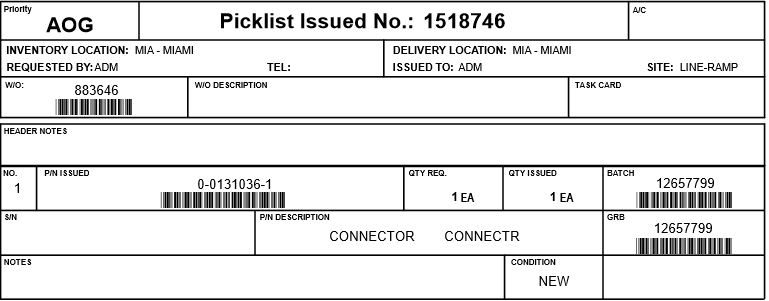
Prints will be issued for the two previously closed line items and the line item being issued.
Share
Print
|
©1997-2026 Trax USA Corp. All rights reserved. This manual may not be copied, photocopied, reproduced, translated, or converted to any electronic or machine-readable form, in whole or in part, without prior written approval from Trax USA Corp. |
 |