Publication Date: 8/17/2026 Share Print

Previous Topic

Next Topic

Book Contents

Book Index

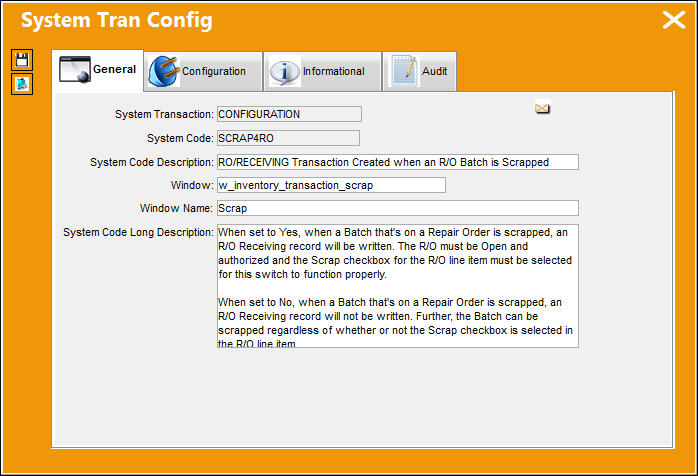
SCRAP4RO - RO/RECEIVING Transaction Created when an R/O Batch is Scrapped

RO/RECEIVING Transaction Created when an R/O Batch is Scrapped

Affected Windows: w_inventory_transaction_scrap
 

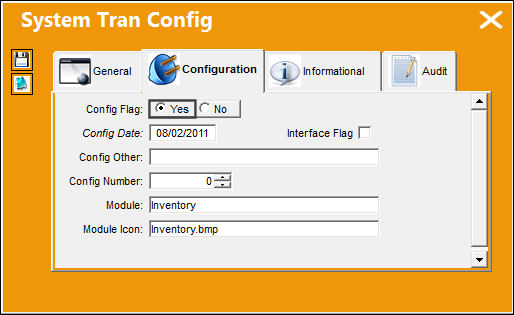
Switch Set to Yes:

When set to Yes, when a Batch that's on a Repair Order is scrapped, an R/O Receiving record will be written. The R/O must be Open and authorized and the Scrap checkbox for the R/O line item must be selected for this switch to function properly.
INV_yes

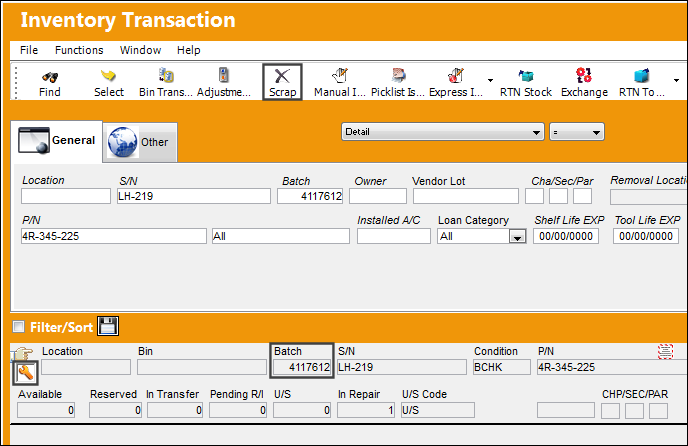
For example, the following Batch is on a Repair Order that is open and authorized.
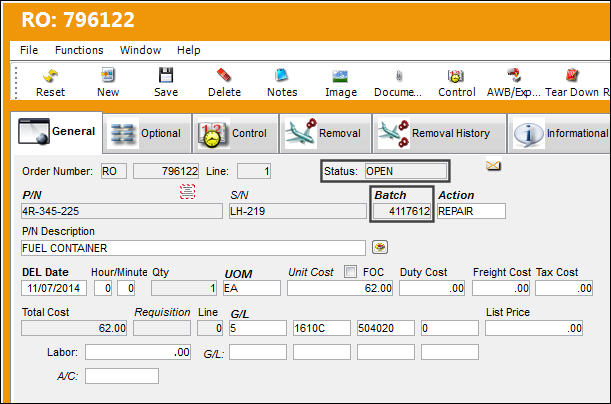
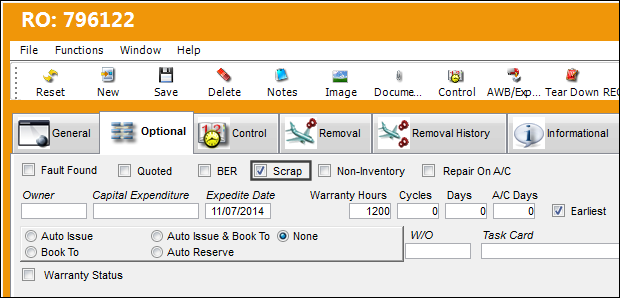
From the R/O, Optional tab, notice that he Scrap checkbox is selected.
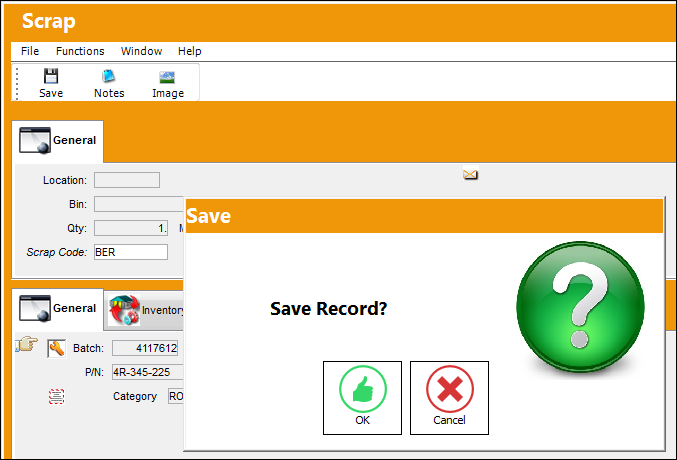
From the Inventory Transaction window, the Scrap but_scrap button is selected for the Batch.

The Batch is then scrapped.
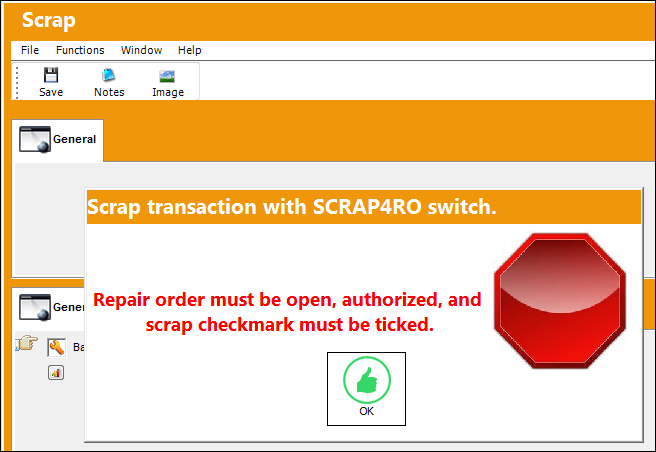
Note: If the Scrap checkbox in the R/O, Optional tab were not selected or if the R/O were not both Open and Authorized, the following error comes up when the Batch is attempted to be scrapped. This functionality is only the case when this switch is set to Yes.
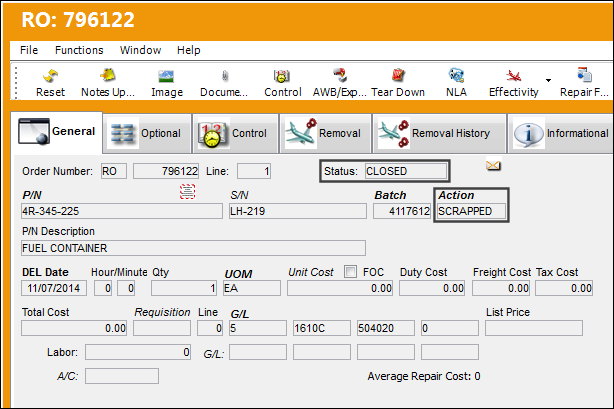
From the R/O detail, notice that R/O is Closed as the part has been scrapped.
Because the R/O was set to Closed, notice that a RO/RECEIVING record was created automatically.
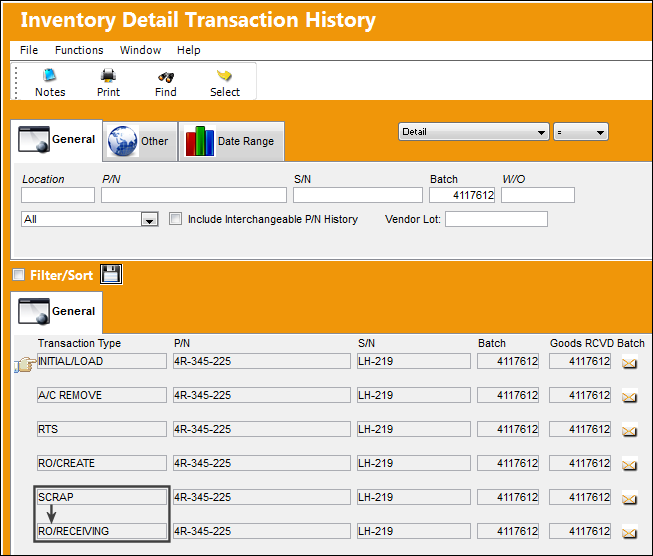
Once the R/O is invoiced, SCRAP and RO/INVOICE Journal Entries are created.


Switch Set to No:

When set to No, when a Batch that's on a Repair Order is scrapped, an R/O Receiving record will not be written. Further, the Batch can be scrapped regardless of whether or not the Scrap checkbox is selected in the R/O line item.
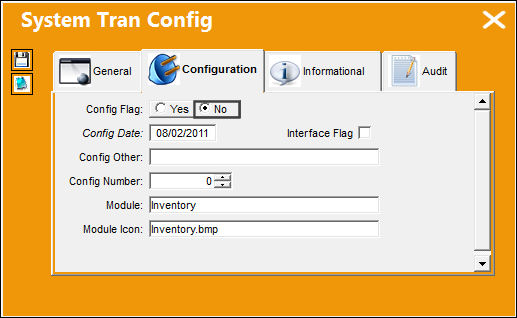
INV_no

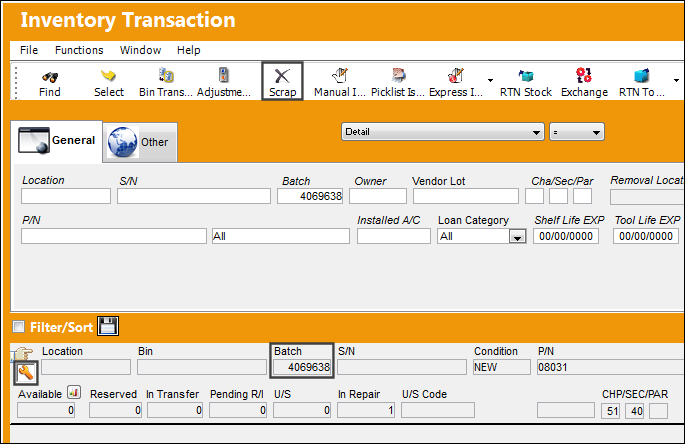
For example, the following Batch is on a Repair Order that is open and authorized.
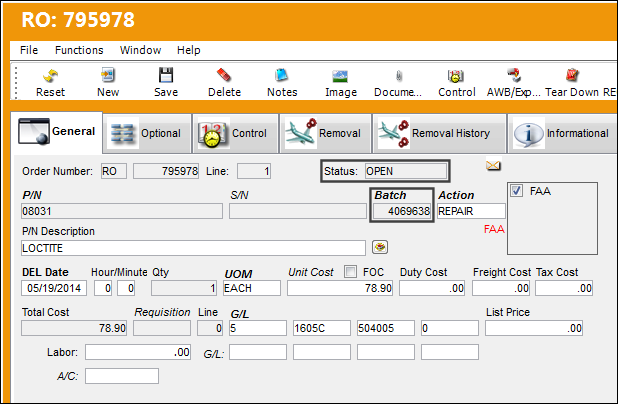
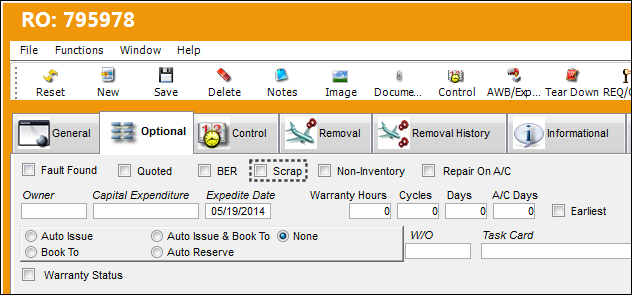
However, from the R/O, Optional tab, notice that he Scrap checkbox is not selected.
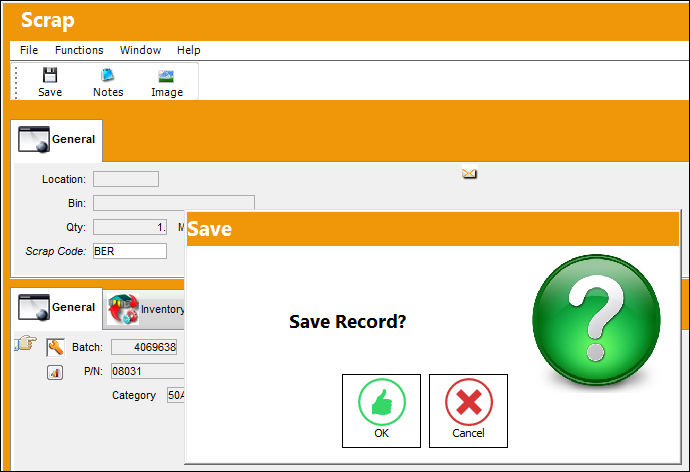
From the Inventory Transaction window, the Scrap but_scrap button is selected for the Batch.

Although the Scrap checkbox is not selected, the Batch can be scrapped because the switch is set to No.
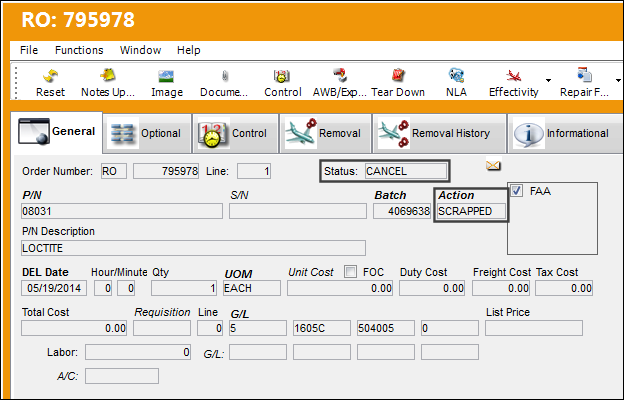
But instead of going to Closed status, the scrapped R/O is automatically set to Cancel.
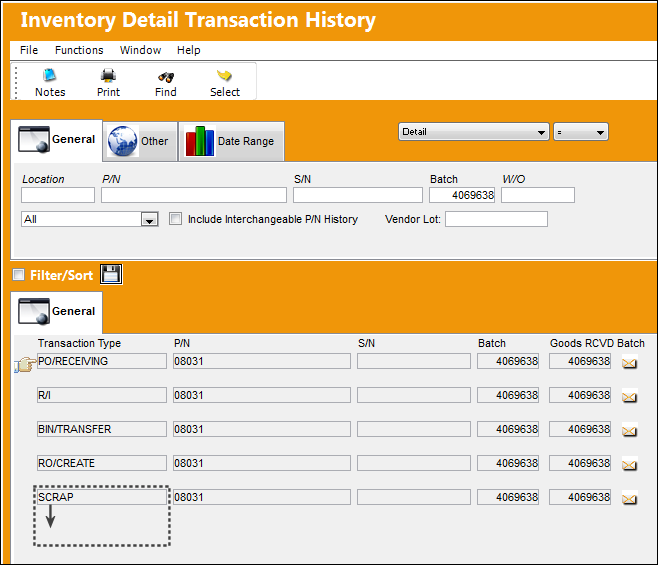
As such, notice that an RO/RECEIVING record was not created; instead, the SCRAP was the final transaction for the Batch.
See Also

Inventory Switches

APJAAF01 - JAA Unique Tracking Number

AUTBINTRANS - RFID Scanning a Bin Transfer Will be Processed Automatically

AUTISSUE - RFID Scanning a Issue Transfer Will be Processed Automatically

AUTOEXONLYUNS - Only Unserviceable (U/S - Quarantine) Parts will be Recognized by the Auto Exchange process

AUTOREORDERFORMULA - Formula Specific To Reorder Levels That Calculates The Requisition or PO Order Quantity

AUTOREORDFORMNOTAC - Formula Specific To Reorder Levels That Calculates The Requisition or PO Order Quantity

AUTOROCAPABILITY - Auto Fill Values in R/O with Values Entered in Vendor P/N Repair Capability window

AUTOTRANSFROMMAINLOC - Create Auto Transfer From Main Location

AUTOWMS - Automated Warehouse Management System

AUTRCVING - RFID Scanning a Receiving Transfer Will be Processed Automatically

AVAILCNT - Modify Available Quantity After Physical Inventory Adjustment

AVOIDRPPICA - Avoid Requisition Print Window When A Physical Inventory Count Adjustment Runs

BINTRANPIC - Allow Bin Transfer for P/Ns with an Open Physical Inventory Cycle Count

BOCRT - Create Requisition For Parts Below Re-Order Level When P/N Reserved on Picklist

BYPASROU - Bypass Location Routing on Picklist Creation

CERTIFREF - Certificate Reference Number

CNCTPNHST - Link History and Compliance of matching P/N S/N

CNCTPNHSTNORI - Link History and Compliance of Matching P/N S/N That Will Not Be Going Through R/I via Interface

CONSINED - Consignment Inventory Auto Purchase

CONSINEX - Consignment Inventory Auto Purchase / By Unit Used Only

CONSTRCNT - Generated Quantity Remains Constant in Recount After P/N Movements

CONTACT - Contact Next Sequence Number

CTRLAUTH - P/N Control Authorization Default

CTRLAUTHPNNLA - P/N Control Authorization Defaulted through P/N N/L/A Creation

DEFDESRTS - Update Defect Description In Return To Stock Window

DEFRIFG - Default R/I at RTS and PN Initial Load

DFCNLCBN - Default Condition, Location, and Bin for Tool Check In

DFLTRIFG - Receiving Inspection (RI) checkbox Selected by Default for P/N Initial Load and Return to Stock

DIFFACISSU - Soft warning to appear during manual issue when requisition exists against the issued P/N

DISABLERTV - Prevent Return To Vendor Transaction if Order is Invoiced

DONOTLOADFA - Display Load Fixed Assets checkbox in P/N Initial Load

DSBL_ISSTLTOM - Disable Mandatory Entry Of Issue To Field For Tool Check In

ETOPS - ETOPS Allow Warning at Manual Issue

EXPSHLQL - Allow Shelf Life Expired P/N to be Received Only in Quarantine Location

EXUNAUTHNOISSUE - Allow Issuing of Parts to Un-Authorized Exchange In/Out Orders

GREYOUTBINPREF - Grey Out The Bin Field If Part Is Setup With Preferred Bins

INC1WAYPCKLST - Include One-Way Forward Interchangeable Parts in Picklists

INVCNT0B - Delete Batches With 0 Quantity After Physical Inventory Count Adjustment

INVCOUNTALL - Inventory Physical Count With Multiple Locations

INVCOUNT/BINTRANSFER - Bin Transfer Update In Physical Inventory Count

INVOICESOPRT - Customer Order Invoice Print not available at S/O Picklist Issue

INVOWNICON - Override Consigned Parts Icon

INVTRCHOUT - General Tab Selected by Default in Inventory Transaction Tool Check Out Window

ISSPRTDF - Default Number of Prints For Issues

ISSTCMAND - Make Task Card Mandatory in Picklist Creation / Manual Issue / Express Issue

ISSUEPRINT - Only Generate One Print per Issued Line Item Within a Picklist

ISSUETOC - Issued To – Use Employee Code Only

ISSUETOM - Issued To (field) Mandatory

LABELPRNTOPEN - Multiple Labels can be Printed when a Return to Stock returns Multiple Parts

LHTUNSTMEMO - Get TRX Unsent MEMOS

LQSEQ - LQ Next Sequence Number

MANUALIP - Show Manual Issue Print

MANUALTIP - Show Manual Tool Issue Print After Tool Check Out Transaction

MKTOWOMD - Make W/O (field) Mandatory for Tool Check Out

MSGMDEC - Do Not Show the Message About the Mandatory E/C

MSGMDECQ - Show the Message about the Mandatory E/C as a Question

MSGPLANDUE - Show the message if the P/N Control or P/N E/C has reached or surpassed the percentage of their schedule

NLACTRLS - Prevent Manual Issue of Parts which have NLAs with Overrun P/N Controls

NLAPRINT - Next Level Assembly (NLA) Print

NLAWARRANTY - Apply Warranty to NLA Units Associated with an Assembly

NLA_PARTS_EFFECTIVE - Do Not Allow Issue of NHAs With NLAs That Are Not Effective To The A/C

NO1STPRI - Do Not Allow One-Step Transfer If Batch Has Quantity Pending R/I

NOEMPTYIFNONLA - Do Not Display Missing NLA If Component Does Not Have An NLA

NOTBOGUSPART - Blocks BOGUS Parts From Importing Into Inventory

ONESTEPTRANSMAINLOC - Control movement between Main Location via One Step Transfer

OVERISSUE - Allows the user to issue a part's quantity that is over the quantity amount against the picklist

OWNCHGALL - Assign/Remove Owner For P/N In Inventory

PCKLISTCAN - Display Canceled Picklist for Manual Review

PCKLISTPSLOCATION - Create Packing & Shipping Record if Picklist Delivery Location and Picklist Issue Location Do Not Match

PIBLIND - Display Available Quantity On Physical Inventory Count Print

PICKLIST - Picklist Next Sequence Number

PICKSELORDEROVR - Override Picklist Batch Reservation Logic

PKLSTMRVW - Picklist Issue Manual Review

PKQTYOWNER - Picklist Reservation of Owned Parts First for 3rd Party W/Os

PLCMDLS - Make Delivery Location and Site fields Mandatory in Picklist Creation

PLCMP - Make Priority Mandatory in Picklist Creation

PLPOLOC - Print Picklist In Original Location

PNAVADEST - Get a Warning When the Part is Available in the Destination Location

PNBINCHG - P/N Identification Tag Bin Change to Receiving Bin

PNCLNOTF - Notify User When PN Control is Created, Modified, or Deleted

PNEXPMVJOB - Create Job For Expired Inventory

PNIDFRM1OP - Option to select either FAA or EASA when printing P/N ID Form 1

PNINVHIS - P/N Inventory History Next Sequence Number

PNROBYLOC - Repair Order Prefer Vendor By Location

PNSNCHG/EFFECTIVITY - Remove Engineering Effectivity on the old P/N S/N after P/N S/N Change Transaction

POOLSEQ - Next Sequential Number for a P/N Pool

PPCPRINT - If Picklist is Cancelled the Cancellation Print will use the Priority to Send Cancellation to the Printer Defined in System Printer Control

RCVPRTDF - Set Default Number of Prints for P/N Identification Tag

REFNUMORDESCRIP - Map Bin Label Print All Header to P/N Reference

REOEAUTO - Reorder Level Automatic Calculation After Issues

REOPNODR - Re-Open Order checkbox to be Selected by Default

RESETDATENULL - P/N Control Authorization Default

REQDATEREO - Require Date of Reorder Requisitions Postponed by Number of Days Specified by the User

RIACCEPTPEND - P/N Controls default to 'Pending' on Acceptance of Receiving Inspection

RMVRTS - Return To Stock Not Allowed If Part Is Installed On Aircraft

RTSAURO - Return to Stock R/O Creation

RTSCHKEX - Return to Stock Check Existing Exchange Order

RTSCOST - Use Value Of Zero Instead Of Average For RTS

RTSCOSTA - Inventory Adjustment Use Average Cost Instead Of Zero

RTSNOTES - RTS Notes Not Applied to Subsequent Inventory Transaction Records

RTSOWNER - Make Owner (field) Mandatory

RTSUNKINVMSG - Soft Warning for Return to Stock of Unknown Parts

RTSVENDORLOTSN - Use the Vendor Lot Field in RTS Window as S/N for Auto R/O Only

RTSUNKINVNO - Prevent Return to Stock of Unknown Parts

RTV/JE - RTV Select G/L Account From P/N

SCANBATCHMAND - Scan Batch Field mandatory at Picklist Issue

SCRAP/AUTHORIZATION - Scrap Authorization

SHOWEXPEC - Show all expired E/Cs during Manual Issue

SHOWLOANCAT - Shows Loan Category in P/N Explorer

SLIFEXPEXC - Exchange Order Issue Not Allowed for Parts with Shelf Life Expired

SOS - SOS Condition Defaulted for All Parts in Return to Stock

SOSCTLHR - Show SOS Control Hours

STOREHZDSPN - Enables Hazardous Parts to be Stored in ASRS BINs

TAGTOOLCHKIN - Suppress Tag Reprint at Tool Check In Window

TOOLCALCONTROL - Enables Tool Calibration Control Securities in Several Windows

TOOLCHKINLOCPROTECT - Protect Location in Tool Check-In Window for Unprotected Users

TOOLCKINMAN - Tool Check In W/O or Issue To Employee fields Mandatory

TOOLCKOUTMAN - Tool Check Out W/O and Task Card fields Mandatory

UNSPRINT - Prevents User from Printing a Serviceable Tag in Non-Quarantine Locations

VALPNCONTROLSCHEDULE - Validate P/N Control Actuals Against Schedules

WOPCPRINT - Automatically Cancel Picklist Print When Picklist Reservation is Canceled

WORTSMAN - W/O (field) RTS Mandatory

WOTCISSSTA - Allow Issue of a P/N to a Closed Task Card

Top of Page Publication Date: 8/17/2026 Share Print