
 Share
Share
 Print
Print
|
|
|
|
|



The Update Reserved Quantity  button allows users to edit the quantity of reserved parts for an inventoried batch.
This button should only be used to change the reserved quantity for Picklists that have been canceled/deleted at the header level without un-reserving the batch. To change the reserved quantity of an open Picklist, users should go to the Picklist Issue window and zero out the required quantity, if need be.
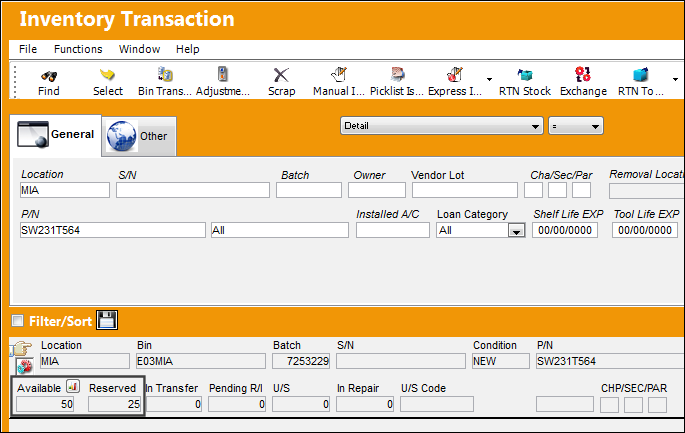
For example, notice the following batch has 50 Available parts and 25 Reserved parts.
 This button is security-controlled via Inventory/Update/Inventory Transaction/Update Reserved Quantity. For more information refer to the Security Explorer section of the System Administration Training Manual.
Select the Update Reserved Quantity button to change the Reserved Quantity. When selected, the Update Reserved Qty window comes up as follows:
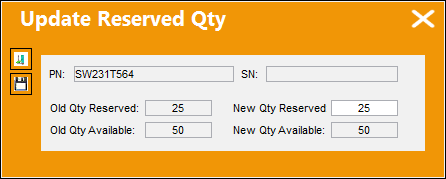
The following information/options are available in this window:
_____________________________________________________________________________________
P/N
The Part Number reference for the aircraft part. The Part Number that is having its reserved quantity changed. (This field is entered automatically.)
S/N
The Serial Number for the specific serialized part. The specific P/N Serial Number that is having its reserved quantity changed. (This field is entered automatically.)
Old Qty Reserved
The original reserved quantity that is going to be updated. (This field is generated automatically.)
Old Qty Available
The original available quantity that is going to be updated. (This field is generated automatically.)
New Qty Reserved
The new reserved quantity. This field must be updated manually.
This quantity cannot be greater than the total quantity of parts in the batch. For instance, in the above example, the total quantity cannot be greater than 75.
New Qty Available
The new available quantity. (This field is generated automatically.)
_____________________________________________________________________________________
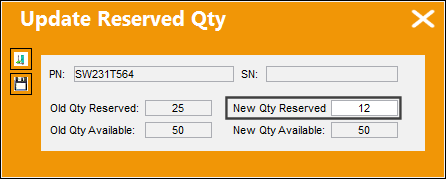
Once the New Qty Reserved field has been updated, select the Save  button.
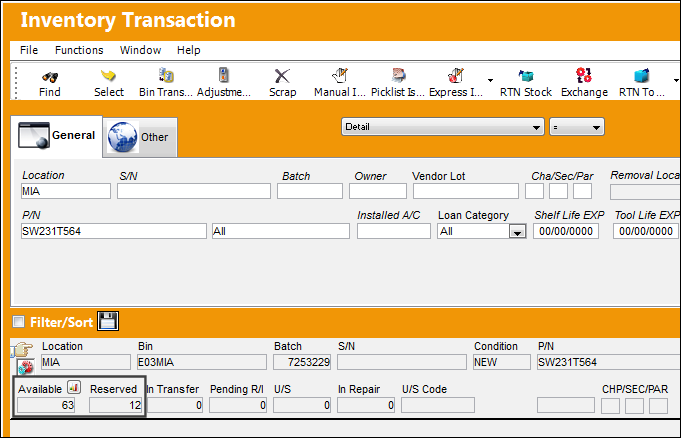
Once saved, notice that the Available (63) and Reserved (12) quantities have been updated.
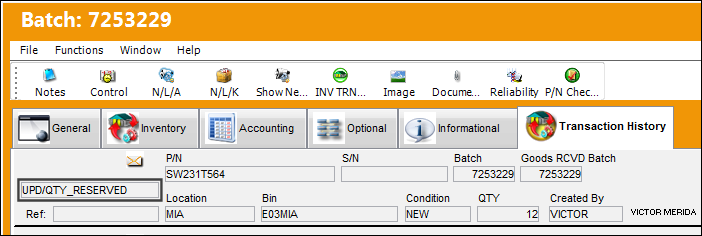
When a Reserved quantity is updated, the batch's Transaction History has the 'UPD/QTY_RESERVED' transaction listed.
Errors and Warnings:
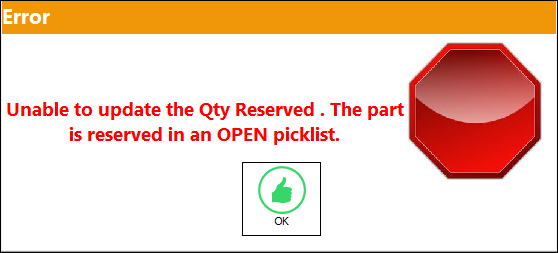
If 1 or more part is on an open picklist, the system will display the following hard warning. If the user would like to continue with updating the reserved quantity, it is suggested that the user go to the Picklist Issue window and zero out the required quantity, if need be.
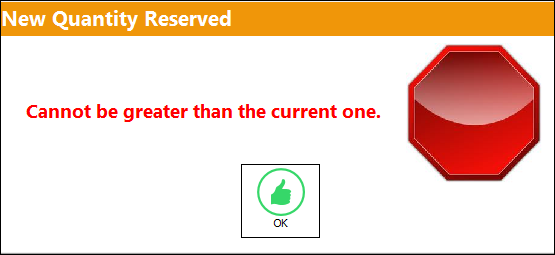
If the user attempts to update the reserved quantity to a greater number than than is already reserved, the system will display the following hard warning.
Share
Print
|
©1997-2026 Trax USA Corp. All rights reserved. This manual may not be copied, photocopied, reproduced, translated, or converted to any electronic or machine-readable form, in whole or in part, without prior written approval from Trax USA Corp. |
 |