
 Share
Share
 Print
Print
|
|
|
|
|


The Owner Change  button is used to change the owner that is currently associated with a part in inventory. However, the part does not have to have an owner for it to be associated to a new owner.
When a part is placed on an order or initial loaded, an owner can be assigned to the part through the Owner field of the Order Detail, Optional Tab or the P/N Initial Load window. When an owner is associated with a part, the part will indicate that it is owned (with the owned  icon) via Inventory Transaction.
When the owner is changed, there are financial implications: new Journal Entries are written for the part and the part's Fixed Assets are deleted. See below for more information.
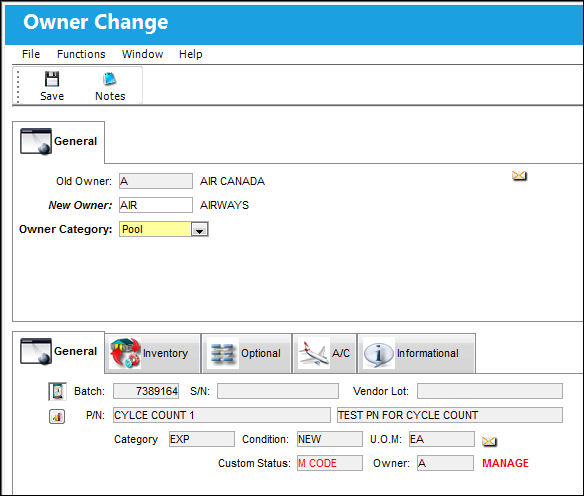
The following information/options are available in this window:
_____________________________________________________________________________________
Old Owner
The current Owner of the part.
New Owner
The new Owner to be associated with the part. This owner will replace the previous owner.
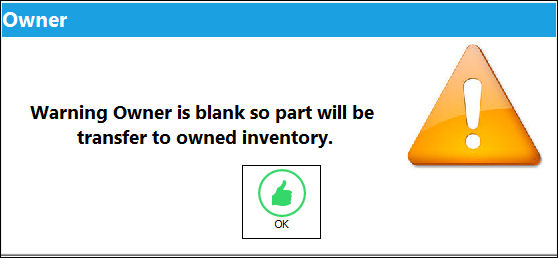
 If leaving this field blank/null, the transaction is a change from the old owner to the user and a Fixed Asset is created for the part, as indicated by the following prompt:
Owner Category drop down 
The type of ownership. The options are as follows. One must be selected. This field is available once a New Owner is entered.
Pool - Parts belonging to a pool agreement with the vendor.
Manage - Maintenance organization manage parts in their inventory that are owned by a particular owner and are to be used only for a particular customer's aircraft.
Consigned - Part is still associated with the owner and does not yet belong to the company.
None - Does not have a specific Owner Category.
_____________________________________________________________________________________
Select the Save  button to save all information.
The owner change may influence the total stock value (see below). Owner codes are set up in the Owner Master (Settings).
Financial Implications
When a part's owner is changed, new Journal Entries are written for the part and the part's existing Fixed Assets are deleted.
For example, notice that the following inventoried part has the following Journal Entries.
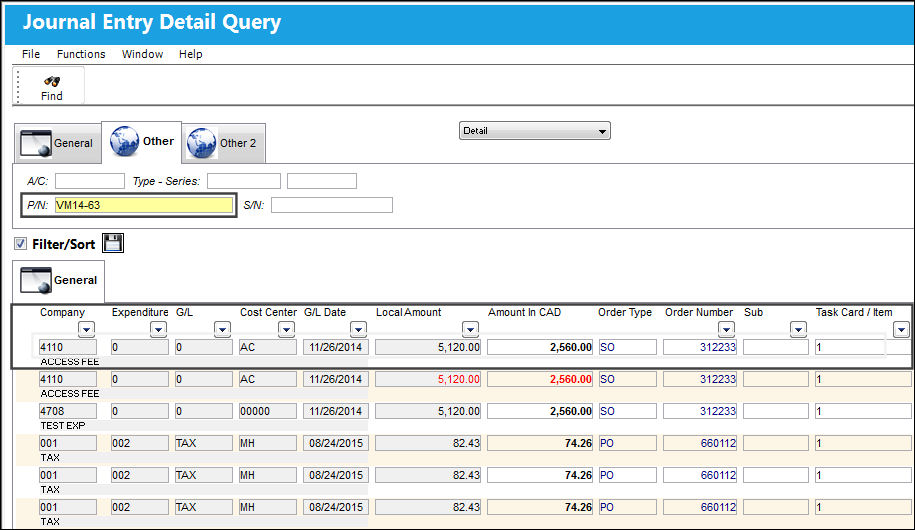
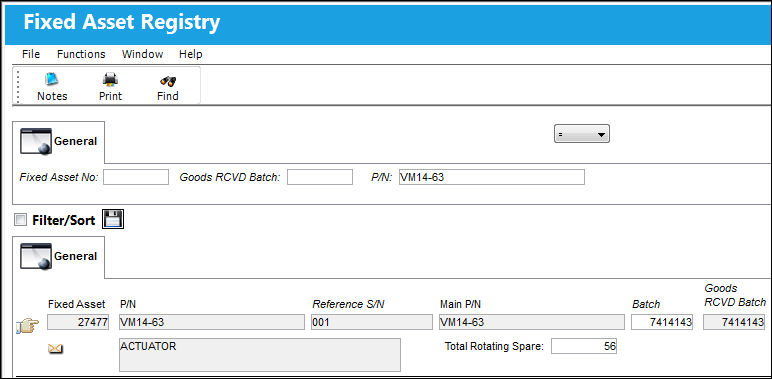
The same part also has a Fixed Asset.
Now the part goes through an owner change, via Inventory Transaction.
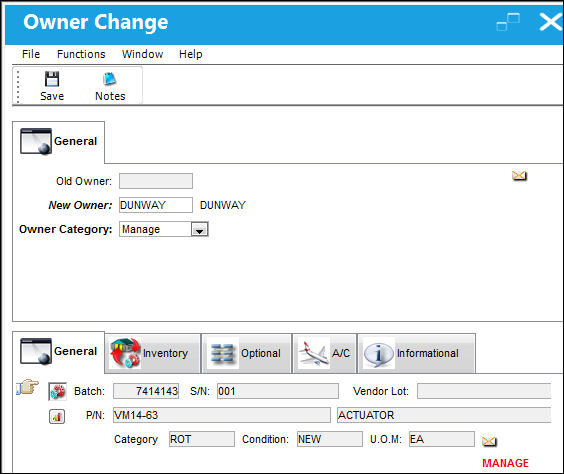
Once the part is linked to an owner, notice that the part contains the owner details in the Inventory Transaction.
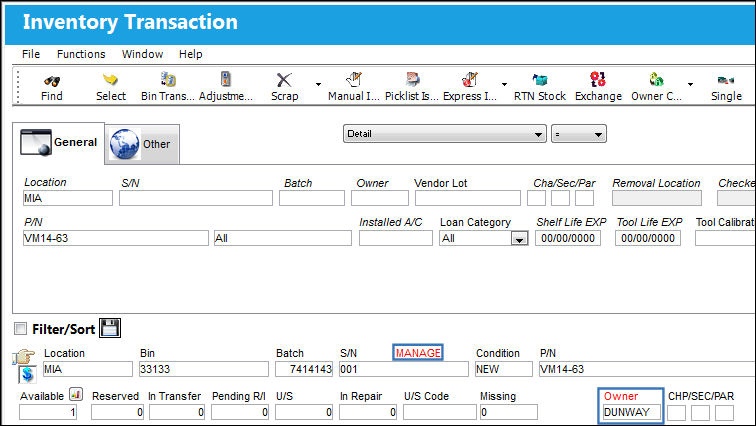
From the Journal Entry Detail Query, notice that new 'SALES' J/Es were written once the owner was changed.
The above screenshot has been modified to highlight the pertinent columns of the window for this example.
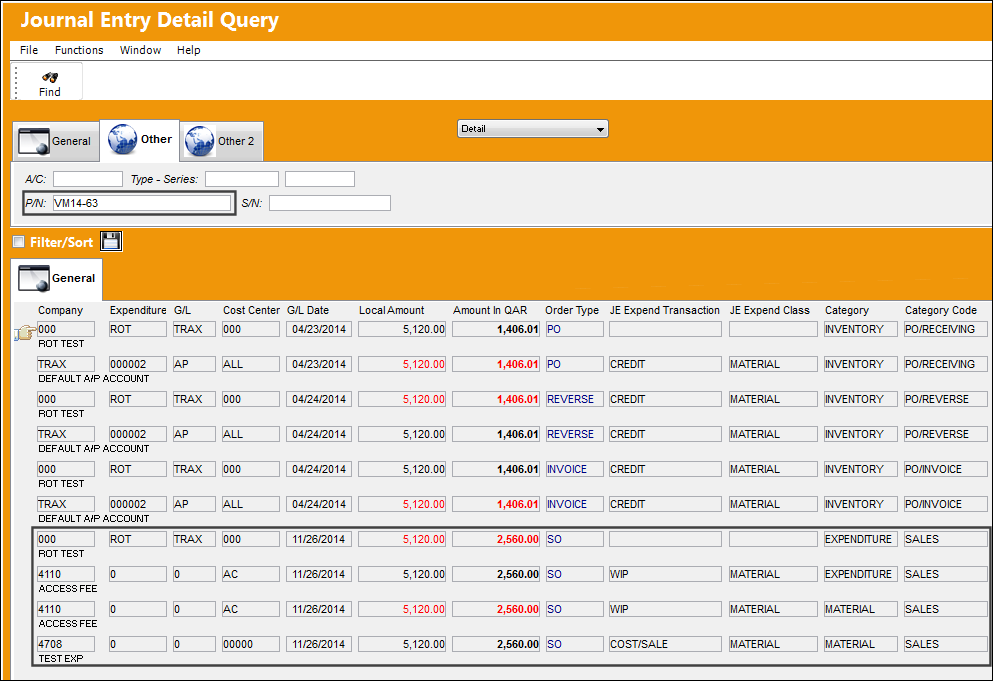
Also notice that the part no longer has the Fixed Asset.
Additional information can be included through the Notes  button.
Share
Print
|
©1997-2026 Trax USA Corp. All rights reserved. This manual may not be copied, photocopied, reproduced, translated, or converted to any electronic or machine-readable form, in whole or in part, without prior written approval from Trax USA Corp. |
 |