|
TRAX MANUALS > Inventory > Inventory Module > Inventory, Update Menu > Inventory Transaction > Inventory Transaction Buttons > Import P/N Birth Date Button, via Inventory Transaction
Import P/N Birth Date Button, via Inventory Transaction
The Import P/N Birth Date  button allows users to upload a .xslx file that will import birth dates to pre-existing P/Ns. button allows users to upload a .xslx file that will import birth dates to pre-existing P/Ns.
Selecting the Import P/N Birth Date button displays the Import from File window.
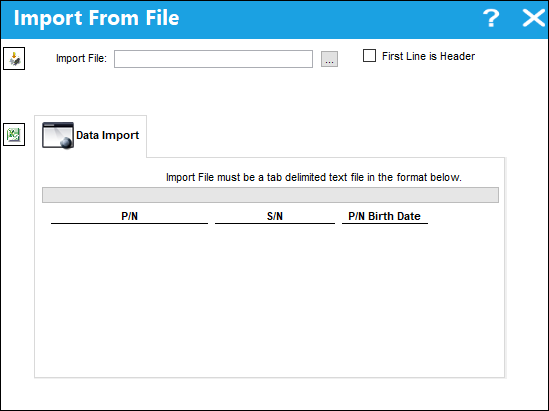
The following information/options are available in this window:
_____________________________________________________________________________________
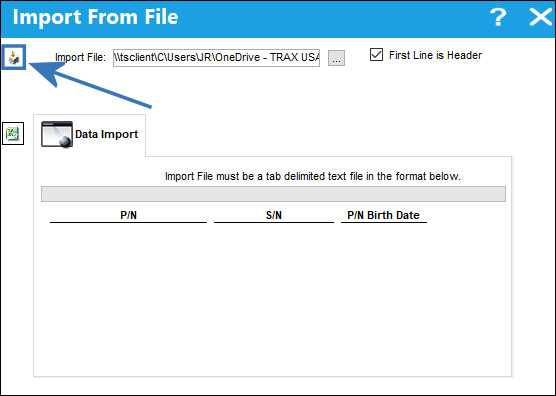
Import button
Select this button to import the data from the import file.
Import File field
This field will populate the name of the file that has been imported.
Browse  button button
Select this button to prompt the user's file explorer and locate the appropriate file.
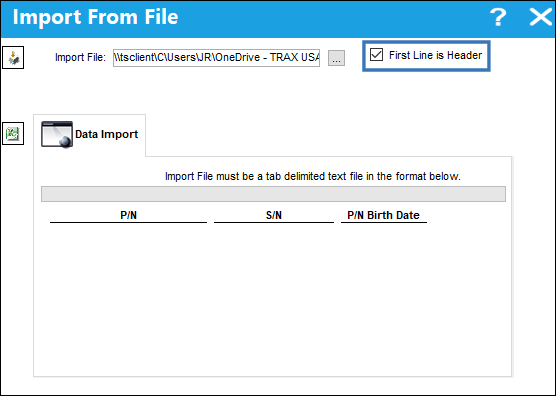
First Line Is Header checkbox
Select this checkbox to ensure that the first line of the imported document is recognized as the table header.
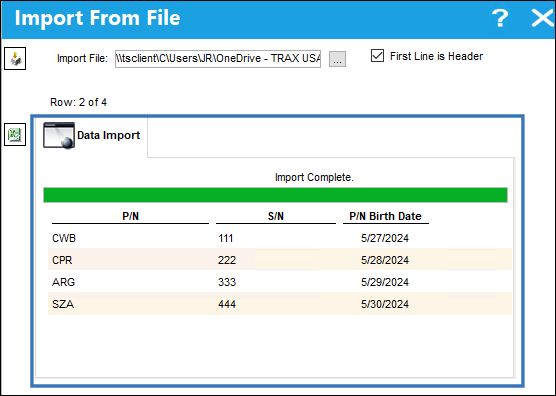
P/N
The Part Number to be imported into the system.
S/N
The Serial Number for the specific serialized part.
P/N Birth Date
The date the P/N was created.
_____________________________________________________________________________________
Users can select the file  button to access the appropriate .xslx template. Once that template is populated, save it as a .txt file so it appears as follows. button to access the appropriate .xslx template. Once that template is populated, save it as a .txt file so it appears as follows.
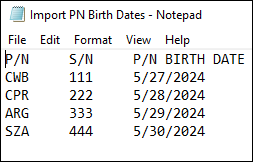
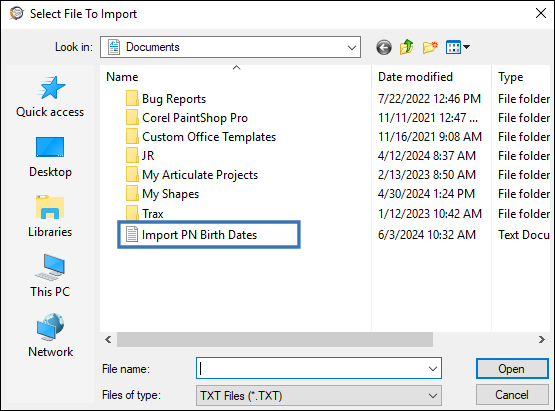
Once the file is ready, the user can select the Browse button to begin importing the .txt file. Select the appropriate file in the displayed file explorer.
When the file is loaded into the system, its name will appear in the Import File field.
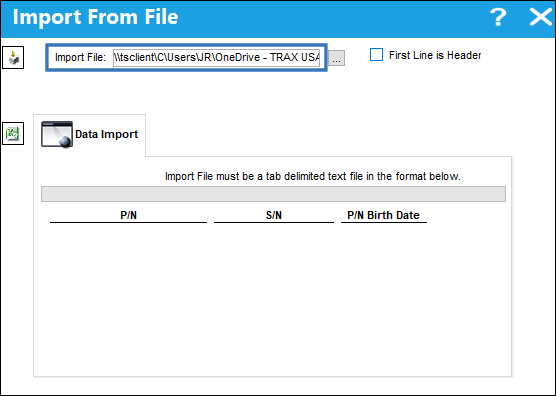
Select the First Line is header checkbox. If this check box is not selected, the import will recognize the first line of the .txt file as viable data, resulting in an improper import.
Select the Import button to complete the import process.
A successful import will display a success message and a populated import table.
Viewing P/N Birth Dates
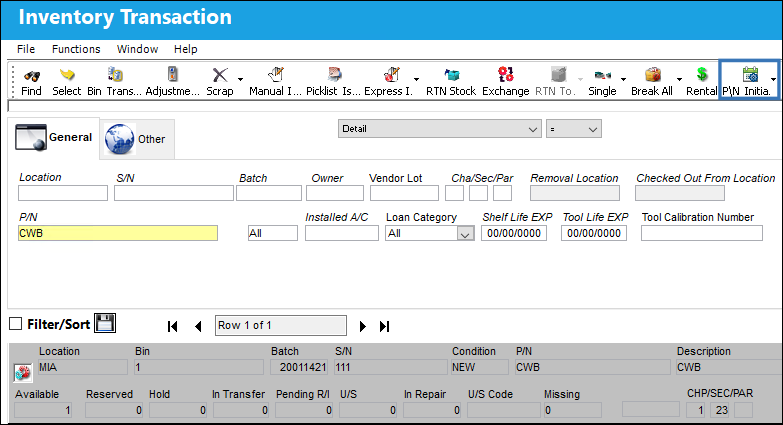
Users can view P/N birth dates via the P/N Initial Times Accrual  button. To utilize this button, navigate to the Inventory Transaction window and query for the desired P/N. button. To utilize this button, navigate to the Inventory Transaction window and query for the desired P/N.
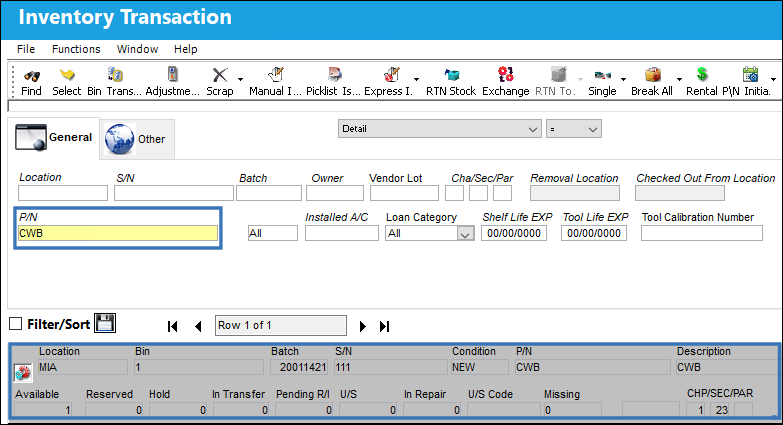
Select the P/N Initial Times Accrual button via the drop down.
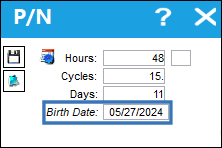
The birth date is displayed alongside the time accrual information.
For more information on this button, refer to P/N Initial times Accrual Button, via Inventory Transaction.
|
See Also Inventory Transaction Buttons Bin Transfer Button, via Inventory Transaction Adjustment Button, via Inventory Transaction Scrap Button, via Inventory Transaction P/N Missing Button, via Inventory Transaction Lost Button, via Inventory Transaction Manual Issue Button, via Inventory Transaction Picklist Issue Button [V15], via Inventory Transaction Picklist Issue Button, via Inventory Transaction Express Issue Button, via Inventory Transaction Express Issue Auto Button, via Inventory Transaction Return To Stock Button, via Inventory Transaction Exchange Button, via Inventory Transaction Return To Vendor Button, via Inventory Transaction Loan Return Button, via Inventory Transaction Return To Owner Button, via Inventory Transaction Owner Change Button, via Inventory Transaction Return From Customer Button, via Inventory Transaction Company Change Button, via Inventory Transaction Return to LHT Button, via Inventory Transaction Return From Quarantine Button, via Inventory Transaction Single Button, via Inventory Transaction Multi Button, via Inventory Transaction ASRS Transfer Order Button, via Inventory Transaction ASRS Multi Store Button, via Inventory Transaction Request Tray Button, via Inventory Transaction Break All Button, via Inventory Transaction Break P/N Button, via Inventory Transaction Re-Build Kit Button, via Inventory Transaction Build Multi Kit Button, via Inventory Transaction Rental Button, via Inventory Transaction Requisition Button, via Inventory Transaction Custom Duty Change Button, via Inventory Transaction P/N Master Button, via Inventory Transaction Interchangeable Button, via Inventory Transaction Order Button, via Inventory Transaction Bin Control Button, via Inventory Transaction Image Button, via Inventory Transaction P/N S/N Change Button, via Inventory Transaction Document Control Button Manual Button, via Inventory Transaction P/N-S/N Position Change Button, via Inventory Transaction Document Change Button, via Inventory Transaction P/N Detail Print Button, via Inventory Transaction P/N Initial Times Accrual Button, via Inventory Transaction Release From RO Button, via Inventory Transaction Import Software Button, via Inventory Transaction Bin Replace Import Button Notes Button, via Inventory Transaction Update Reserved Quantity Button, via Inventory Transaction Update Transfer Quantity Button, via Inventory Transaction Cycle Count Button, via Inventory Transaction Box Button, via Inventory Transaction Hold Button, via Inventory Transaction NLA Position Swap Button, via Inventory Transaction Tool Check-In Button, via Inventory Transaction (Tools Locator) Tool Check-Out Button, via Inventory Transaction (Tools Locator) Tool Concession Button, via Inventory Transaction (Tools Locator) Tool Calibration Change Button, via Inventory Transaction (Tools Locator) |
|

 Share
Share
 Print
Print


