
 Share
Share
 Print
Print
|
|
|
|
|


The Scrap  button is used to permanently delete parts from the system. This should be done when parts are BER (Beyond Economic Repair), or the shelf life has expired.
From Inventory Transaction, select the item(s) required to scrap so that the Hand  pointer is pointing at the desired record. Select the Scrap button.
TRAX displays the following screen. The system will display the location and bin of the selected part, as well as the quantity of parts on that location and the current market value (taken from the P/N Master, Costing tab). The quantity field is auto-populated with the full quantity of parts on that location/bin. Expendable or consumable parts with expired shelf life can be scrapped (more than one).
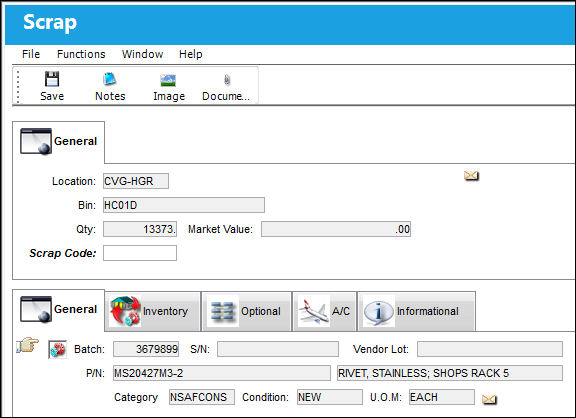
The following information/options are available in this window:
_____________________________________________________________________________________
Location
The Location for maintenance events, inventory stores, orders, transactions, or training events.
Bin
The specific storage bin within the inventory location.
Qty
The quantity of parts to be scrapped.
Scrap Code
Enter the Scrap Code for the transaction. A predefined pop-up selection window displays the Scrap Code System Transaction Code.
Market Value
The value of the item according to current market standards.
_____________________________________________________________________________________
Select the Save  button to finalize the process. A soft warning will appear if the part is not flagged as unserviceable. Financial journal entries are written and the Fixed Asset Records will adjust as required.
In the case of serialized items, the system will warn you if it re-appears back in the company from a Vendor.
A P/N scrap survey can optionally be set up, if desired. A Scrap Form will print out after selecting Save.
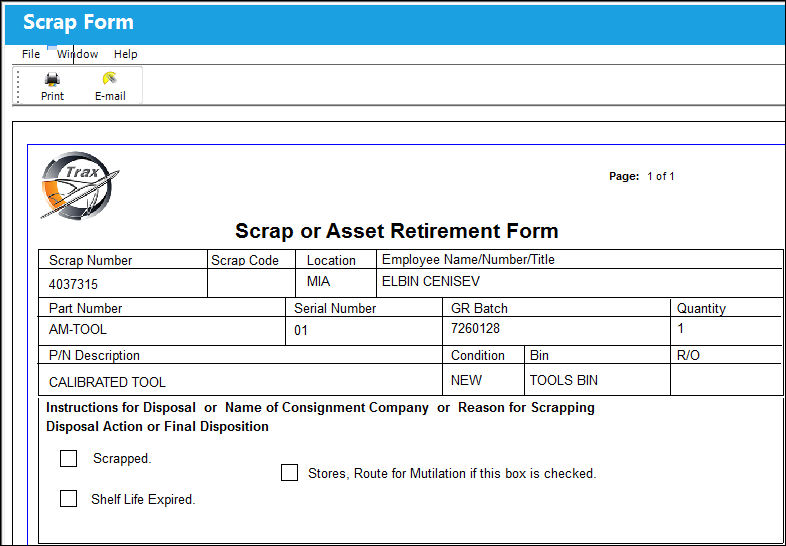

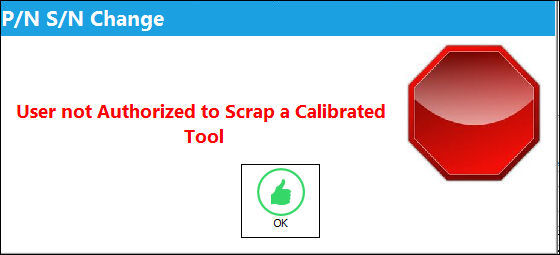
 This button is security controlled for calibrated tools through the Security Explorer via Inventory/ Update/ Inventory Transaction/ Scrap - Tool Calibration Control with Switch
  TOOLCALCONTROL set to Yes. For more information, refer to the Security Explorer via the System Administration Training Manual. Upon attempting to select the button without the necessary security, the following prompt will appear:
 With Switch SCRAP/AUTHORIZATION set to Yes, an Authorization process is enabled for the Scrap action that can be set up in the Scrap Code or Scrap Authorization Group System Transaction Code and conducted in the Scrap Authorization Explorer or the Scrap Authorization Group Explorer. For more information, refer to the Scrap Authorization.
Additional information can be included through the Notes  , Image
  , and Document Control
  buttons.
Share
Print
|
©1997-2026 Trax USA Corp. All rights reserved. This manual may not be copied, photocopied, reproduced, translated, or converted to any electronic or machine-readable form, in whole or in part, without prior written approval from Trax USA Corp. |
 |