
 Share
Share
 Print
Print
|
|
|
|
|


From the Inventory Transaction window, select the Tool Check Out  button to check tools out of inventory.
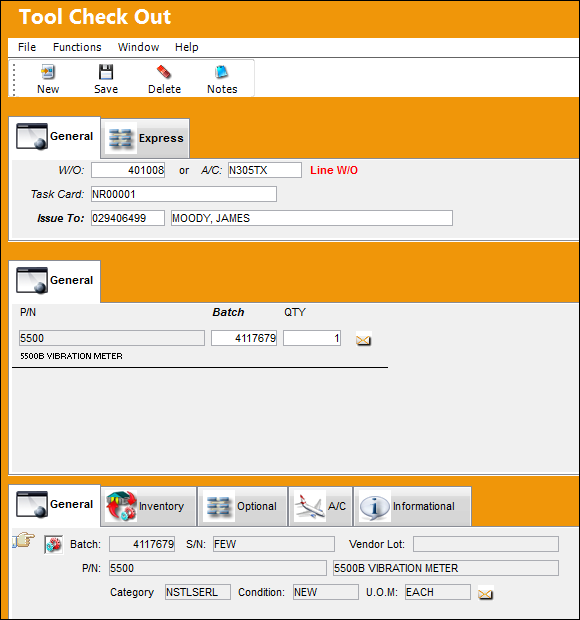
The following information/options are available in this window:
_____________________________________________________________________________________
W/O
The Work Order used to categorize, manage, and schedule work requirements for aircraft maintenance. The Work Order to be associated with the check out of this tool.
This field becomes mandatory with either Switch  MKTOWOMD set to Yes.
 This field becomes mandatory with Switch TOOLCKOUTMAN set to Yes, overriding the functionality of Switch MKTOWOMD.
A/C 
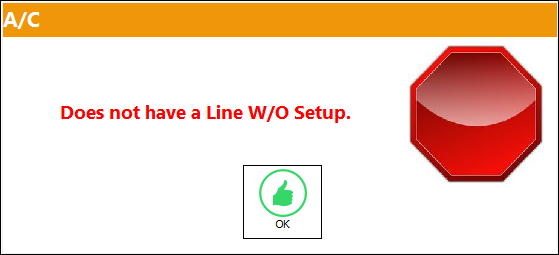
The individual aircraft tail number. This is the A/C the tool is being checked out to work on. When the A/C field is populated, the corresponding A/C Line Work Order will auto populate in the W/O field. If there are no A/C Line Work Orders set up for the A/C, the following hard warning appears:
Task Card
The Task Card / Job Card that details the scheduled maintenance work. The Task Card to be associated with the check out of this tool.
This field becomes mandatory with Switch TOOLCKOUTMAN set to Yes.
Issue To
The employee to whom the tool is issued.
P/N
The Part Number reference for the aircraft part. The Tool P/N.
Batch
The inventory number that is currently associated with a part or group of parts. A part's Batch number can change after various types of transactions take place.
Qty
The quantity of tool parts.
_____________________________________________________________________________________
Additional information can be included through the Tool Check Out, Express tab and the Notes  button.
TRAX displays the following warning prompts if correct conditions are not met:
"Tool Life has expired" - if the tool is beyond the tool life deadline.
"No Items Available" - if the tool is out on a Repair Order, pending Receiving Inspection.
"Batch is a Kit, Transaction is not allowed" - if the batch is an actual kit.
"Batch is part of an assembly. Transaction not allowed." - if the batch is part of an assembly.
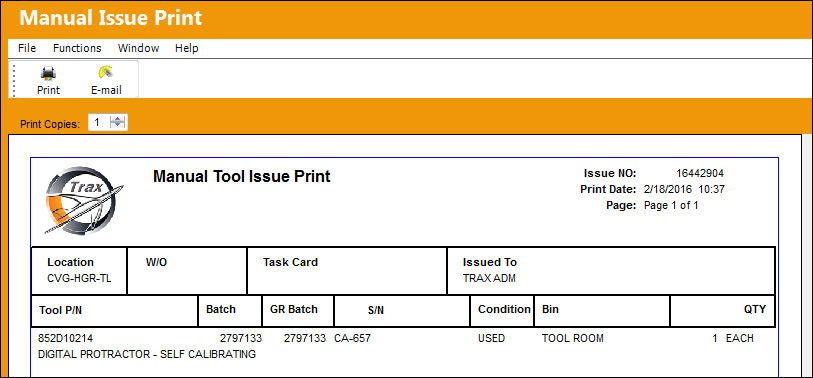
The Manual Tool Issue Print will appear for your records:
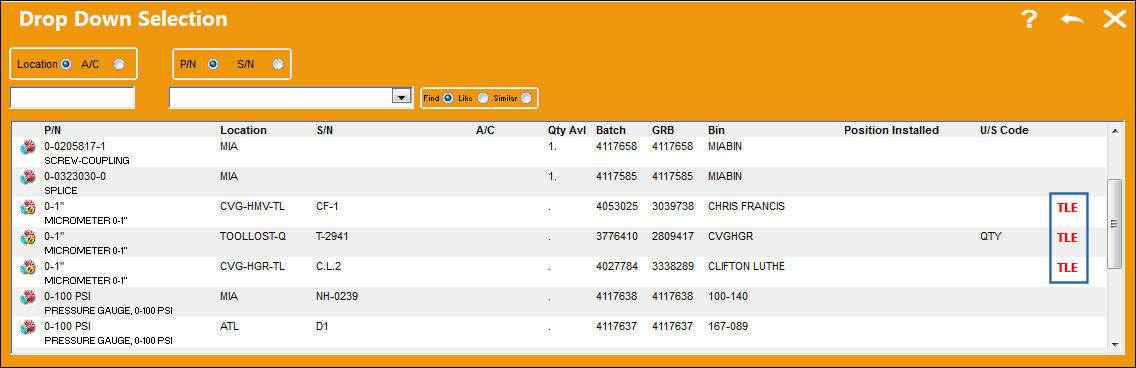
Tool Life Expired (TLE) Indicator:
When the user right-clicks in either the GRB or Batch field, the drop down selection window displays a warning notification indicating that the tool life has expired (TLE):
 Checking Out Tools with Expired Controls:
Users will receive a warning when attempting to check out a tool that contains an expired P/N Control or expired P/N Engineering Control. For example, notice the following tool has an expired P/N Control.
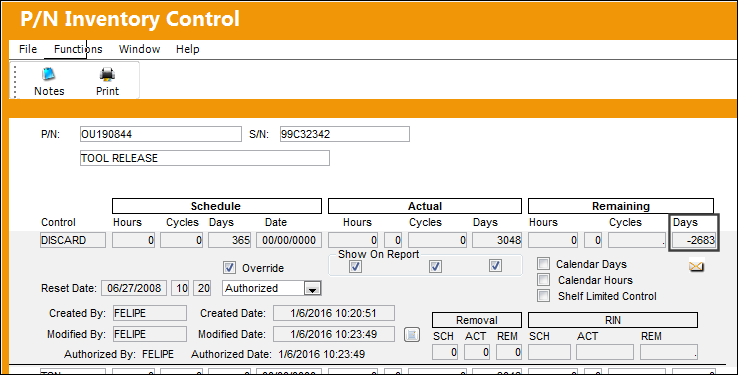
Depending on Inventory Switch MSGPLANDUE:
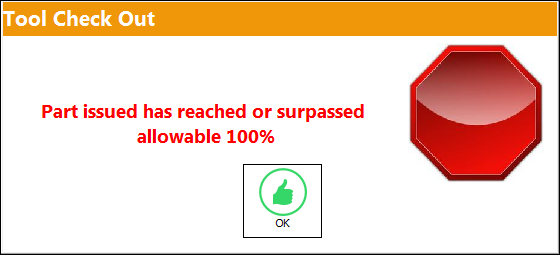
- when set to No users will receive a hard warning preventing the tool from being checked out,
- when set to Yes users will receive a soft warning which allows the tool to be checked out.
In this example, with the switch set to No, the following warning message prevents the tool from being checked out.
For more information refer to Switch MSGPLANDUE via the Inventory Switches Manual.
Share
Print
|
©1997-2026 Trax USA Corp. All rights reserved. This manual may not be copied, photocopied, reproduced, translated, or converted to any electronic or machine-readable form, in whole or in part, without prior written approval from Trax USA Corp. |
 |