
 Share
Share
 Print
Print
|
|
|
|
|


Selecting the Hold button  allows users to place parts or tools from a specific batch on Hold. Consumable and Serialized parts that are in Available status can be placed on Hold.
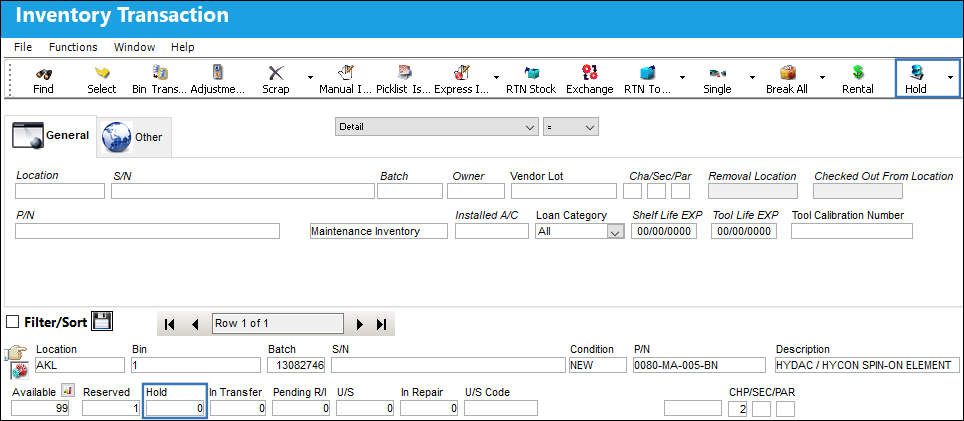
When the Hold button is selected for a batch, the Update Hold Status pop-up window shows the P/N, S/N (if applicable), current available quantity, and current hold quantity of that batch.
Only the New Qty Hold field will be manually updated in this window. All other fields will be auto-populated based on the amount added in this field.
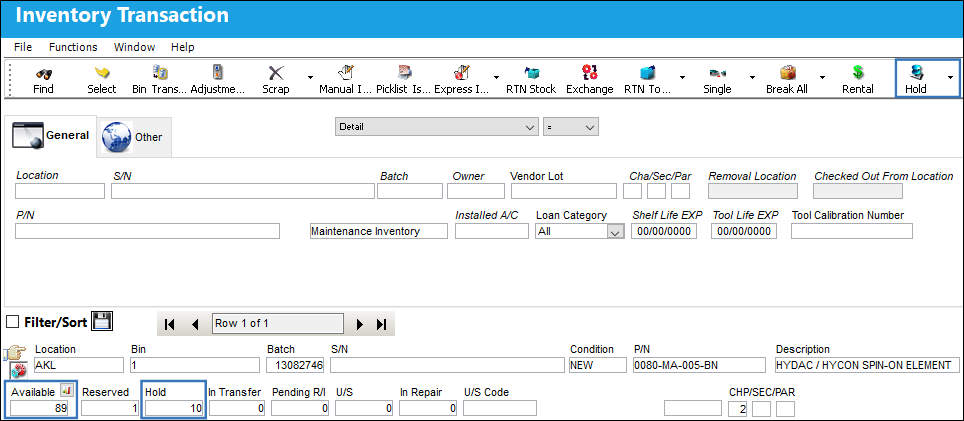
Enter the quantity of the part to be placed on Hold in the New Qty Hold field. Once saved, the Available quantity will be updated to reflect the amount of parts placed on Hold.
To bring partial quantity of parts off of Hold Status select the Hold button and input the quantity of parts in that batch that will continue to be on Hold. The number of parts in the Old Qty Hold field minus the number of parts entered in the New Qty Hold field will be the number of parts that come off Hold and return to Available status.
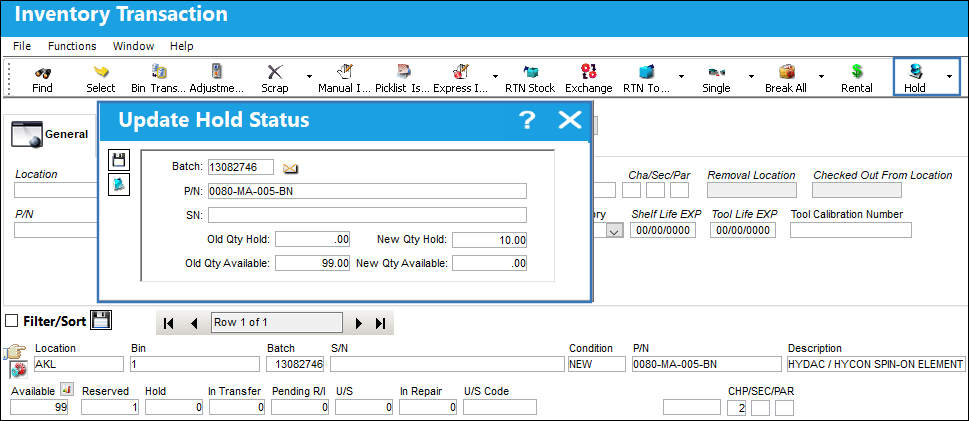
The following information/options are available in this window:
_____________________________________________________________________________________
Batch
The inventory number that is currently associated with a part or group of parts. A part's Batch number can change after various types of transactions take place.
Note: The Batch number will not changed when parts are placed on Hold.
P/N
The Part Number reference for the aircraft part.
S/N
The Serial Number for the specific serialized part.
Old Qty Hold
The quantity of the part that was previously on Hold.
New Qty Hold
The quantity of the part to be placed on Hold.
Old Qty Available
The quantity of the part that was previously available.
New Qty Available
The quantity of the part that is currently available.
_____________________________________________________________________________________
Once the Hold quantity is adjusted in the New Qty Hold field the Available parts and parts on Hold are reflected in their respective fields.
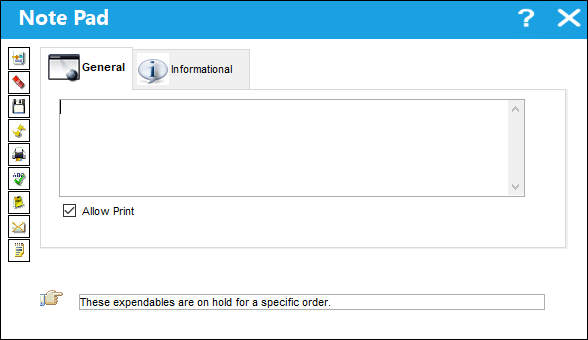
From the Update Hold Status window select the Notes  button to leave one or more notes regarding the status of the parts placed on hold.
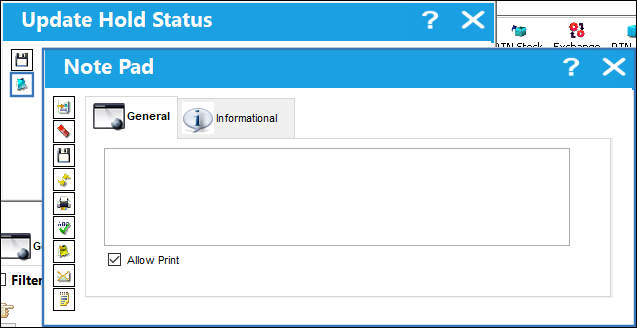
Previously created hold notes can be viewed by selecting the Hold button and then selecting the Notes button from the Update Hold Status window. From this window users can create additional notes and remove old ones.
Additional Hold button functionality
- The New Qty Hold field must be less than or equal to available inventory for that batch. The New Qty Hold field field can not be negative.
- If the user brings the Update Hold Status window back up by selecting the Hold button and the New Qty Hold field is left blank, then the system will prompt a soft warning, 'Qty On Hold will be put back to Qty Available, Continue?' If Yes is selected, all parts on Hold will return to Available status. If No is selected, the Update Hold Status window will remain open and unchanged.
- Decimals can not be used for the New Qty Hold field Unless the Unit of Measure Category is applicable.
- Only a quantity of one can be entered in the New Qty Hold field for rotable P/Ns. Installed Rotables cannot be placed on HOLD, because they are not Available.
- Only Kits as a whole can be placed on Hold. The NHK can be placed on Hold, but not the kit's NLKs. Only a quantity of one can be entered in the New Qty Hold field for Kits.
- Only NHA P/Ns can be placed on Hold (not NLAs that are installed on an assembly). Only a quantity of one can be entered in the New Qty Hold field for an NHA.
- Users cannot check out a tool that is on Hold and conversely checked out tools cannot be placed on Hold.
- Any parts placed on Hold will be reflected in the Transaction History for that batch with the 'UPDATE/HOLD/QTY' transaction type.
Share
Print
|
©1997-2026 Trax USA Corp. All rights reserved. This manual may not be copied, photocopied, reproduced, translated, or converted to any electronic or machine-readable form, in whole or in part, without prior written approval from Trax USA Corp. |
 |