|
TRAX MANUALS > Inventory > Inventory Module > Inventory, Update Menu > Inventory Transaction > Inventory Transaction Buttons > Adjustment Button, via Inventory Transaction
Adjustment Button, via Inventory Transaction
The Adjustment  button is a helpful tool to regulate and change stock quantities. This functionality should only be used to correct any discrepancy between the physical stock quantity and the system stock quantity calculated. button is a helpful tool to regulate and change stock quantities. This functionality should only be used to correct any discrepancy between the physical stock quantity and the system stock quantity calculated.
The Adjustment button works only with non-serialized parts. The Scrap  button must be used for serialized parts. Parts belonging to kits cannot be adjusted. button must be used for serialized parts. Parts belonging to kits cannot be adjusted.
Select the item required to adjust so that the Hand  pointer points at it and click the Adjustment button. pointer points at it and click the Adjustment button.
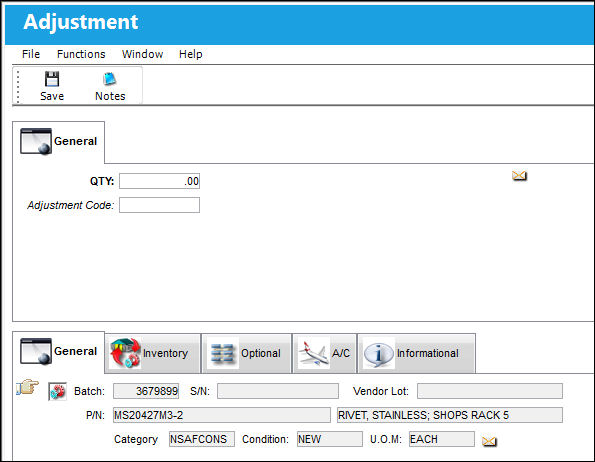
The following information/options are available in this window:
_____________________________________________________________________________________
QTY
Difference of the physical quantity as compared to the system quantity.
Adjustment Code
The Adjustment Code.
_____________________________________________________________________________________
Example: If TRAX shows 2 parts available but there are 5 in stock, enter 3. If the physical quantity is less than what is displayed in TRAX, enter the negative difference using the minus sign. For example, TRAX quantity is 3, but only 2 parts are on stock: enter -1 into the Qty field.
The system will write an inventory adjustment record for the financial transaction. If the user attempts to adjust the quantity to an amount that is greater than the quantity on the Purchase Order, the user will be warned with the following pop-up window:
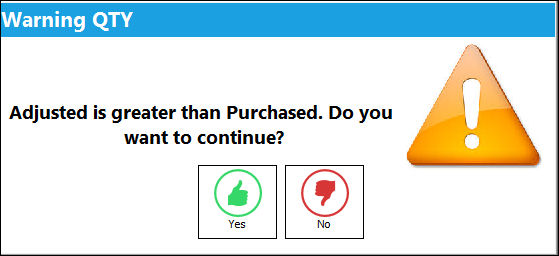
Select Yes to continue, or select No to return to the screen.
Select the Save  button. The system will prompt to print a new tag (if required). button. The system will prompt to print a new tag (if required).
After completing the process, TRAX will book the adjusted quantity into the system using the same batch number as for the record selected.
Note: This transaction cannot replace the receiving process, since it does not close the related order(s) in the system or create its own receiving record.
Only use this option to adjust a discrepancy between the physical quantity and the system calculated quantity.
Additional information can be included through the Notes  button. button.
|
In This Section Notes Button, via Adjustment |
See Also Inventory Transaction Buttons Bin Transfer Button, via Inventory Transaction Scrap Button, via Inventory Transaction P/N Missing Button, via Inventory Transaction Lost Button, via Inventory Transaction Manual Issue Button, via Inventory Transaction Picklist Issue Button [V15], via Inventory Transaction Picklist Issue Button, via Inventory Transaction Express Issue Button, via Inventory Transaction Express Issue Auto Button, via Inventory Transaction Return To Stock Button, via Inventory Transaction Exchange Button, via Inventory Transaction Return To Vendor Button, via Inventory Transaction Loan Return Button, via Inventory Transaction Return To Owner Button, via Inventory Transaction Owner Change Button, via Inventory Transaction Return From Customer Button, via Inventory Transaction Company Change Button, via Inventory Transaction Return to LHT Button, via Inventory Transaction Return From Quarantine Button, via Inventory Transaction Single Button, via Inventory Transaction Multi Button, via Inventory Transaction ASRS Transfer Order Button, via Inventory Transaction ASRS Multi Store Button, via Inventory Transaction Request Tray Button, via Inventory Transaction Break All Button, via Inventory Transaction Break P/N Button, via Inventory Transaction Re-Build Kit Button, via Inventory Transaction Build Multi Kit Button, via Inventory Transaction Rental Button, via Inventory Transaction Requisition Button, via Inventory Transaction Custom Duty Change Button, via Inventory Transaction P/N Master Button, via Inventory Transaction Interchangeable Button, via Inventory Transaction Order Button, via Inventory Transaction Bin Control Button, via Inventory Transaction Image Button, via Inventory Transaction P/N S/N Change Button, via Inventory Transaction Document Control Button Manual Button, via Inventory Transaction P/N-S/N Position Change Button, via Inventory Transaction Document Change Button, via Inventory Transaction P/N Detail Print Button, via Inventory Transaction P/N Initial Times Accrual Button, via Inventory Transaction Release From RO Button, via Inventory Transaction Import Software Button, via Inventory Transaction Bin Replace Import Button Notes Button, via Inventory Transaction Import P/N Birth Date Button, via Inventory Transaction Update Reserved Quantity Button, via Inventory Transaction Update Transfer Quantity Button, via Inventory Transaction Cycle Count Button, via Inventory Transaction Box Button, via Inventory Transaction Hold Button, via Inventory Transaction NLA Position Swap Button, via Inventory Transaction Tool Check-In Button, via Inventory Transaction (Tools Locator) Tool Check-Out Button, via Inventory Transaction (Tools Locator) Tool Concession Button, via Inventory Transaction (Tools Locator) Tool Calibration Change Button, via Inventory Transaction (Tools Locator) |
|

 Share
Share
 Print
Print


